

Audiences
What is an audience?
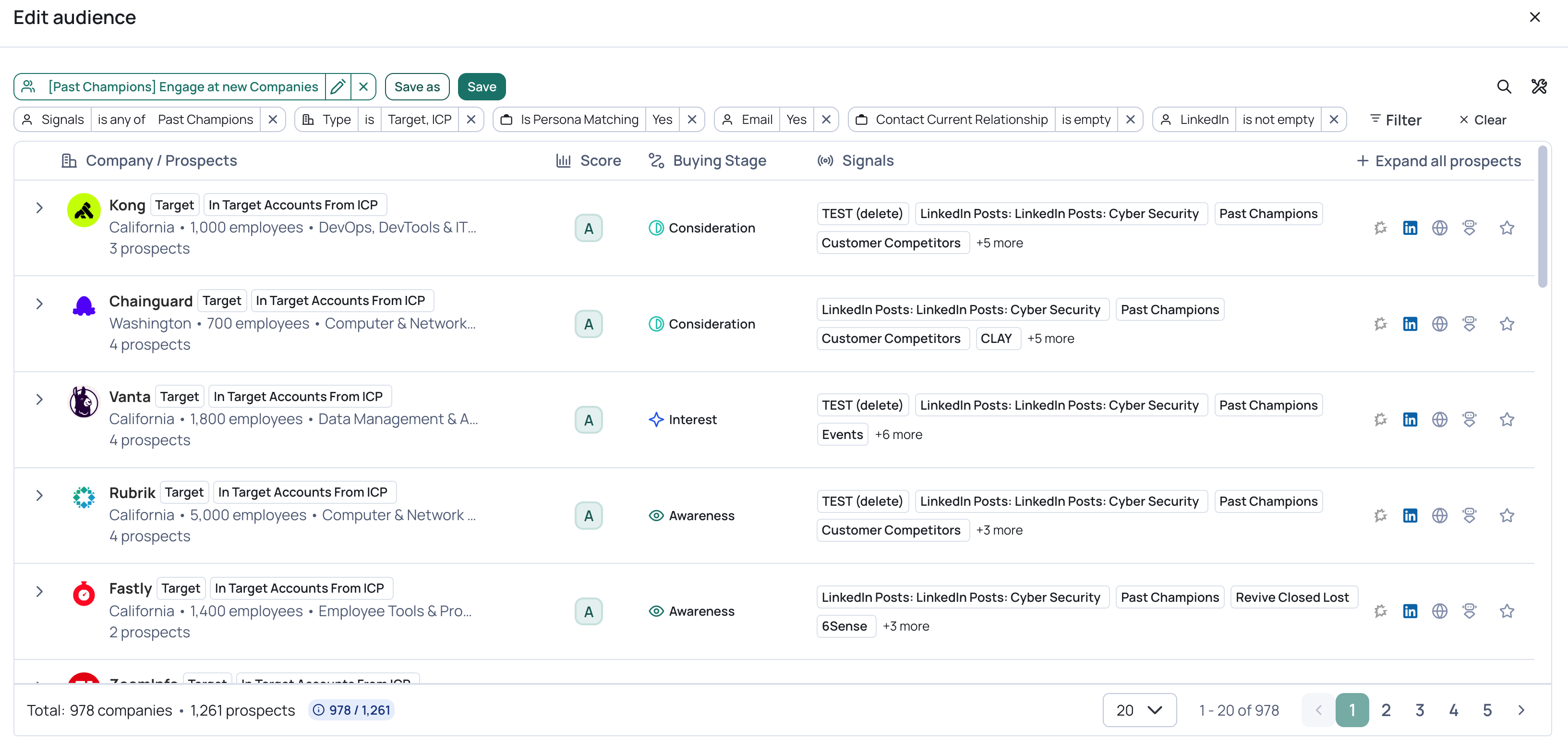
Think of an audience like a CRM report, but enriched with signal data and including net new prospects waiting to be created. A CRM report can only show you records that already exist. An audience shows you those same accounts and contacts layered with live signals (job changes, funding, buying-group gaps), plus the people UserGems has found who match your personas but are not in your CRM yet.
You define the criteria once (signals, personas, account categories, CRM fields) and UserGems keeps the audience current as new prospects match and old ones fall out. Audiences are dynamic by default. When a past champion lands at a new target account tomorrow, or an account crosses your score threshold next week, they enter the audience automatically. You never re-pull a list.
Why are audiences important?
Every campaign starts with an audience. It answers the first question of any play: who do you want to go after?
The quality of your audience determines the quality of everything downstream. A sharp audience means Gem-E writes relevant messaging, reps work warm prospects, and results are measurable. A vague audience means mixed intent, mixed messaging, and no way to tell what worked.
Audiences also let sales and marketing work from the same source of truth. The same audience can feed an outbound sequence for reps and sync to LinkedIn, Meta, or Google for marketing, so both teams hit the same prospects at the same time.
Where to start?
Start by defining your objective: who are you trying to reach, and what are you looking to communicate to them? Everything else in the audience follows from that answer. Ex: New prospects at high score accounts that we haven't engaged in at least 3 months via an Outreach sequence.
What can you filter by?
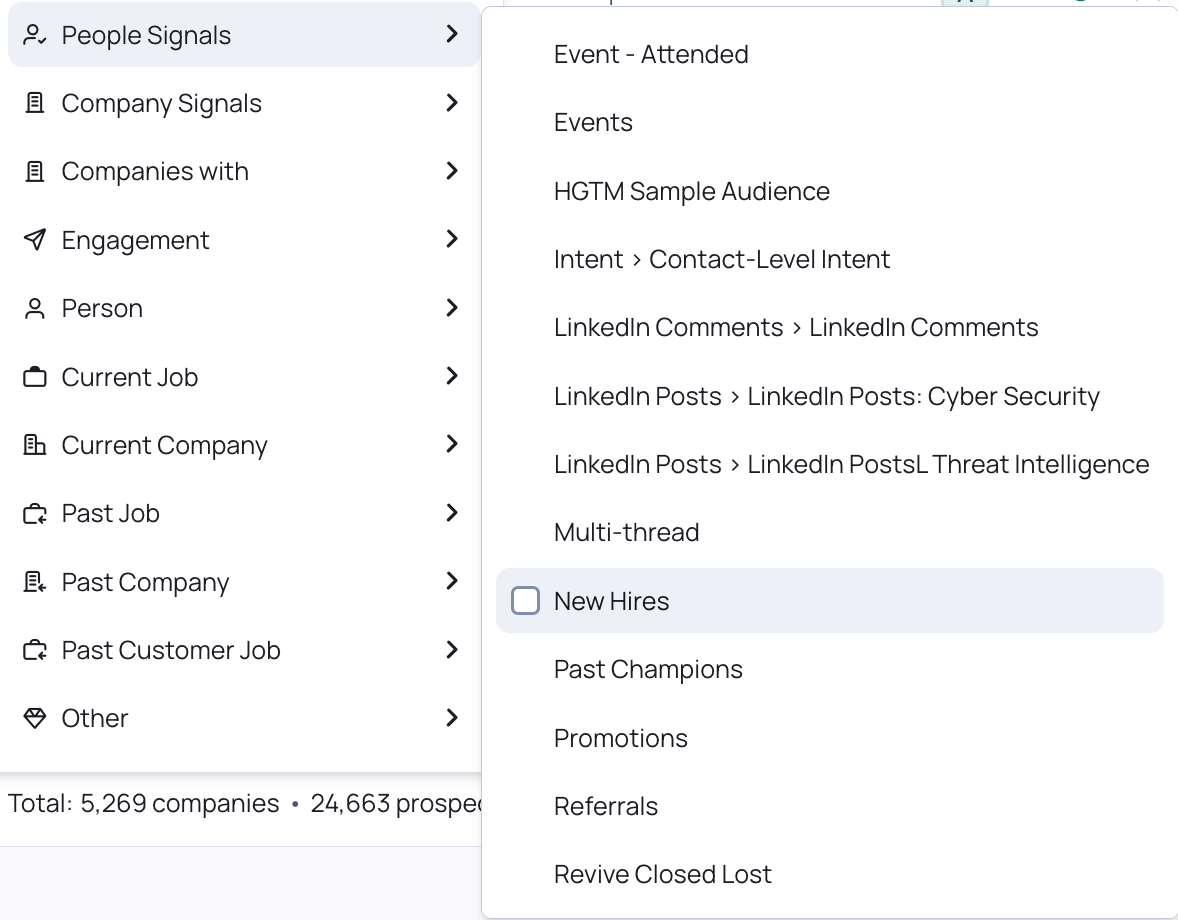
Audience filters are organized into groups. Here is what each group covers (examples, not exhaustive lists):
- People Signals. Person-level signals. Ex: Past Champions, New Hires, Promotions, and any first-party custom signals tied to a person (demo requests, event attendance).
- Company Signals. Account-level signals. Ex: Funding, M&A, Expansion, Partnership, Hiring, Tech Stack, Customer Competitors, and Research Agent signals.
- Companies with. Account composition filters: what exists at the company. Ex: accounts with a past champion present, a set number of persona matches, or open opportunities.
- Engagement. Your team's activity history with the prospect. Ex: whether they have been contacted, last activity date, sequence status.
- Person. Attributes of the person themselves. Ex: has email, location, whether they already exist in your CRM.
- Current Job. The prospect's present role. Ex: title, persona match, seniority, department, role start date.
- Current Company. The account they work at now. Ex: company type/category, company list membership, ICP fit, score, size, industry.
- Past Job. Their previous role. Ex: what title and seniority they held before the change.
- Past Company. Where they came from. Ex: useful for targeting people who left a customer or a competitor.
- Past Customer Job. Their relationship with you at a previous company. Ex: Closed Won contact, Admin, power user, NPS respondent, and which relationship applies.
- Other. Ex: fields imported from your CRM (prefixed "Account.", "Contact.", or "Lead.") and anything that does not fit the groups above.
Filter logic
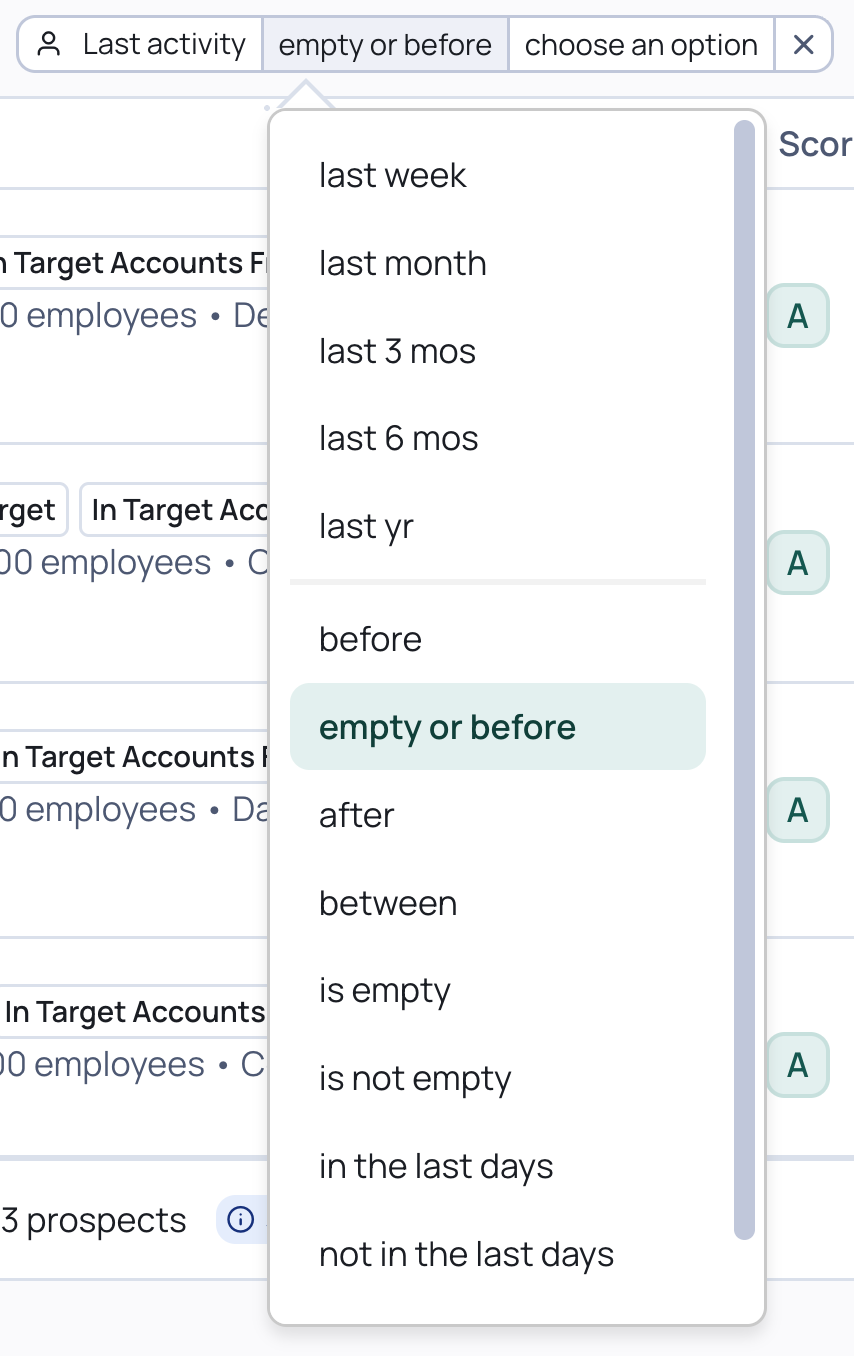
Every filter comes with operators that control how it evaluates:
- Value filters (type, list, persona, score, signal) use is / is not, and for multi-value picks, is any of / is none of. "Is" narrows to the values you select; "is not" excludes them and keeps everything else.
- Date filters (last activity, role start date, signal date) let you pick relative ranges (last week, last month, last 3 mos, last yr), absolute comparisons (before, after, between), rolling windows (in the last X days, not in the last X days), and whether the field is empty (empty or before). "Empty" matters: a prospect with no activity date has never been touched, which is often exactly who you want.
The same audience goal can usually be expressed both ways. If you want net new business only, you could set Company Type IS Target or ICP, or Company Type IS NOT Customer, Open Opp, Disqualified. Both work; "is not" is safer when new categories might be added later, "is" is safer when you want tight control.
Important: Most common filters
These tend to be the building blocks for the vast majority of campaigns:
- Current Company > Company Type. Which account category the prospect's company belongs to: Target, Customer, Open Opp, or Disqualified. This is the swim-lane filter that keeps target-account messaging away from customers.Example: Company Type IS NOT Customer, Open Opp, Disqualified, for a net new business campaign.
- Current Company > Company List. Restrict to a specific uploaded account list or report, for example a named account list or an event target list.Example: Company List IS "2026 Named Accounts" to keep the campaign inside your named list.
- People Signals. Trigger on person-level signals: past champion landed, new hire, promotion, or a first-party signal like a demo request.Example: People Signals IS Past Champion for a champion-landed play.
- Company Signals. Trigger on account-level signals: funding, M&A, hiring, expansion, customer competitors.Example: Company Signals IS ANY OF Funding, Hiring to catch accounts with fresh budget and growth.
- Engagement > Last Activity (Prospect). How recently your team touched this prospect. Used to target people who have gone quiet or to avoid interrupting active conversations.Example: Last Activity IS empty or before last 3 mos, so you only re-engage prospects who have gone cold or were never touched.
- Person > Has Email. Whether UserGems has an email address for the prospect. Required to be Yes on any audience feeding an email sequence.Example: Has Email IS Yes on every sequencing campaign.
- Person > People In CRM. Whether the prospect already exists in your CRM. Filter to net new people to grow coverage, or to existing records to work what you have.Example: People In CRM IS No to focus on net new prospects UserGems will create.
- Current Job > Persona. Which of your defined personas the prospect falls into, so each persona can get its own campaign and messaging.Example: Persona IS "RevOps Leader" so the messaging can speak that persona's language.
- Current Job > Persona Matching. Whether the prospect matches a persona at all. The broad include/exclude switch for persona fit.Example: Persona Matching IS True to keep any non-buyer titles out of the sequence.
- Current Company > Company Score. The account's grade (A through D). Focus campaigns on A/B accounts, route C to nurture.Example: Company Score IS ANY OF A, B for your highest-priority outbound.
- Engagement > Contacted. Whether anyone on your team has ever reached out. The standard guard against double-touching prospects already being worked.Example: Contacted IS No so reps never collide with an active conversation.
Where a customer's audiences typically differ from the defaults is by layering in additional filters imported from their CRM (found under Other), such as open opportunity counts, ARR, or region.
Example: building an audience end to end
Say you want a campaign for net new prospects at grade A and B accounts, added straight to a sequence. The audience:
- Head to the audiences tab: https://app.usergems.com/audiences
- Add the filters:
- Company Score IS A, B — only your best-fit, best-timing accounts get this effort. C and D accounts route to broader nurture instead.
- Company Type IS NOT Customer, Open Opp, Disqualified — this is a new business play. Customers belong in expansion campaigns, open opps in acceleration, and disqualified accounts (competitors, partners) should never get sequenced.
- Person > People In CRM IS No — you want the net new people UserGems found, not records your team already has. These prospects get created in your CRM by the workflow.
- Persona Matching IS Yes — every prospect sequenced actually looks like a buyer. Without this, non-buyer titles at great accounts leak into the sequence and drag reply rates down.
- Has Email IS Yes — the action is an email sequence, so anyone without an address would just fail the sequence step.
- Hit Save As, give it a name, and you've got your first audience!
Five filters, each mapped to either the objective (net new, best accounts, real buyers) or the action (sequencing needs an email). Nothing decorative. That is what a well-built audience looks like.

Campaigns
What are campaigns?
A campaign is what happens to an audience. Once a prospect or account matches your audience, the campaign's workflow takes the actions: creating records, assigning owners, sequencing, notifying, and messaging. The audience is the who; the campaign is the what happens next. Workflows are the execution engine underneath every campaign.
Action types
Every campaign starts with an audience. From there, you toggle on the action types the workflow should take: Simply hit "add action" to show the full list. A few examples below:
- Create or update CRM records. UserGems creates the contact or lead per your CRM export settings and can update fields on Contacts, Leads, or Accounts.
- Assign an owner. Route to the account owner, another owner field, a round robin, or the DRI configured in your UserGems settings.
- Add to a sequence. Auto-sequence to Outreach or Salesloft, with Gem-E smart messaging writing a personalized email per prospect from the signals at that account and contact. For other SEPs, use their Salesforce integration.
- Send notifications. Email or Slack alerts to the DRI or account owner so they know their next step, with imported CRM fields available as variables (e.g., show ARR in the alert).
- Add to a Salesforce campaign. Keep attribution and reporting clean.
- Create CRM tasks. Queue rep follow-up directly in the CRM.
- Sync to ad platforms. Marketing can send the same audience to LinkedIn, Meta, or Google.
Make sure every action you want is toggled ON, delete the ones you do not need, set the schedule (daily, weekly, or monthly), and test with a limit of about 5 prospects before activating.

Action conditions
Actions do not have to treat the whole audience the same way. Action conditions let you add filter branches inside a single action, so the same step behaves differently for different subsets of the audience.
Each condition is a Try / Then chain: the action tries the first condition, and if the prospect does not match its filters, falls through to the next. Take an Assign Owner step:
- Try: Assign to John when Country is North America
- Then: Assign to Alex for everyone who falls through
Within each branch you configure the full action: which owner field to update (e.g., Current Contact: Owner ID), who to assign to (a specific user, or an owner field), and fallback owners in case the assignee is inactive or unassigned. Click + Add condition to add more branches, and check Skip Action if no filter is met if prospects matching no branch should simply skip the step rather than hit a catch-all.
This is what makes one campaign serve segmented routing without splitting into multiple workflows: territory-based assignment, different sequences per persona, region-specific notifications, all as conditional branches on the same actions. If you find yourself cloning a campaign just to change who gets assigned or which sequence fires, action conditions are usually the better answer.

Top Campaigns
- Named Account Prioritization. You have a defined target account list. This campaign watches those named accounts for signals (past champions landing, funding, hiring, buying-group changes) and tells reps which named accounts to work right now instead of cycling the list alphabetically.
- Existing Account Prioritization. No named accounts? Start with accounts already in your CRM with history: closed lost opps, past evaluations, dormant relationships. Signals like Revive Closed Lost and job changes among people who knew you surface which old accounts are worth reopening.
- Net New Account Prioritization. Finds accounts you have never talked to. UserGems scans beyond your CRM for ICP-fit companies showing signals, so your best future customers enter the pipeline before competitors see them.
- Competitive Takeover. Targets accounts using your competitors. Built on the Customer Competitors and Tech Stack signals: companies that compete with your best customers, or run a competing tool, get focused displacement messaging.
- Deal Acceleration. Runs on open opp accounts. Multi-Thread surfaces missing members of the buying committee, job changes mid-deal get flagged before they stall the opp, and reps multi-thread instead of riding a single contact.
- Customer Expansion. Runs on customer accounts. New hires and promotions inside customers, expansion and M&A signals, and champions moving between customer business units all become expansion conversations for your CS and sales teams.
- Marketing Nurture. Syncs signal-driven audiences to LinkedIn, Meta, or Google so prospects see air cover while (or before) sales reaches out. Same audience, second channel.
- Inbound Nurture. Built on your first-party custom signals: demo requests, warm MQLs, event attendees, website visitors. The campaign routes them to the right owner fast and sequences them while intent is hot, instead of letting inbound sit in a queue.
- Events. Runs on event data as a custom signal: registrants, attendees, no-shows, and booth scans. Pre-event campaigns book meetings before anyone lands; post-event campaigns follow up while the conversation is fresh, with different messaging for attendees vs. no-shows. One of the most common first-party plays.
Example: building a campaign end to end
Here is a Named Account Prioritization campaign, from audience to sequence:
- Head to the campaigns tab: https://app.usergems.com/campaigns
- Click create new campaign:
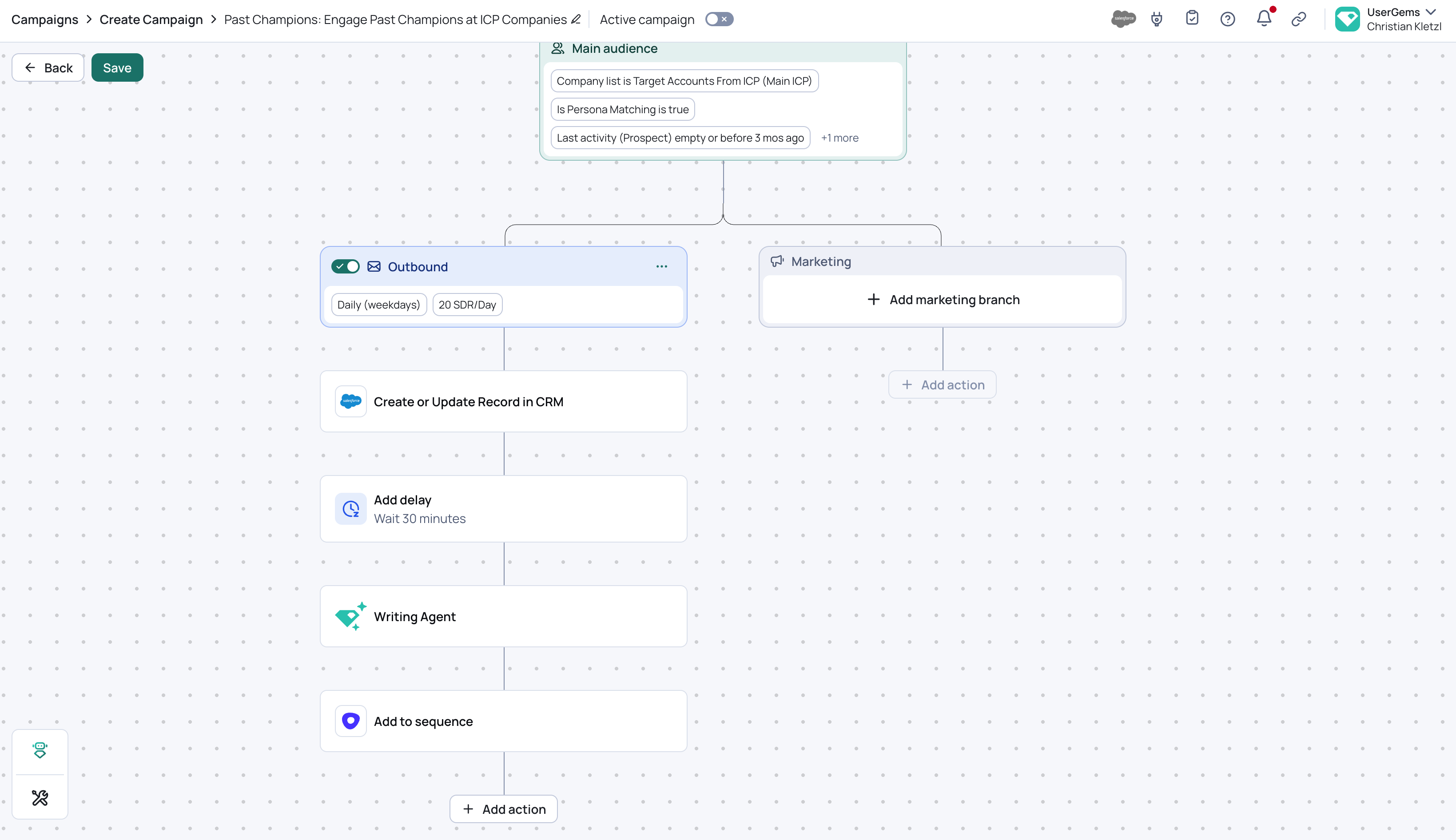
- Create the audience. Company List IS your named account list, Persona Matching IS True, Has Email IS Yes, Last Activity empty or before Last 3 Months. This surfaces the buyers worth acting on inside your named list, instead of working the list top to bottom.
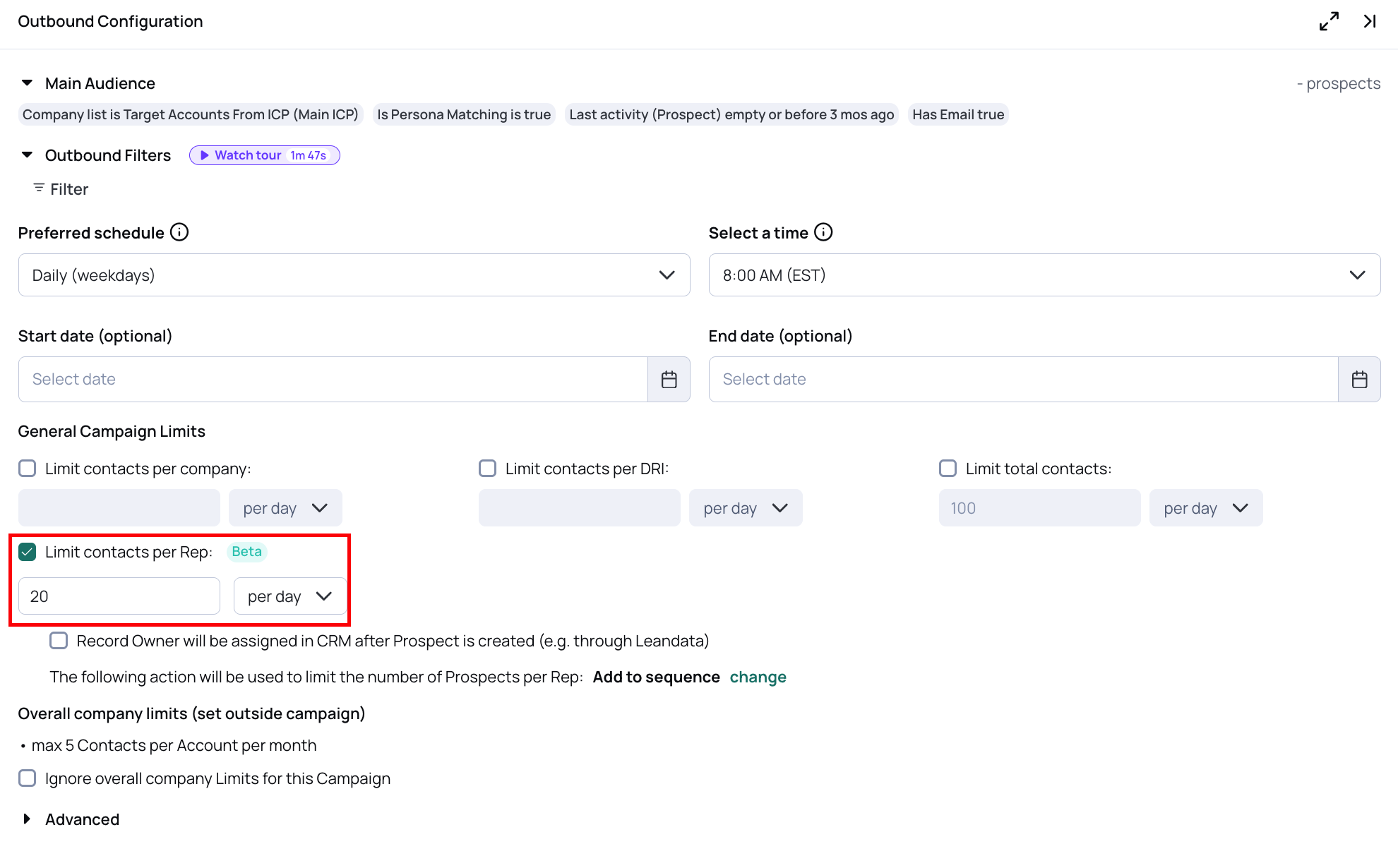
- Set the schedule and limits. Pick the run cadence and cap the volume, for example 20 prospects per day per rep. Limits keep reps from getting buried on day one and keep sending volume inside deliverability guardrails.
- Add a create record step. The prospect gets created in your CRM per your export settings: right record type, right owner, required fields mapped. Everything downstream references this record.
- Add a delay. Give the CRM record time to sync and route before any outreach fires, so sequences never reference a record that does not exist yet.
- Add a writer agent step. Chat with the AI on messaging for this campaign: the angle for named accounts, proof points, banned phrases, CTA. The writer agent then generates a personalized email per prospect from their signals.

- Add an add-to-sequence (or cadence) step. Then just select the sequence you want to push them into. The prospect lands in the right Outreach sequence or Salesloft cadence with the generated messaging, assigned to the right sequencer.
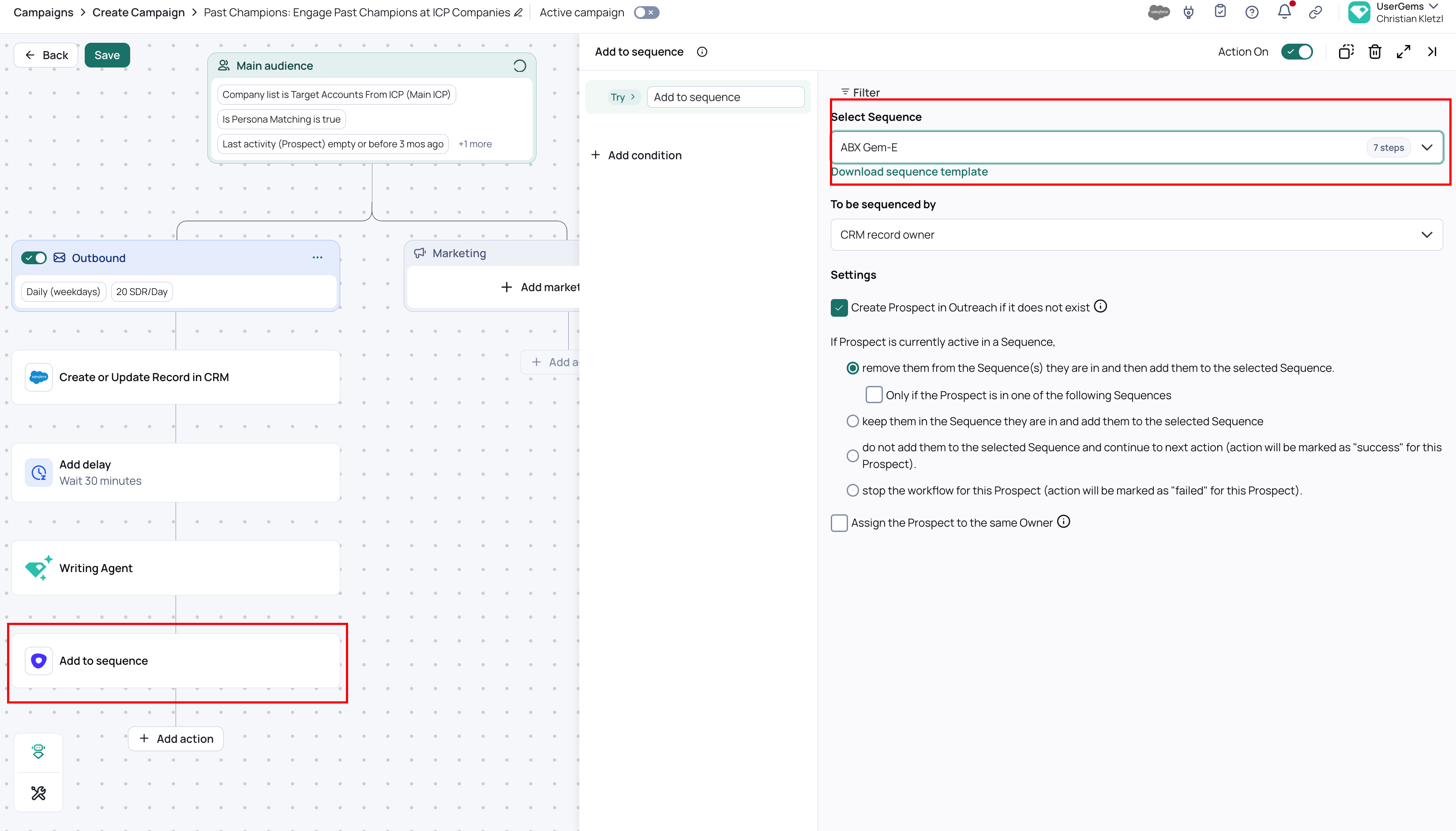
Audience decides who, schedule decides how fast, and the ordered steps (record, delay, message, sequence) make sure every prospect arrives in the rep's world fully formed: in the CRM, owned, and with messaging ready.
Before you launch
- Make sure all actions are activated.
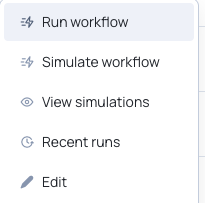
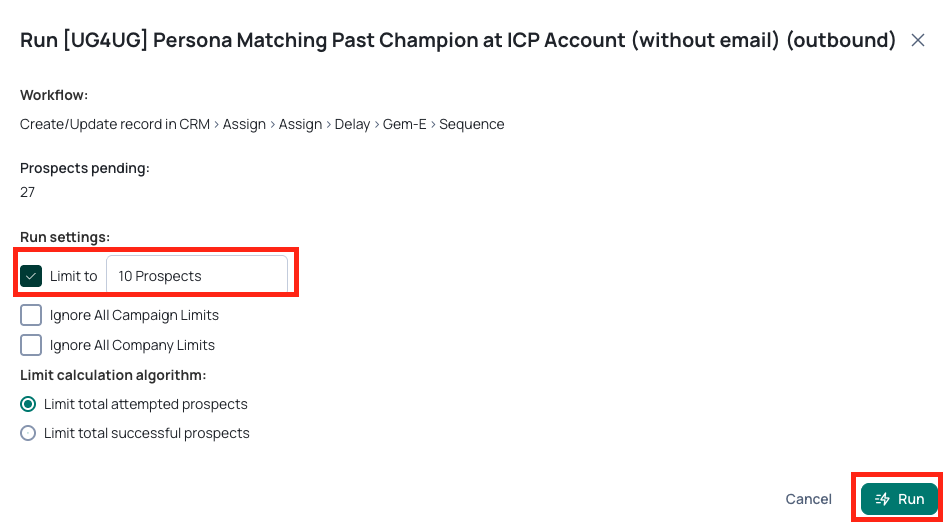
- Run a test of 5-10 records waiting in the audience -> on the campaigns page, click the 3 dots on the far right of the campaign tile, click "run workflow", select the "limit to" check box, enter the limit you want to set for the text, hit 'run'.

- Check for workflow errors -> On the campaign tile, see if there is a red notification badge count. If yes, click "view log", this will tell you what the error is.
Important: Workflow errors don't necessarily mean the workflow is broken. They're often caused by a missing audience filter or a correct system rejection (ex: person already in sequence). Example: if your workflow has an "add to sequence" step but your audience lacks a "Has Email" filter, every prospect without an email will fail at that step. That's fixable with a simple filter. Other errors, like sequence failures due to a group record owner or CRM record creation failures, warrant deeper investigation.

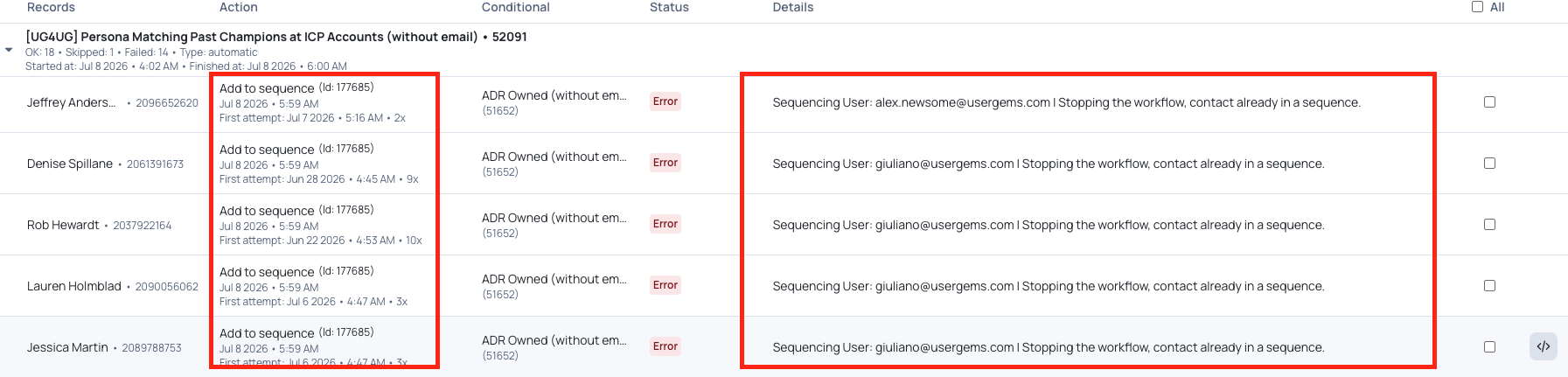
- Make sure all actions ran as intended --> Important workflows take time to run especially if you've added a delay action. Allow for an hour or so, and check the audit logs before confirming all actions ran as intended. Then check if the prospect actions occurred: Ex: added to right sequence, assigned to right person, notification sent etc.
- If all actions ran Is intended and workflow errors are either irrelevant or fixed in the audience go ahead and activate!