

Conditional Actions let you define different outcomes inside a single workflow action based on prospect or account criteria. This helps you streamline and consolidate duplicate workflows and keep campaigns simple, flexible, and easier to manage.
You can use any supported prospect filters to control what happens for different groups. For example, you can route prospects by region, update different CRM fields, or send notifications only when specific conditions are met (see common use cases for more details)
Supported Actions
You can add conditional variants inside the following workflow actions:
- Assign Owner
- Update SEP Fields
- Add to Sequence
- Update CRM Fields
- Add to CRM Campaign
- Add CRM Task
- Send Slack Notification
- Send Email Notification
- Send to Webhook
How Conditional Actions Work
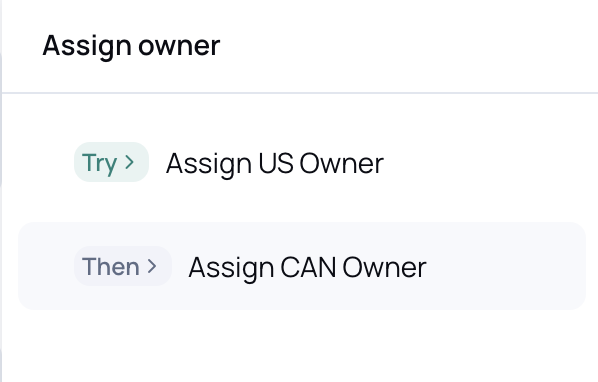
1. Add and name your variants
Inside a supported action, select Add condition to create additional variants. Give each one a clear name such as Assign US, Assign EMEA, or Slack Alert: New Contact Only.
Each variant represents a different “branch” of the same action.
2. Define the condition
Use any standard audience filter, such as:
- Country or region
- Persona
- ICP match
- Industry
- CRM field values
- Prospect attributes and signals
Each variant can have its own condition. You can create as many as you need.

3. Configure the action settings
For every variant, define what should happen when its condition is met.
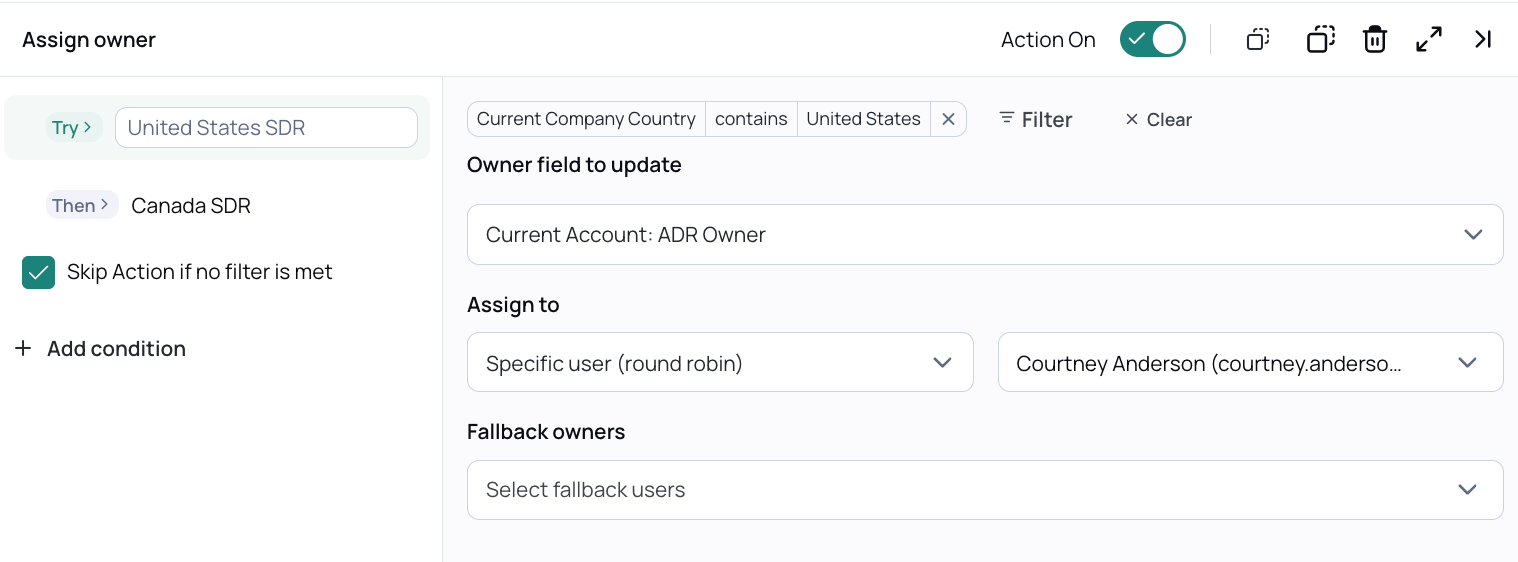
Example: Assign Owner
- Variant name: Assign US
- Filter: Country contains “United States”
- Action: Assign to → Caroline (US ADR)
Prospects who match this filter will follow this variant.
4. Add an optional fallback
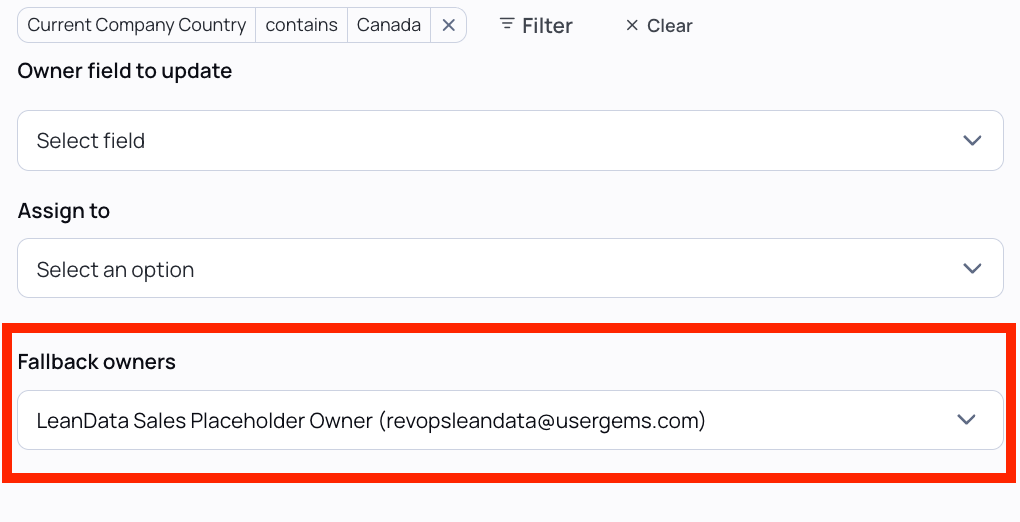
You can add a variant with no filters to act as a catch-all (fallback).
Fallbacks are helpful when you always want the action to run, even if none of the specific conditions apply.
Example:
- Fallback variant (no filters): Assign to LeanData Placeholder
5. Choose behavior when no condition is met
If a prospect does not match any variant, you can control what happens.
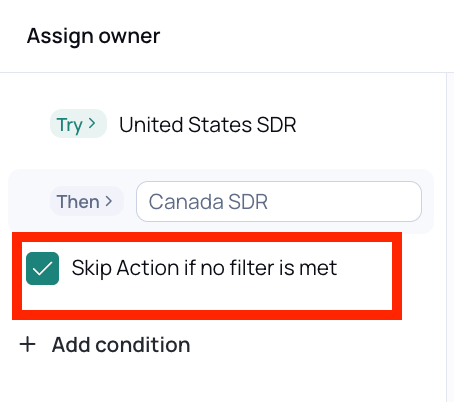
- Checkbox: “Skip this action if no filter is met” (default).
The workflow continues, but no action is taken for this step. If this is left unchecked and no filter is met, then the workflow will fail for the prospect.
This gives you flexibility depending on how strict your campaign logic needs to be.
Common Use Cases for Conditional Actions
You can use Conditional Actions anywhere you need different outcomes for different groups, without creating multiple workflows.
Route records based on ownership or geography
- Assign prospects to different owners by country or region.
- Example: Route US prospects to a US ADR, EMEA prospects to an EMEA ADR, and send everything else to a fallback owner.
Update different CRM fields based on criteria
- Apply different field updates depending on persona, ICP tier, or lifecycle stage.
- Example: Set Lead Source differently for inbound vs outbound prospects.
Control who enters a sequence
- Add only qualified prospects to a sequence while skipping others.
- Example: Add ICP-matched prospects to an outbound sequence and skip non-ICP records.
Send notifications only when conditions are met
- Trigger Slack or email notifications only for specific events or profiles.
- Example: Send a Slack alert only when a net-new prospect is created, not for updates.
Understanding the checkbox: “Skip Action if No Filter is Met”
Inside any Conditional Action, you can control what happens when a prospect does not match any of the conditional variants.
You’ll see a setting at the bottom of the action (checkbox):
On (default): The workflow continues normally, but this specific action is skipped for prospects that do not match any variant. Nothing is assigned, updated, or sent.
When to keep this ON
- You have a fallback variant configured,
- You only want certain people to receive notifications or be updated (e.g., Slack messages for new-only contacts).
- You want workflow execution to continue even if no condition applies
Off: The workflow stops and reports an error if the prospect fails to match any variant. This is helpful when the action is required and should never be skipped.
When to turn this OFF
- The action must run for every prospect.
- Missing a match indicates a routing or filter configuration issue you want surfaced immediately.
Example Scenarios: When VS When Not to Use “Skip Action”
#### Example 1: Only run the action for some prospects
Use case: Send a Slack notification for website visitors only if an account is owned by an AE.
Setup:
- One condition (Account is owned by Account Executive)
- *No fallback*
Skip = ON (recommended):
Prospects at an account owned by an AE will get a Slack message.
Everyone else simply skips this step.
Skip = OFF:
Prospects at an account not owned by an AE cause an error.
#### Example 2: Always run the action
Use case: Always assign someone to an account, even if no conditions match.
Setup:
- US condition
- EMEA condition
- *Fallback with no filters*
Skip = OFF:
Skip OFF if you have the conditions above. .
The fallback always catches unmatched prospects and the action always runs.
If you need every record routed – you’ll never see errors (you won’t know that contacts didn’t get properly routed)
#### Example 3: Require all prospects to matcha defined condition
Use case: You want to force correct routing and want errors if a record doesn't fit any condition.
Setup:
- US condition
- EMEA condition
- No fallback
Skip = ON:
Unmatched records skip this action quietly.
Routing errors are not surfaced.
Skip = OFF (recommended for this case):
Unmatched records cause an error.
This helps catch incomplete or incorrect routing rules.
Best Practices
- Order matters. Conditions run from top to bottom (waterfall logic) ,.
- Use clear names. Make each variant easy to identify at a glance.
- Use a fallback when appropriate. This prevents missed assignments or incomplete steps.
FAQ
How does Conditional Actions decide which variant to run?
Conditions run from top to bottom. The first matching condition is used.
What happens if multiple conditions are true for the same record?
Only the first matching condition executes. All others are skipped.
What happens if no filters match?
Based on your selection:
- The action is skipped (default), or
- The workflow throws an error and stops for that record.