Connecting Salesforce for Proof of Concept (POC)
Who can connect UserGems to SFDC?
- Any user with the OOTB “System Administrator” profile
- Any user with the “Approve Uninstalled Connected Apps” permission
- Can be granted via assigned Profile or Permission Set
- This specific permission can be revoked after initial connection is made
Since this is for Read Only access, you may also connect a user with minimum necessary access. If this route is preferred, please ensure the connecting user has the permissions outlined in this article.
What type of connection is established for a Proof of Concept?
- The connection is Read Only and allows UserGems to access Salesforce reports that you have created for the POC
- Depending on the scope and desired outcomes of your POC, we generally request data on Closed Won and Closed Lost Opp Contacts, Target Accounts, Open Opp Accounts, and Customer Accounts. Discuss with your Account Executive and Solutions Engineer.
Steps to connect UserGems:
- Assign permission temporarily: Have a system admin connect OR give a trusted user Approve Uninstalled Connected Apps via permission set or profile setting (this permission can be removed after the app is installed if applicable)
- Listed under “System Permissions”
- Important: If you have a custom system admin profile, you will need to manually add the above Approve Uninstalled Connected Apps permission to it
- Also note: If your SFDC org has “API Access Control” enabled, then the above permission will not work. In this case, the connecting user needs the permission “Use Any API Client” assigned before connecting.
You can check if SFDC has enabled “API Access Control” in your org by searching this in the Quick Find search in Setup. If nothing shows up, this is NOT enabled.
- Authorize & Install:
- (a) User with permission from step 1 connects app using POC sign up link
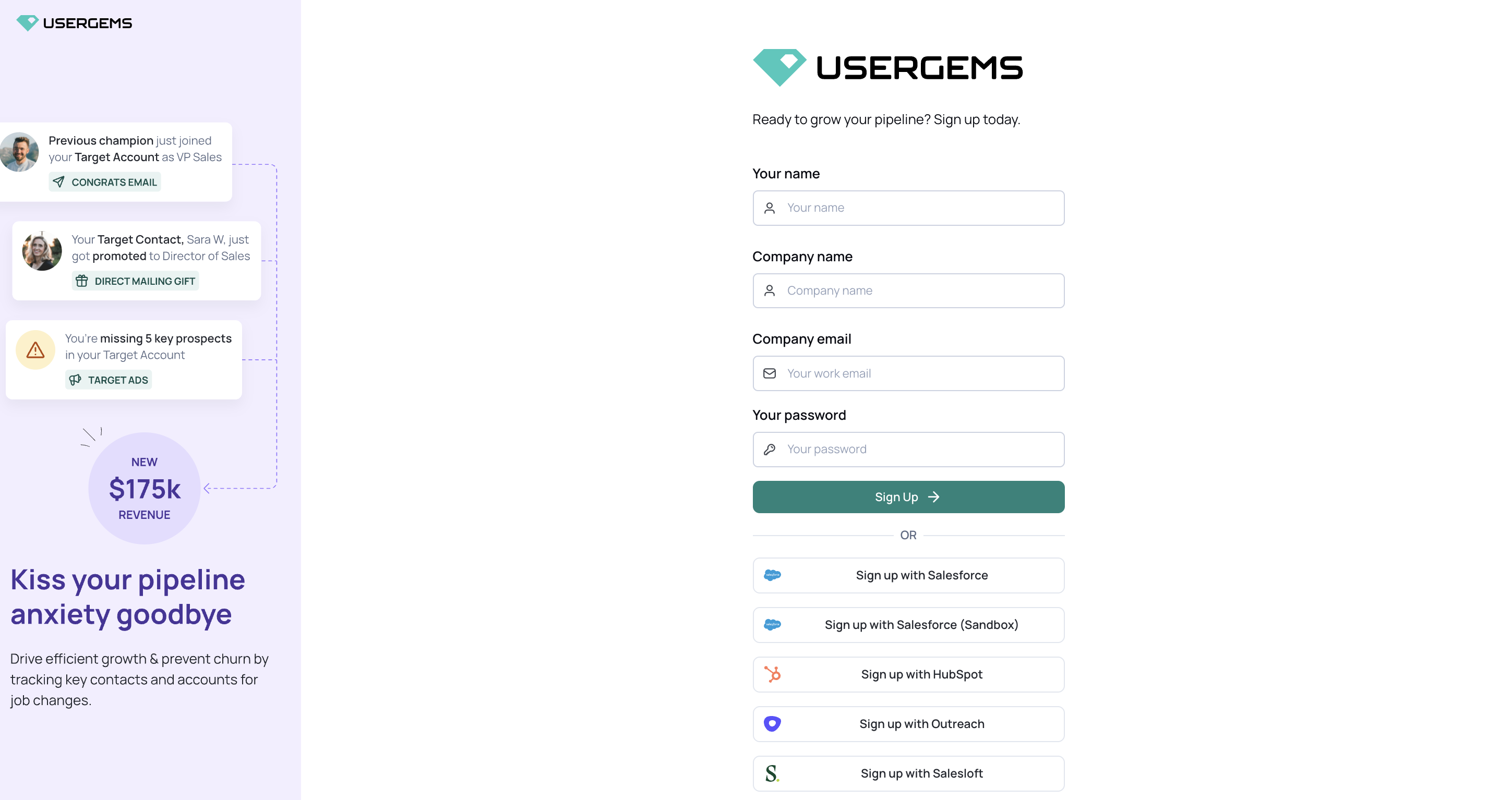
- Select “Sign up with Salesforce”
- (a) User with permission from step 1 connects app using POC sign up link
- (b) SFDC Admin then goes to Setup → Connected Apps OAuth Usage and clicks Install for the “UserGems” app so it’s registered in the Salesforce org.
- “UserGems” may be listed alphabetically OR towards the very bottom of the list

- Define Permitted Users: In Setup -> Manage Connected Apps…find “UserGems” then…
- Set Permitted Users = All users may self-authorize (default)

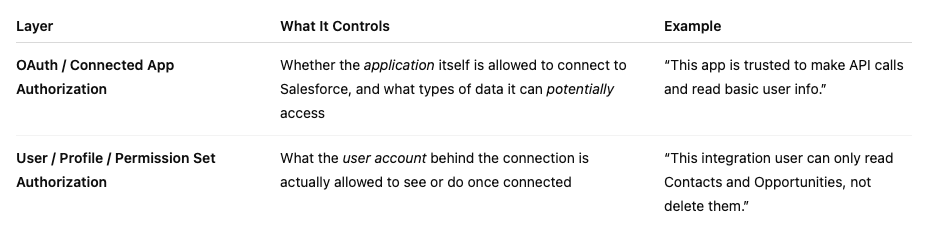
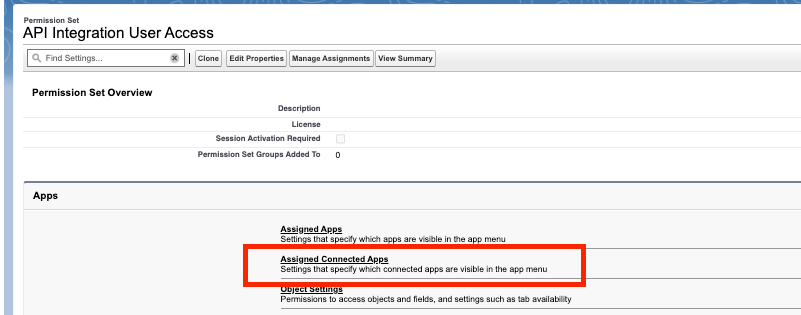
If set to Admin approved users are pre-authorized, you must assign a Profile or Permission Set to the intended users with “UserGems” added in the “Assigned Connected Apps” section
More on the “Approve Uninstalled Connected Apps” permission
What it means:
- Lets a trusted user (usually a System Administrator) proceed with OAuth to an uninstalled connected app (Salesforce).
Who needs it:
- The user in the customer’s org who is doing the connection. Standard System Administrator profiles got this automatically in Summer ’25; cloned/custom admin profiles did not.
What specifically does clicking "Install" do for a connected app?
- The connected app already exists in Salesforce (it’s been registered with OAuth settings and permissions).
- Clicking “Install” begins a trust or authorization process, where you:
- Approve the app’s access scopes (e.g., read contacts, manage data, etc.)
- Allow specific profiles, permission sets, or users to connect through that app.
- After installation, the app moves from a “not yet authorized” state to active and usable for your org or specific users.
- These changes reflect Salesforce’s enhanced authentication and connected app approval requirements, as of September 2025.