

By default, UserGems surfaces the best prospects across your whole audience. That's good for quality, but it means volume can stack up on a handful of reps — one rep gets 40 prospects, another gets two.
Per-rep limits change that. You set a maximum number of prospects a single rep can receive in a given period — per day, per week, or per month — and UserGems surfaces the best prospects for each rep instead of the best prospects overall.
You can set this on a single workflow, or across every workflow in your account.
Before you start: your workflow's final step must be Create/update in CRM with ownership, Assign Owner (record, not account), or Add to Outreach/Salesloft/Gong. More details in this section below (link)
Example
Say your audience has 12 prospects and your limit is set to 5 per rep per day. Based on who would own each record, they would be assigned like this: 8 to Alex, 3 to Priya, 1 to Marcus.
The spread is uneven because Alex simply owns more of the accounts in this audience.
When the workflow runs:
- Alex gets 5 — his top 5 by score.
- Priya gets all 3.
- Marcus gets 1.
The limit is a ceiling, not a target. Notice Priya and Marcus stayed at 3 and 1 — the limit trimmed Alex's volume but didn't top anyone else up. It means "never more than 5 per rep," not "5 for every rep." There's no lower limit.
How UserGems decides who "the rep" is
Before a workflow runs, UserGems works out which rep each prospect would be assigned to. It does this by reading the last action in your workflow that sets or uses an owner. Only these three actions count:
A note on Assign Owner: only record-owner assignment counts. If the step assigns an owner at the account level, it's ignored.
UserGems selects this action for you, and in the large majority of cases the auto-selected action is the right one — you won't need to change anything. It's still worth a look before you activate, because the sequence of your steps matters.

For example, if your workflow has a Create or update in CRM step followed by an Assign Owner step, the correct action is the later one — at the time of creation the record may still have a different owner.
If the action UserGems picked doesn't look right for your workflow, or the step that really determines ownership isn't one of the three above, contact your CSM before activating.
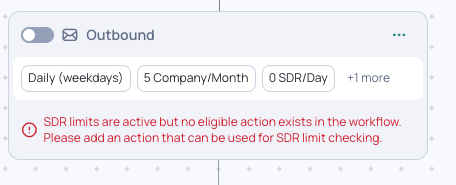
An error will pop up on your Outbound Branch if your final action does not match the three shared above.
Where to set the limit
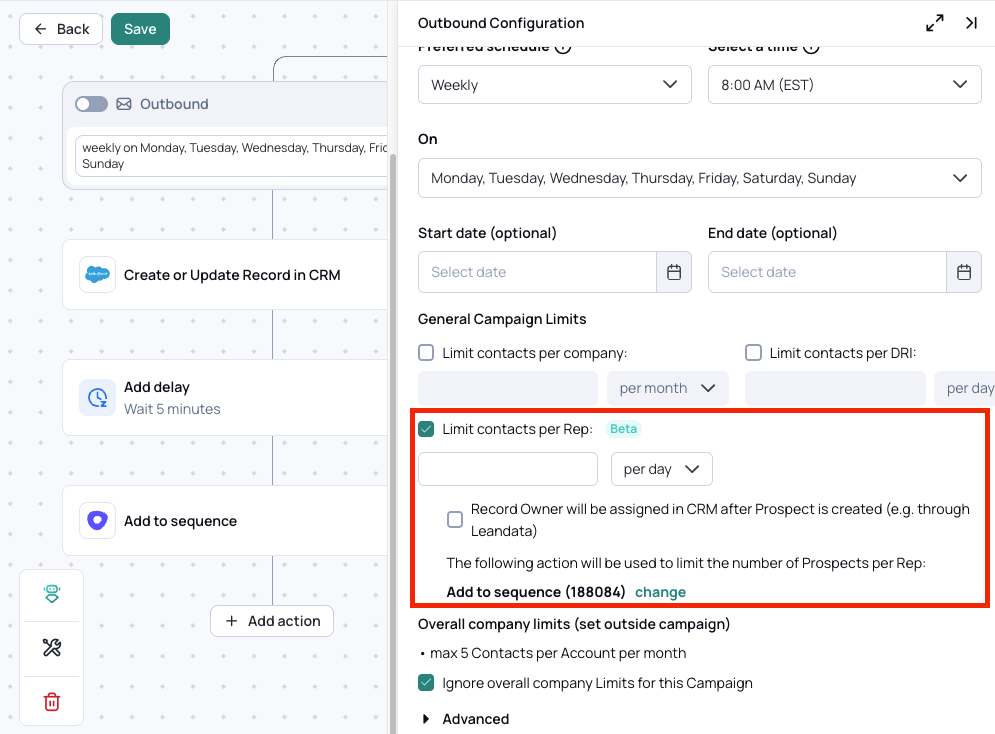
On a single workflow — open the workflow → select the outbound branch → enable Limit contacts per Rep → review the determining action UserGems suggests, enter your number, choose the period, and save.
Across your whole account — set the per-rep limit in your global settings by going to the campaigns tab → click on the Limits gear icon → check the “Limit contacts per Rep” checkbox → review the determining action UserGems suggests, enter your number, choose the period, and save.
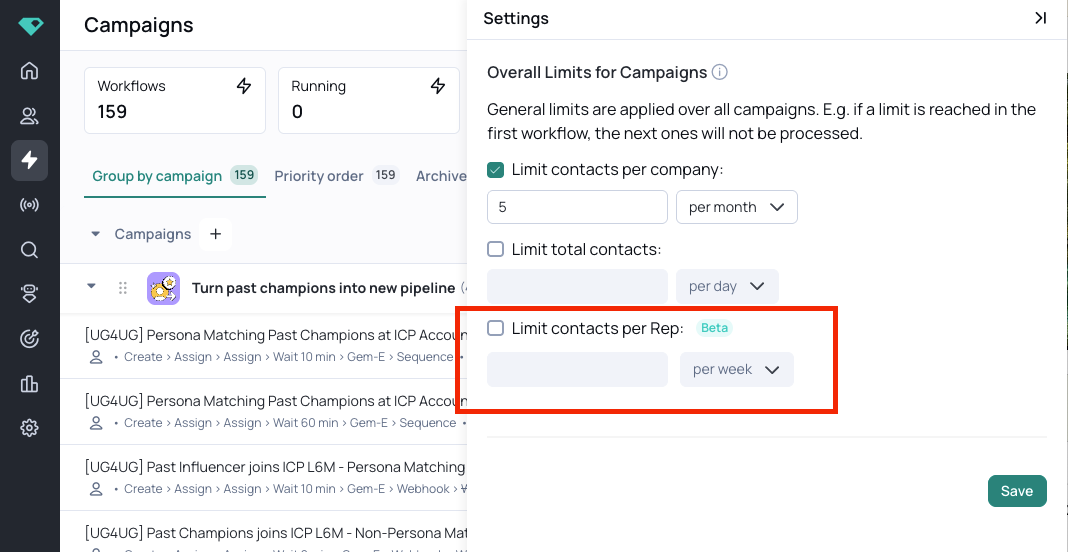
If you set a global limit, every workflow in the account needs rep limits enabled and a determining action selected. The global limit will not enforce on any workflow that's missing either one, and reps on those uncovered workflows will receive prospects on top of their cap. If your global limit seems to be leaking, this is almost always why.
Manually running a workflow with limits
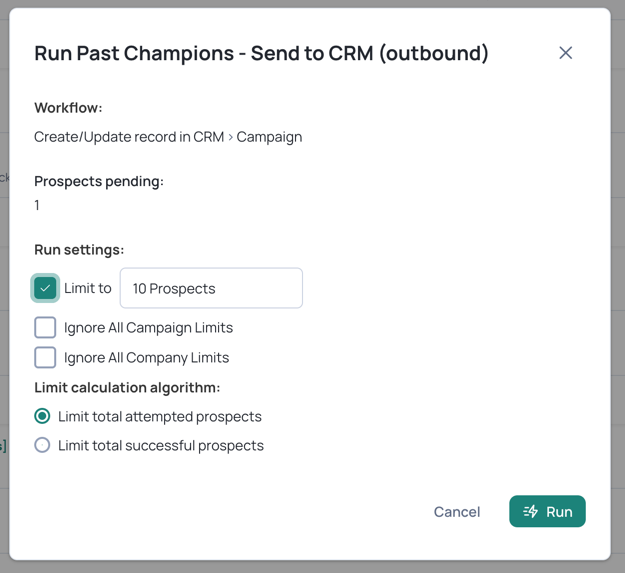
When you trigger a workflow run manually instead of waiting for its schedule, a dialog appears with a field for how many prospects to process. Type a number there and it caps that run in addition to the per-rep cap — so the workflow either stops when that number is reached or when the “per rep limit” is reached for all reps.
Who assigns the owner: UserGems, or your CRM?
This is the one setting that depends on how your team is set up, and it changes how the limit behaves.
Scenario A — a routing tool or CRM automation assigns the owner. You use LeanData, Chili Piper, a Salesforce flow, or similar, and ownership is decided after the record exists.
UserGems can't know the owner in advance here, so it works backwards: it creates or updates all qualifying contacts in your CRM, waits about 10 minutes, checks who each record's owner turned out to be, and then applies the per-rep limit to every step after the create/update — including adding to your sequencer.
The practical consequence: the cap applies to your sequencer, not to your CRM. You'll see more contacts created or updated in CRM than your per-rep number implies, and only the capped subset added to sequences.
→ Enable "Record Owner will be assigned in CRM after Prospect is created".
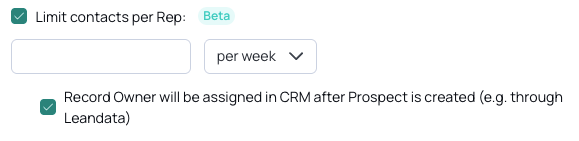
Scenario B — UserGems assigns the owner, or the account owner can always be used as the record owner.
UserGems knows the owner up front, so the limit is applied before anything is created. Only the capped number reaches your CRM.
→ Leave this checkbox OFF.

Don't use Scenario B's configuration if your team does its own routing. UserGems can't project the owner before creation in that case, and the workflow won't run.
What you'll see in your CRM vs your sequencer
Worth setting expectations if you're in Scenario A, the per-rep limit applies at the sequence step, not at record creation. Everything matching your audience still gets created or updated in your CRM.
For example — your workflow has two actions, Create or update in CRM then Add to Sequence. 2,000 prospects match your audience, you have 5 reps, and your limit is 10 per rep per day, with "Record Owner will be assigned in CRM after Prospect is created" enabled. When the workflow runs:
- All 2,000 prospects are created or updated in your CRM.
- Up to 50 are added to sequences — up to 10 for each of your 5 reps.
That's expected, not a bug. UserGems can't know who will own each record until your routing tool has assigned it, so it creates the records first and applies the cap afterwards.
Note "up to 50." If those 2,000 records don't spread across all five reps — say most land with two of them — those two hit their cap of 10 and the remainder go unsequenced. You'll end up with fewer than 50.
Because your routing tool decides who each record goes to, UserGems can't influence how evenly prospects spread across your team. It can only enforce the ceiling. If the volume of records reaching your CRM is a concern, talk to your CSM about narrowing the audience.
Test with Simulate before you activate
Run the workflow's Simulate function before turning the limit on for a live send. Every prospect pending in the workflow gets simulated, which gives you a broad data set to check against.
Hover over any campaign where you’ve enabled Per Rep Limits → select the three dots → select Simulate workflow:
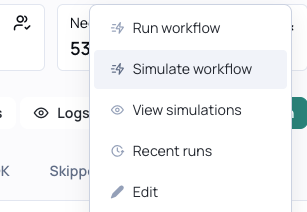
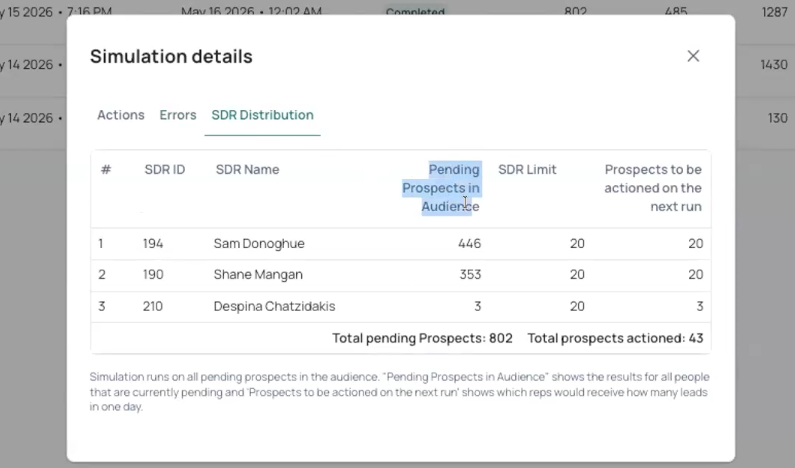
Simulate produces a report showing which prospects would be created, routed and added to your sequencer under the current configuration, how many processed successfully, a breakdown you can open per prospect, and the per-rep distribution — including how many each rep has pending and how many would be actioned on the next run.
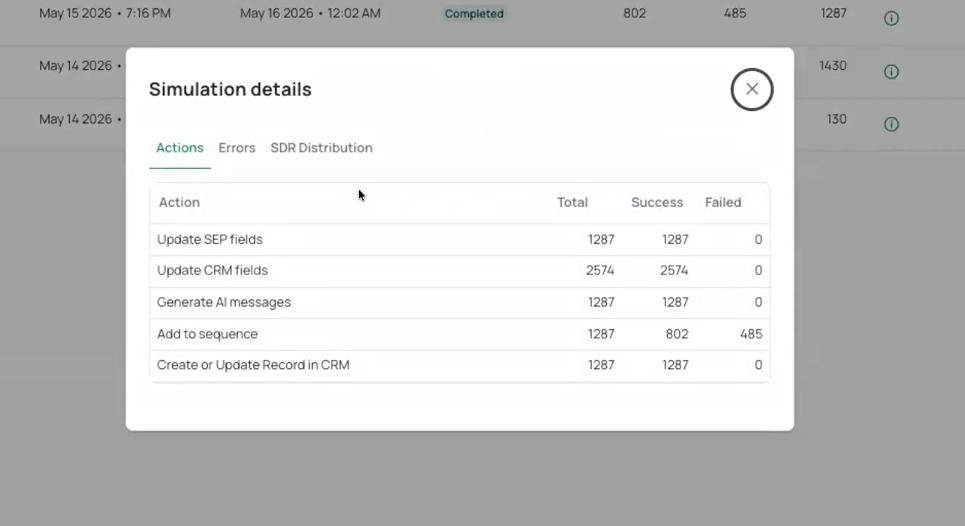
It also catches problems that have nothing to do with limits. If an Add to Sequence step would fail because a record owner is missing, or because that owner has no user in your sequencer, the simulation will surface it before your reps see anything.
A few things to know:
- Runs can take a while — from several minutes to a few hours depending on volume. Start it and come back; you'll get an email when it finishes.
- You can run Simulate on workflows that don't have per-rep limits enabled at all, purely as a pre-flight check.
Best practices for rolling this out
- Simulate the workflow with the rep limit configured.
- Start at 5 per rep per day for the first live run — even if your eventual target is much higher.
- Audit per-rep volume after the first run, then again after the first week.
- Scale up to your target number once distribution looks right.
Starting low is deliberate. If something in the configuration is off, a low cap keeps day one from turning into a flood.
Troubleshooting
The global limit is being ignored on one workflow. That workflow is missing rep limits, a determining action, or both. Enable them on every workflow.
The workflow runs but pushes zero prospects. Check the account-level limit first — if it's set to something like 5 per month and you've already hit it, there's nothing left to send. Then check the routing setting: if your team routes on its own side but the workflow is configured for Scenario B, UserGems can't project owners and won't run.
Hundreds of contacts in CRM, but only a few added to my sequencer. Expected in Scenario A. The cap applies at the final action, not at record creation. See What you'll see in your CRM vs your sequencer.
Delivered counts don't exactly match my configured limit. Some variance is normal. Multiple workflows triggering at different times, account-level caps interacting with per-rep caps, and delays in third-party routing tools all contribute. Audit after a full week before drawing conclusions — and if volumes are still materially off, contact your CSM.
Measuring per-rep volume
There's no in-app view for "prospects delivered per rep per day" yet. For now, pull the numbers from your CRM or your sequencer directly. Reporting for this is on the roadmap.
Getting help
If your setup isn't covered here — particularly if you use custom ownership fields or a routing tool we haven't mentioned — contact your CSM. Edge cases are how this documentation gets better.