

Every campaign you run in UserGems lives on one page: the Campaigns tab. From here you can see what's running, what's scheduled, and what needs your attention, and control which campaign a prospect gets routed to when they qualify for more than one.
Where to find it
Click Campaigns in the left sidebar, or go to app.usergems.com/campaigns.
Reading the campaign list
Each row is one campaign. Here's what you're looking at, left to right.
Priority
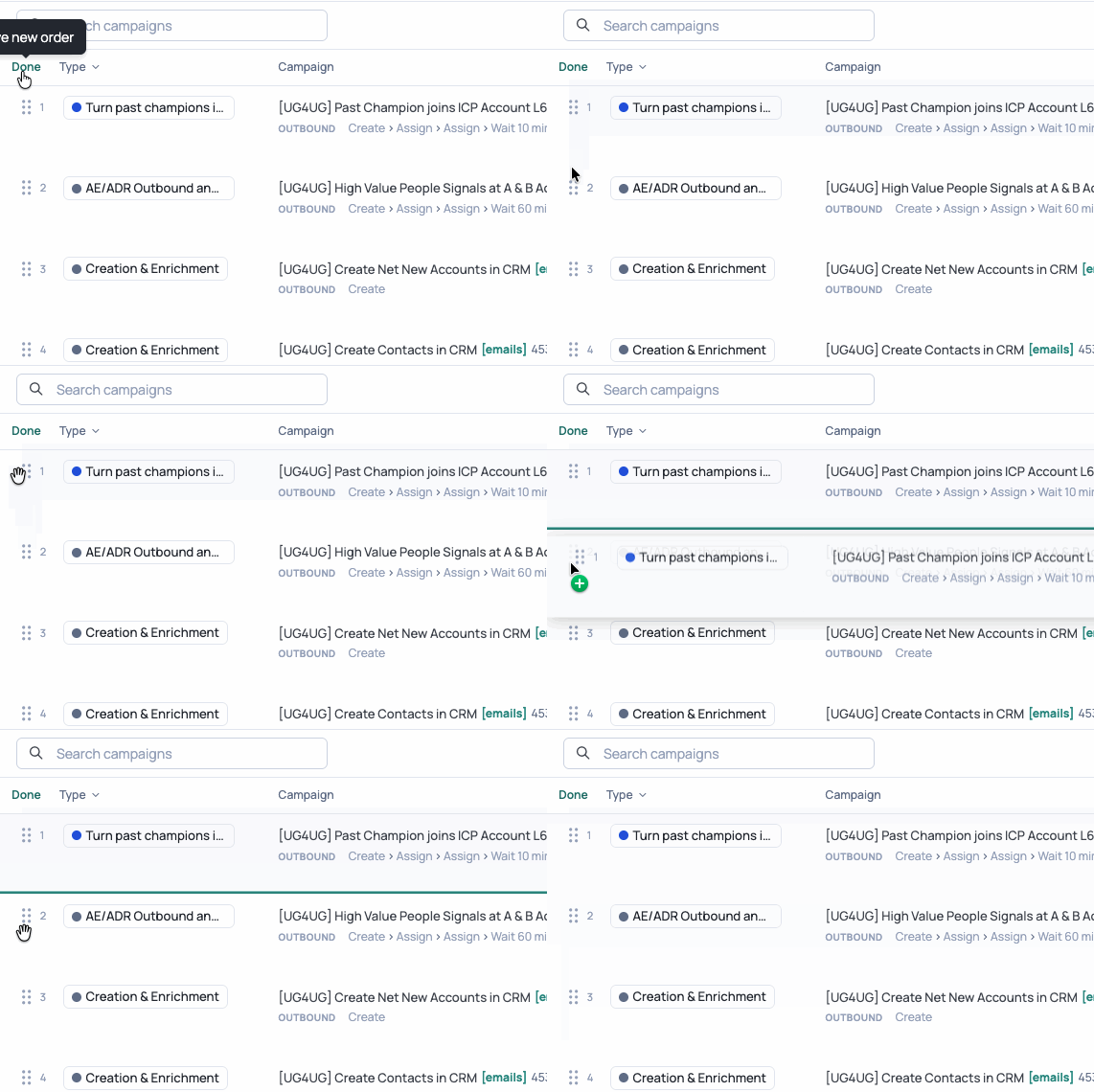
The number on the far left is the campaign's priority. If a prospect fits more than one campaign, priority determines which campaign that prospect gets routed to.
To change the order, click the reorder button at the top of the priority column, then drag and drop campaigns into place.
Type
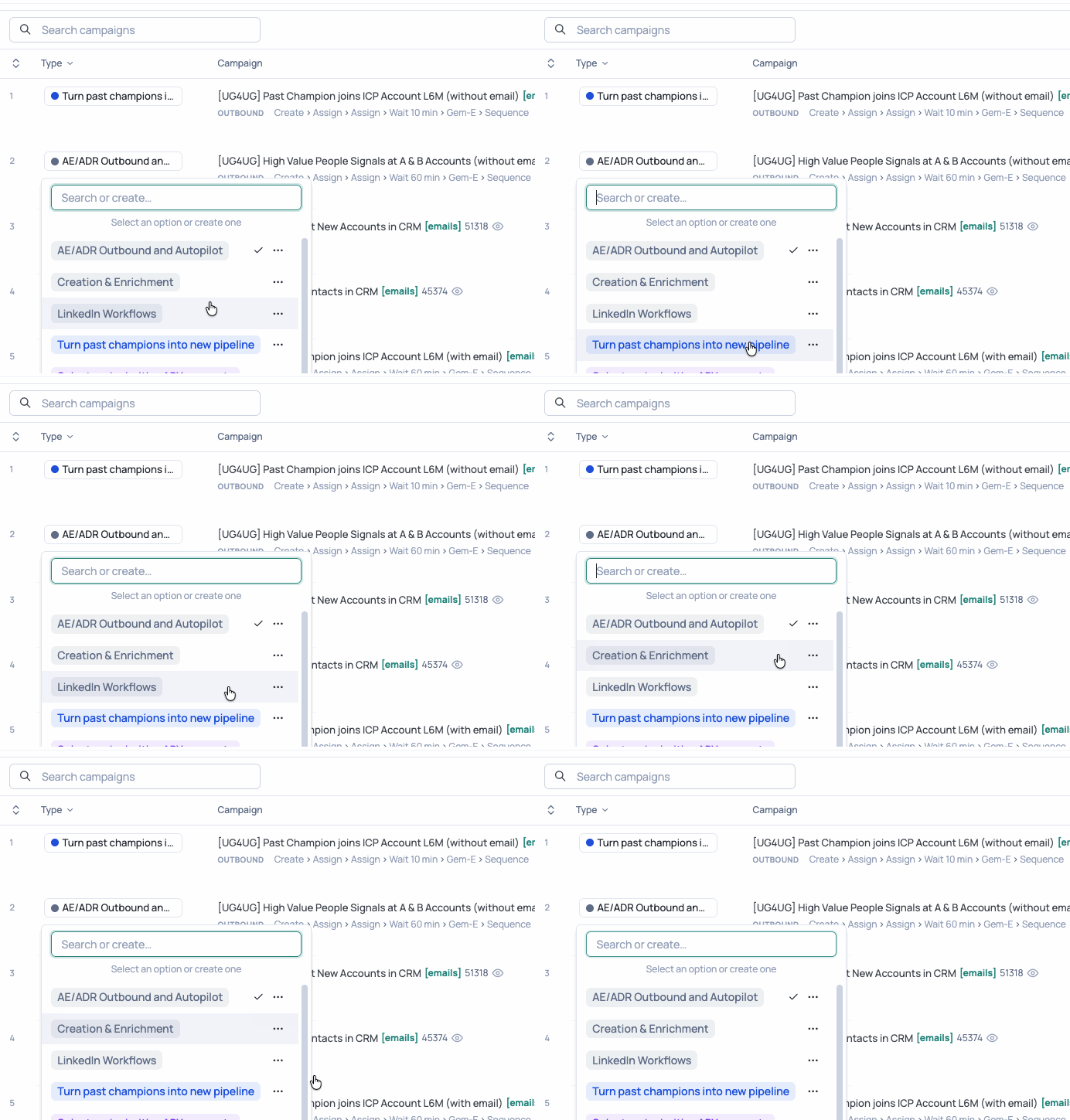
The colored tag shows the campaign's category, like Past Champions, ABX Campaigns, Revive Closed Lost, Accelerate Open Opps, or Grow & Retain Customers. See click on the campaign Type below to change or create categories.
Campaign name, branches, and actions
Under each campaign name you'll see:
- Branches: Outbound Branch, Marketing Branch, or Outbound & Marketing Branches
- Action count: how many steps the campaign takes in total (for example, "6 actions")

Last run
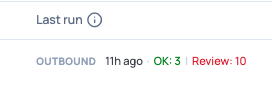
When each branch last ran, plus results from that run:
- OK: records processed successfully
- Review: records that need your attention
- No prospects: the campaign ran but nothing in the audience qualified
On/off toggle and ⋮ menu
The toggle on the right turns a campaign on or off.
The ⋮ menu holds campaign-level actions, including Run workflow. Use the Limit to option to test on a handful of records before going live.

Seeing what's inside a campaign
Expand a campaign
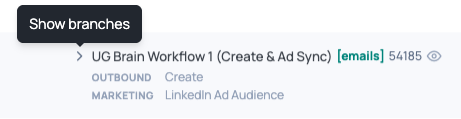
Click the dropdown arrow next to a campaign name to expand it. You'll see each branch on its own line with its full set of steps (for example, Create › Assign › Assign › Wait 60 min › Gem-E › Sequence), along with that branch's last run, Done, and Pending counts. Disabled branches appear grayed out.
Preview a campaign
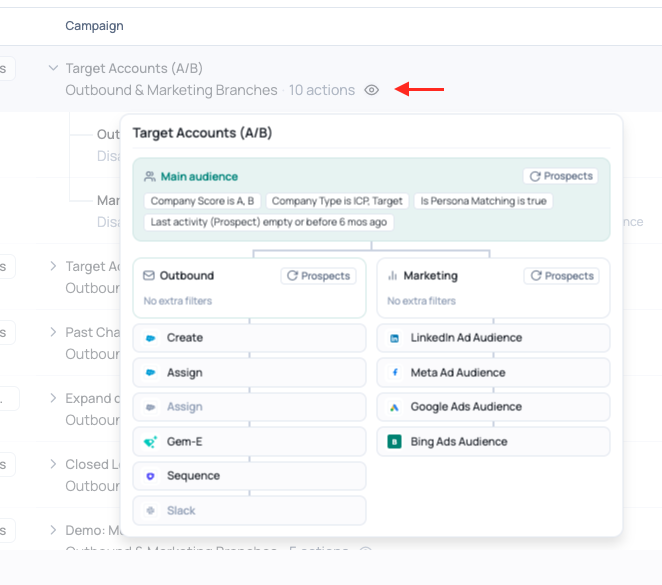
For a closer look, hover over any campaign and click the preview icon (the eye) next to the action count. The preview shows:
- Main audience at the top, with its filters and a link to view prospects
- Branches side by side underneath, each with any extra branch filters and its ordered list of actions
Changing the view
The toggles in the upper right control how the list is displayed.
Full details
Turn on Full details to expand every campaign at once. This also adds the Schedule column, so you can see at a glance when each branch is set to run (for example, Daily, Weekly, or Disabled).

Group by type
Turn on Group by type to sort your campaigns into their tagged categories.
To change a campaign's category, click its type tag and pick a different one. To create a new category, type a new name in the Search or create field.

Show inactive
Turn on Show inactive to include campaigns that are currently turned off.

Search
Use Search campaigns to find a campaign by name.

Filtering with the stats bar
The stats across the top of the page summarize your campaigns, and each one also works as a filter. Click a stat to filter the list.
- Scheduled today: campaigns set to run today
- Scheduled this week: campaigns set to run this week
- Queued: campaigns waiting to run
- OK this week: records processed successfully this week
- Needs Review: campaigns with records that need your attention

Settings menu
Click the gear icon in the upper right to open the Settings menu.
- Limits: set limits on how campaigns run
- Logs: see a run-by-run audit trail of your campaigns, including what succeeded, what was skipped, and what failed
- Archived: find old campaigns. Search by name and click Restore to bring one back.
- Deleted: find deleted campaigns

Archived campaigns don't run. Restoring one brings it back to your campaign list.
Tips
- Put your most specific campaigns at the top. A narrow, high-intent campaign (like a past champion landing at an ICP account) should outrank a broad one so those prospects get the most relevant play.
- Check Needs Review regularly. Click the stat to jump straight to the campaigns that need attention, then open Logs to see why.
- Use Full details for a quick weekly check. One view shows every branch, its steps, and its schedule.
FAQs
What happens if a prospect fits more than one campaign?
Priority decides. The prospect is routed based on campaign order on the Campaigns page.
Why does my campaign say "No prospects"?
The campaign ran, but no one in its audience qualified at that time. Open the preview to check the audience filters.
How do I bring back an archived campaign?
Open the Settings menu (gear icon), click Archived, find the campaign, and click Restore.