

The UserGems MCP is launching this quarter, and we can’t wait to give you an early look.
The instructions below walk you through how to set up your MCP, the skills it already has, and most importantly how to send us feedback.
Thank you so much for taking the time to test and give us feedback! We’re looking forward to hearing your thoughts.
Your access runs through the month of August.
Before you start
1. Complete your onboarding session
Access is gated until after your one-time session with our Product Team.
Haven’t scheduled your onboarding session yet? Book yours here.
2. Check your ChatGPT plan
Any ChatGPT plan works. The only thing that changes is who can switch on Developer mode.
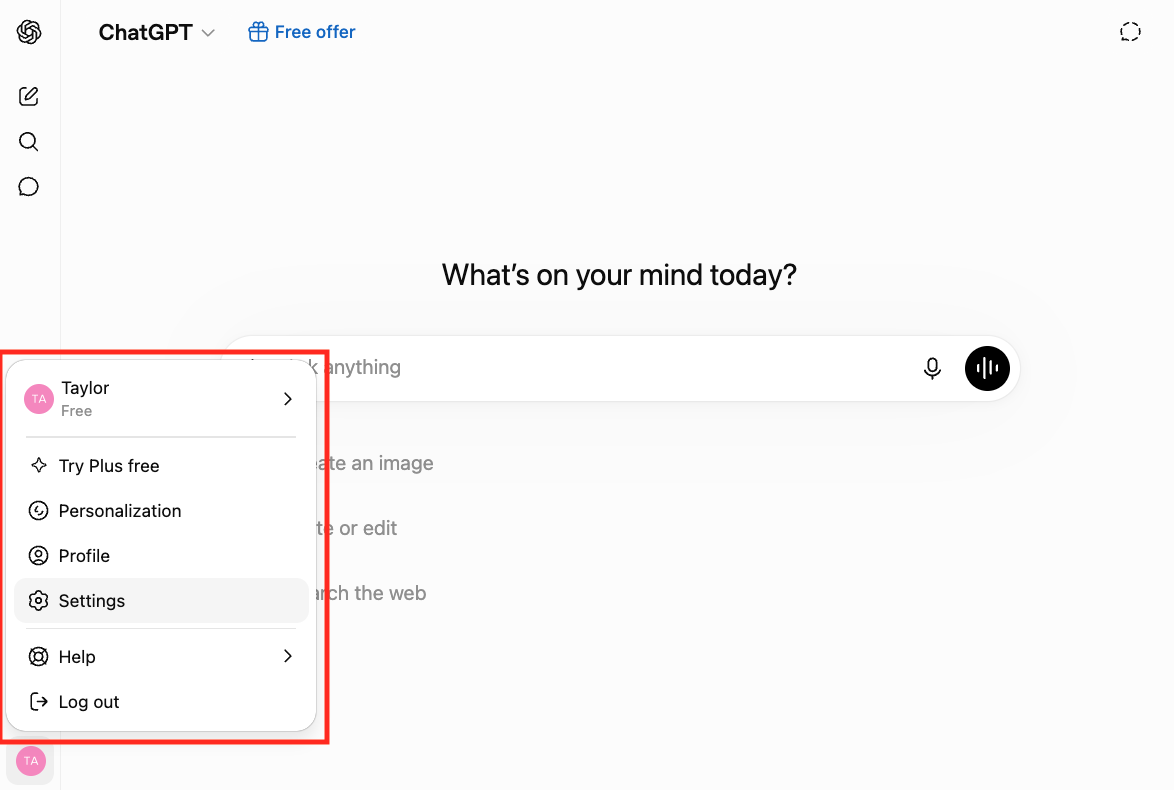
Not sure which plan you’re on? Click your name (bottom-left).
Part 1 — Set up your MCP
One-time setup. Takes about two minutes. ChatGPT needs Developer mode switched on before you can add a custom MCP connection, so there’s one extra step compared with Claude.
Step 1 — Open ChatGPT and confirm you’re logged in
Click your name in the bottom-left to open the profile menu. Your name and plan appear at the top.
Click Settings.
Step 2 — Turn on Developer mode
In Settings, go to Security and login and scroll to Developer mode. Switch it on.
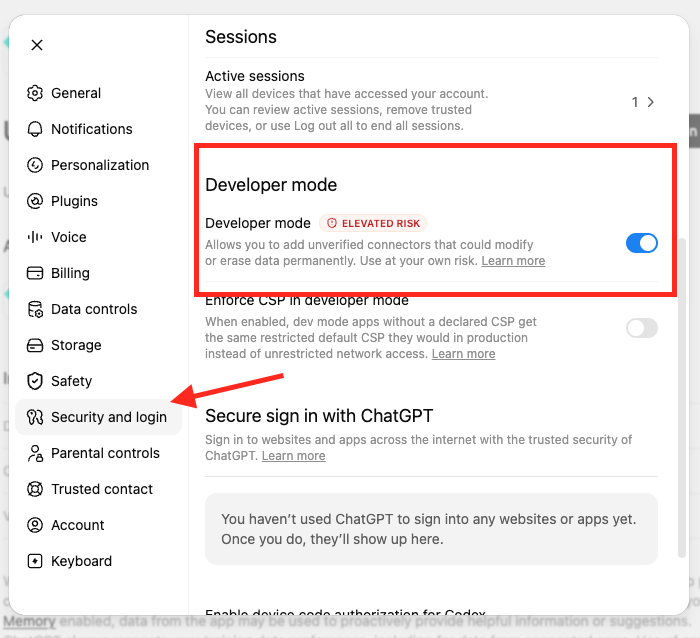
You’ll see an “Elevated risk” label. That’s ChatGPT’s standard warning for any unverified connector. It appears for every custom MCP, including ours.
Toggle greyed out or missing? Your workspace reserves Developer mode for admins. Skip to “If you need your ChatGPT admin to turn it on” below.
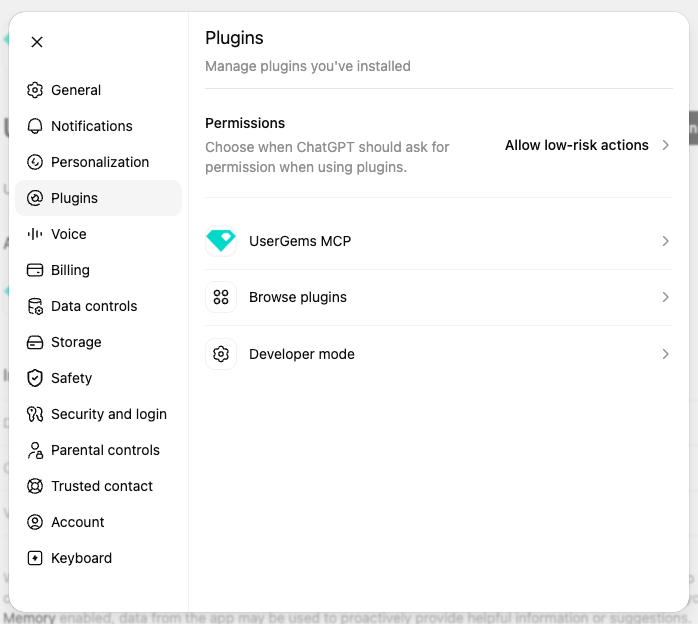
Step 3 — Go to Plugins
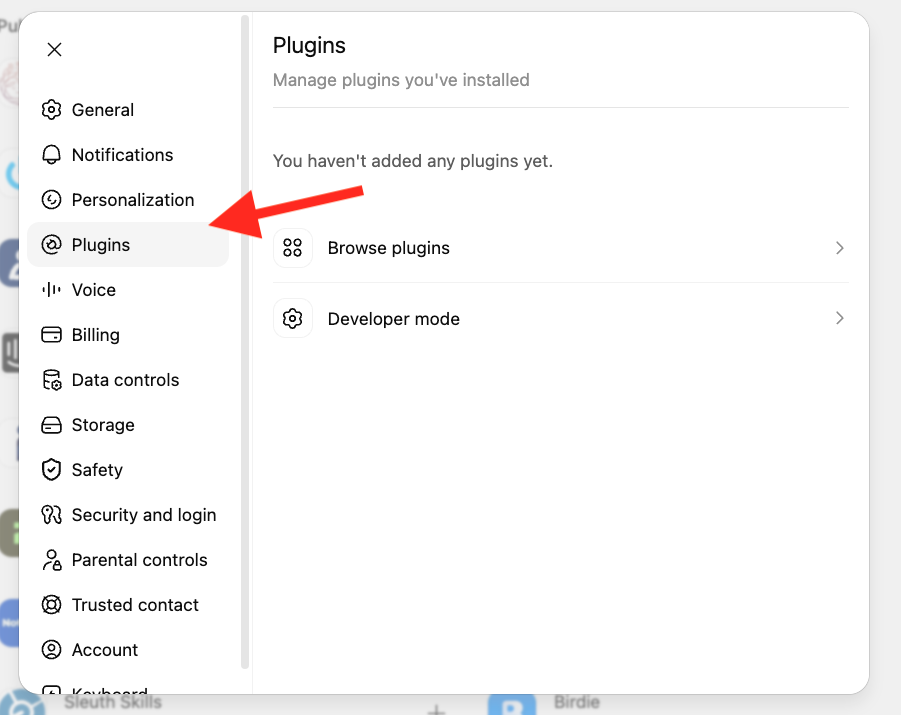
Back in Settings, click Plugins in the left sidebar. This is where your MCP connections live.
Step 4 — Open the plugin directory and add a new plugin
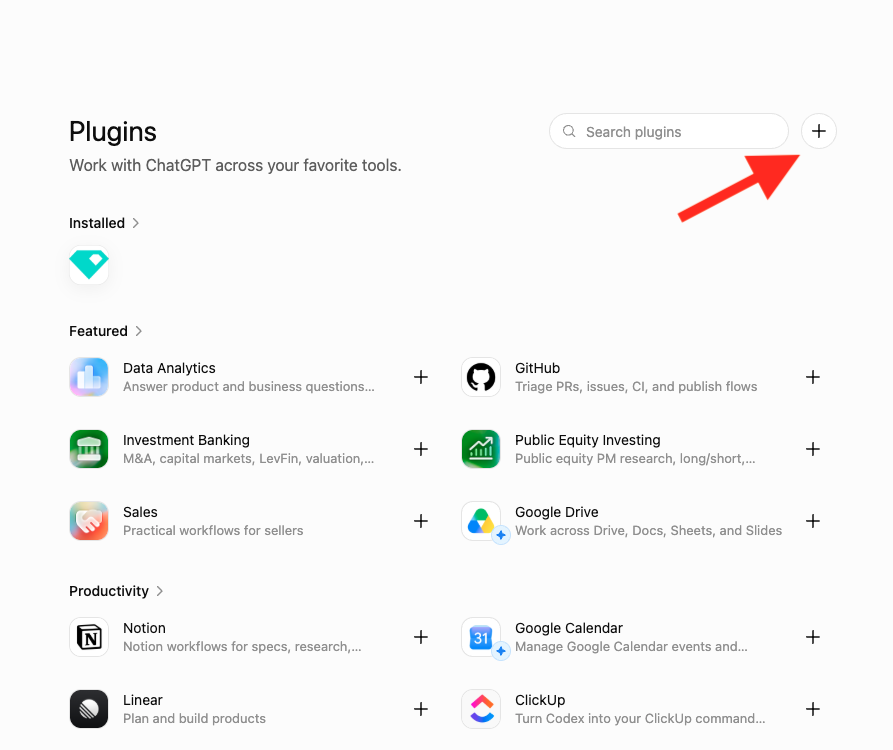
From the Plugins panel, click Browse plugins. That opens the plugin directory. Click the + icon in the top-right, next to the search box.
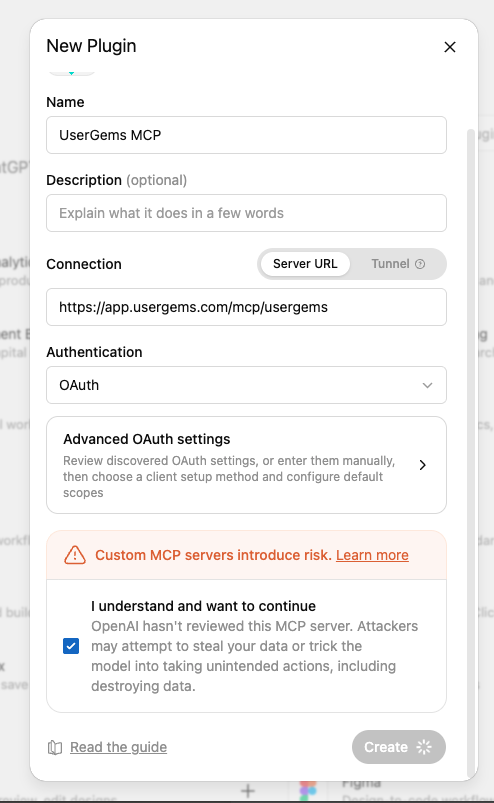
Step 5 — Fill in the New Plugin dialog
Fill it in exactly like this:
Then tick “I understand and want to continue” and click Create.
Make sure you’re logged in to UserGems in your browser first. The plugin authorizes against your active UserGems session.
About that risk warning: ChatGPT shows this for every custom MCP server because OpenAI hasn’t reviewed it. Ticking the box is required to continue.
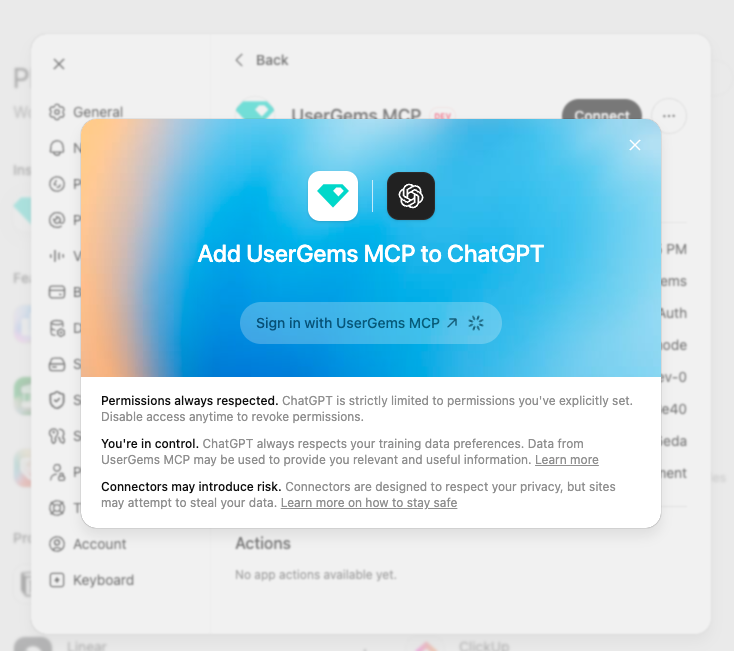
Step 6 — Sign in to UserGems
ChatGPT shows an “Add UserGems MCP to ChatGPT” screen. Click Sign in with UserGems MCP.
Step 7 — Authorize
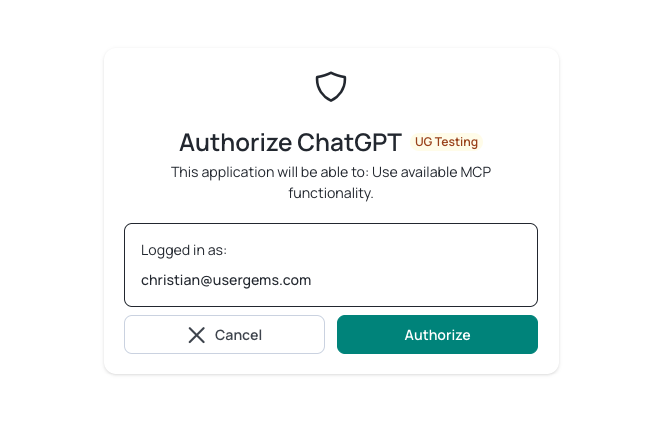
You’ll be redirected to UserGems’ authorization page, which shows “Authorize ChatGPT” with your email under Logged in as.
Confirm the email is correct and click Authorize.
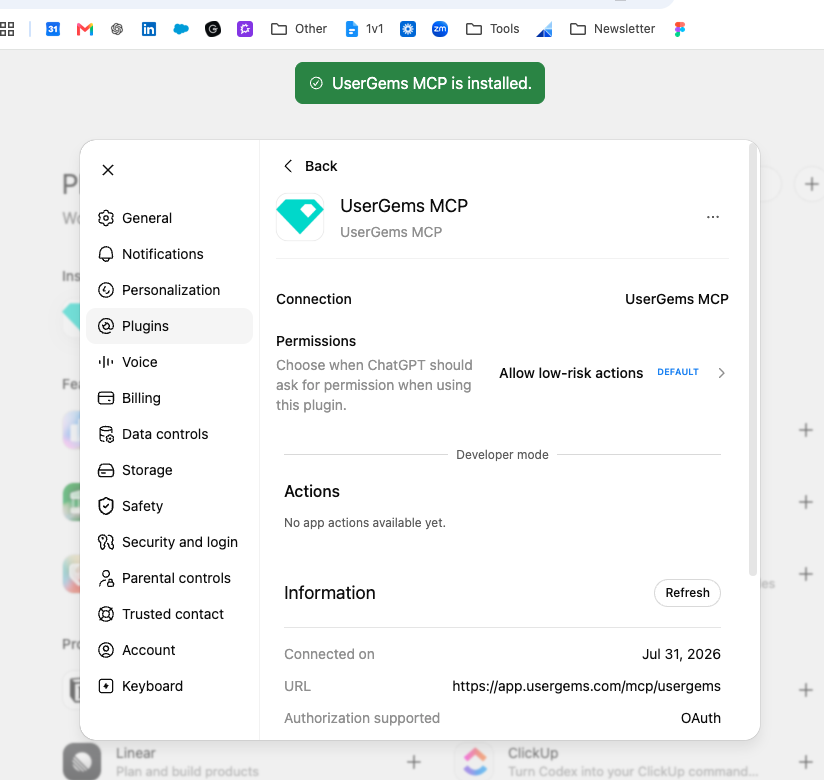
You’ll be redirected back and see “UserGems MCP is installed.”
Step 8 — Check your permissions setting
Open Settings → Plugins → UserGems MCP and look at Permissions.
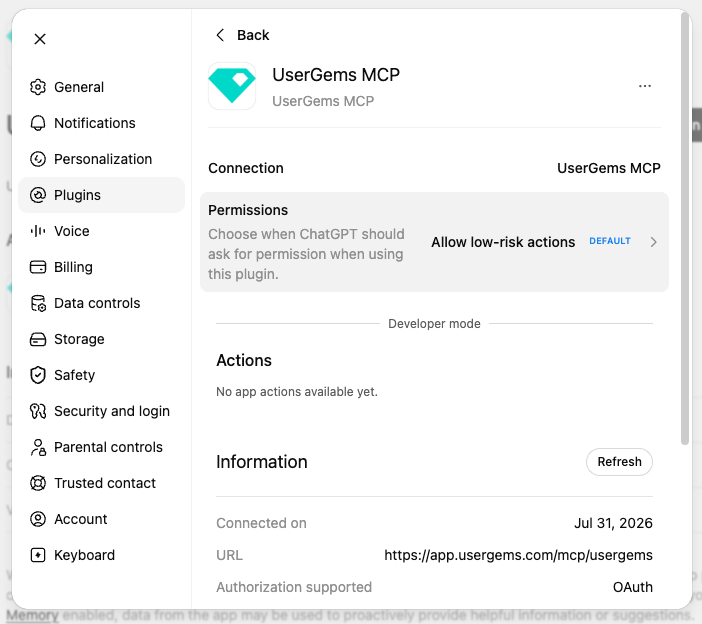
ChatGPT defaults to Allow low-risk actions. Four options:
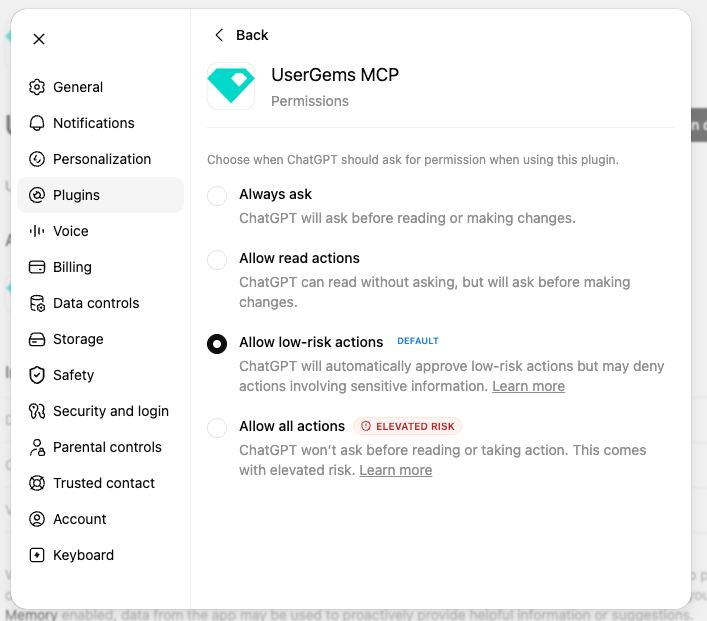
Our recommendation: keep the default, or move to “Allow read actions” if you’d rather approve every action, CRM write, and sequence enrollment yourself. We’d avoid “Allow all actions” during early access.
Step 9 — Verify it works
Open a new chat, select the plugin, and type:
What UserGems tools do you have available?
You should get back a list of UserGems tools. Once you see them, try any play from the tables below.
Start a fresh conversation after connecting. Existing chats won’t pick up the new plugin.
If you need your ChatGPT admin to turn it on
On Business, Enterprise, and Edu workspaces, Developer mode is usually restricted to workspace owners.
First — make sure they have UserGems access. If they don't already have an account, invite them: click your profile in the upper-right corner → Users → Invite User.
Then — send them the block below. Forward it to whoever administers your company's GPT account, usually IT or an ops lead. It takes them under a minute.
Hi — I’m testing the UserGems MCP integration and need Developer mode enabled on my ChatGPT account so I can add a custom MCP connection.
1. Go to Workspace settings → Connectors (or Apps)
2. Open Advanced settings
3. Enable Developer mode
4. On Enterprise or Edu, grant me the Developer mode role via RBAC
The connection is tohttps://app.usergems.com/mcp/usergemsover OAuth. Each person signs in with their own UserGems login.
Once they’ve enabled it, come back to Step 3 and carry on.
Part 2 — What you can do today
Everything in this section is live and available to you right now, running against your own UserGems workspace and your own CRM data.
For reps
For admins
Three prompts worth trying in your first session:
- “Give me the full picture on [account] — buying stage, signals, and who I should reach.”
- “Show me all campaigns using contact-level intent and how many records each is hitting.”
- “Build me an audience of accounts in [segment] with [signal] and tell me how many match.”
Part 3 — How to give us feedback
This is the part that matters most. Two channels.
1. Rate a session within ChatGPT
At the end of any session where the MCP did something — created a campaign, sized an audience, drafted an email, ran research — type one of these:
I want to review this sessionRate this sessionGive feedback on this session
From there you can provide your feedback to us directly in ChatGPT.
What we especially want to hear: where it got something factually wrong, where it was slower than doing the same thing in the app, and anything you tried that it couldn’t do.
2. The Slack channel
You’ll be added to a shared Slack channel with our Product and CS teams. Use it for anything that doesn’t fit a survey — questions, screenshots of odd behavior, “can it do X?”, or just thinking out loud.
Slack channel: #x_ug-mcp-early-access
Part 4 — Coming soon
Good to know
Review before it acts. The MCP can create campaigns, write to your CRM, and enroll prospects into sequences. On the default “Allow low-risk actions” setting, ChatGPT approves routine reads automatically and asks you about anything sensitive. Read those prompts when they appear. Campaign creation saves as a reviewable draft, and every write action is worth treating as something you’re signing off on.
Expect some rough edges. This is an early look at something we’re still building. You may hit a wrong answer, a slow response, or a tool that doesn’t quite do what you asked. Tell us when it happens — that’s how it gets better before the open beta.
Your access runs through August 31, 2026. We’ll be in touch before then about what comes next. Anything you build in UserGems during early access stays in UserGems.