

Research Agent is a Data Agent inside UserGems' Signals Library that automatically researches custom questions about your accounts — using publicly available web sources — so your team always has the context it needs without manual digging.
Can Research Agent find answers to your specific question? As a rule of thumb: if you can manually find this information publicly, Research Agent can likely find it too. The best way to answer this question is to run a preview (see below).
Where to Find It
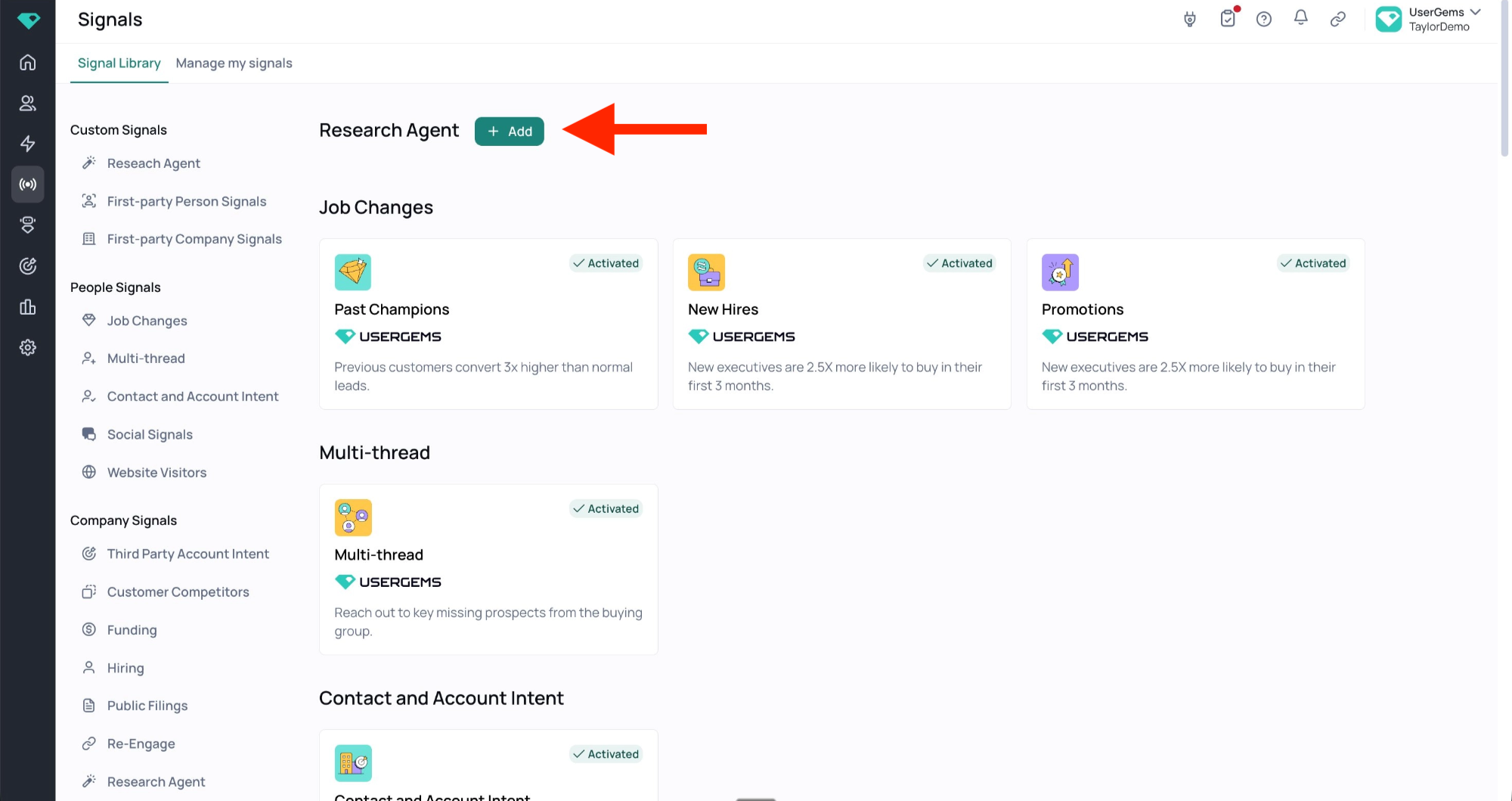
Research Agent lives at the top of the Signals Library, under Custom Signals.
To get started: navigate to Signals → Signal Library → Research Agent → + Add.
Setting Up a Research Agent Signal
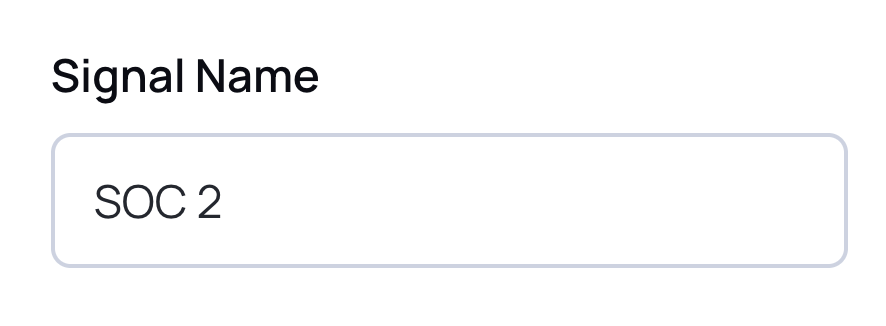
1. Name Your Signal
Give your signal a clear, descriptive name (e.g., SOC 2 Certification, HQ Location, Hiring for Sales Roles).
2. Select a Report
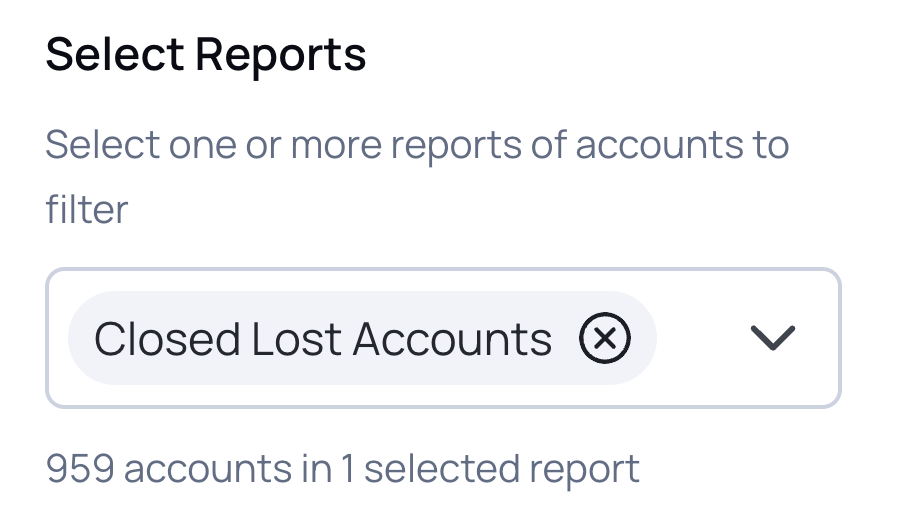
Choose one or more reports of accounts you want to research. Research Agent currently supports Reports only — it does not connect directly to Audiences.
📝 Workaround: If you need to research an Audience, you can generate a Report from that Audience via Track Companies first, then select it here.
The number of accounts in your selected report(s) will be shown below the dropdown.
3. Write Your Prompt
In the Prompt field, describe what you want Research Agent to find — in plain English. Be specific and pointed.
Examples:
- Can you find whether or not these companies are SOC 2 Type II compliant? Please provide Yes or No. And also provide the source.
- Does this company have a US headquarters? If yes, please include the state and city.
How detailed should my prompt be? Research Agent works with both simple and complex prompts — you have full flexibility. A short, plain-English question like "Is this company SOC 2 Type II certified? Yes or No." works just as well as a more detailed prompt that specifies sources, output format, or edge cases. The beauty of Research Agent is that it handles the answer formatting for you, so you don't need to over-engineer your prompt.
That said, keep each signal focused on a handful of related questions. The more unrelated questions you try to answer in a single signal, the harder it is for the agent to return clean, structured results.
📝 Related vs. unrelated questions: Multiple related questions in one prompt are totally fine — e.g., asking where a company has offices and how many employees work there is one research thread. What hurts quality is disparate, unrelated questions in the same prompt (e.g., "Is this company SOC 2 certified and do they own restaurants in Seattle?"). Unrelated questions cause the agent to spin off separate sub-researches, which increases record consumption and reduces answer quality. Split truly unrelated questions into separate signals.
📝 How does the number of questions in a single research affect record usage? There's no hard cap on questions — Research Agent can handle a high volume. However, each distinct research thread your prompt generates affects how many records are consumed. More questions (especially unrelated ones) = more sub-researches = more records used. The estimated record cost is always shown before you commit to a full run.

4. Choose Your Answer Format
Research Agent gives you two options for how it structures its output:
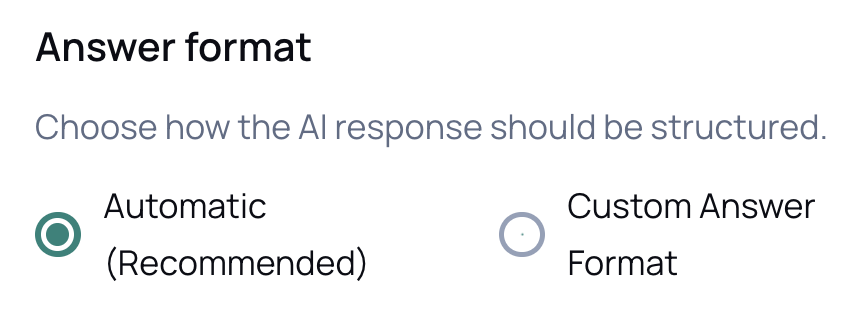
#### Automatic (Recommended)
The AI reads your prompt and automatically defines the research framework — field names, field types, and structure. This is the fastest way to get started and works well for most use cases. To further refine, you can always switch to the custom method, but using this first gives you a better foundation.
#### Custom Answer Format
Define the exact structure yourself. You can:
- Name each field
- Write a description telling the AI what each field should contain
- Set the field type: Yes/No, Text, Date, or List of options
Using List of options is especially useful when you want to constrain the answer to a defined set of values — for example, B2B or B2C, or Series A / Series B / Series C.
📝 The first field in a Custom Answer Format is always the Primary field and determines the main validation result.
Running a Preview
Before processing your full account list, always run a Preview to validate that Research Agent can find the information you're looking for.
- Optionally, use the Preview Accounts search field to select up to 10 specific accounts you want to preview — for example, companies whose answers you already know, so you can verify accuracy.
- If no accounts are selected, Preview will run on 10 random accounts from your report.
- Click Run Preview.
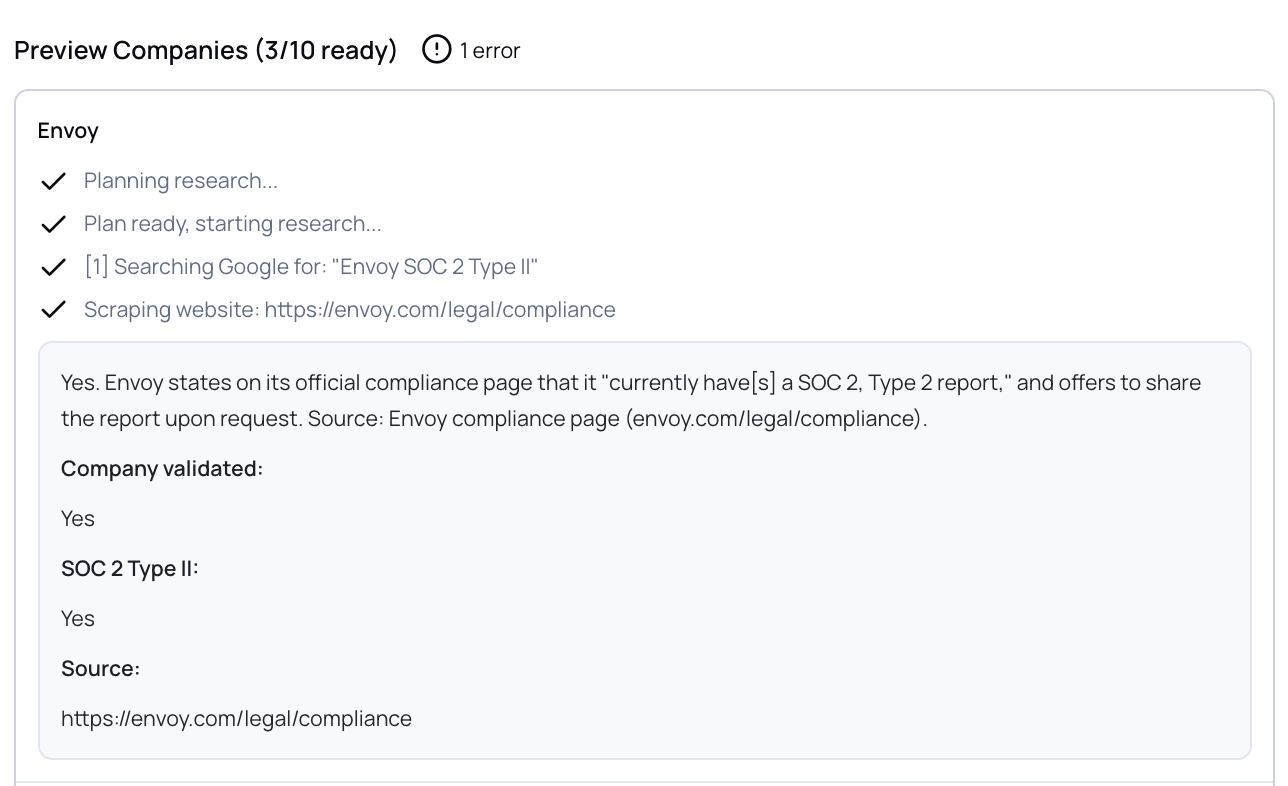
What You'll See
For each company, Research Agent will show you via the preview:
- The steps it took (planning, Google search, website scraping)
- The source URL it used
- Its structured answer, broken out by field
- A References section with the exact snippet it pulled
Preview typically completes within a few minutes. More complex or multi-part prompts may take slightly longer.
Preview Evaluation
Once all 10 companies are complete, Research Agent shows a Preview Evaluation with:
- An Overall Score (0–1)
- Runs completed (#)
- Query allowed: Yes/No
- An Evaluation Summary describing how clearly your request is understood and how reliably answers can be found
🔒 What does "Query allowed" mean? A result of Yes means your request passed a security check and is safe to process — you're good to go. A result of No doesn't mean the data can't be found; it means the prompt may be attempting to access restricted or unsafe sources. If you see No, review your prompt for any references to restricted data and adjust before rerunning.
📝 Note on the Overall Score: This is a Confidence Score — think of it as a percentage. A score of 1 = 100% confidence. The closer to 1, the more confident the agent is that it can reliably find answers at scale. Use the key above to interpret your score.
After reviewing preview results, you can:
- Edit your Prompt and re-run Preview
- Switch between Automatic and Custom Answer Format and re-run.
- Add or change fields in the Custom Answer Format
Iterate until you're satisfied with the output quality before saving your research signal.
Configuring the Signal
Once your Preview looks good, click Continue to move to the signal configuration screen.
Here you can define how Research Agent's output gets applied to your accounts:
Name your signal
Use Tag prospects as to apply a label to accounts that match your signal. Assign an Initial Signal Score via the Scoring page (a numeric weight used in account scoring).
Sub-signals
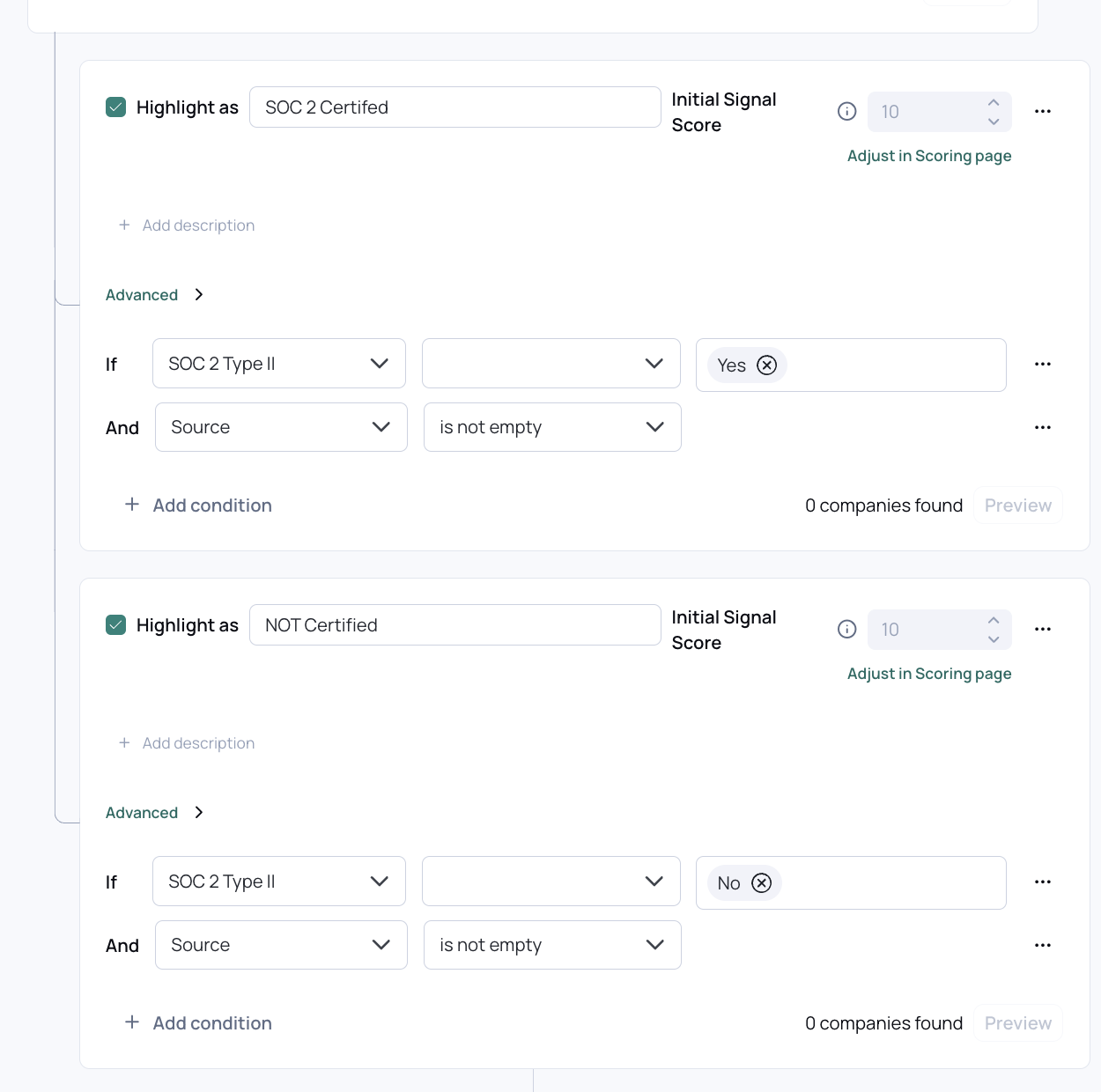
Highlights let you create sub-signals based on specific field values from your research output.
This allows you to filter your Audiences for accounts that are SOC 2 certified vs. not certified separately — turning your research into actionable segments.
To add a sub-signal:
- Click + Add at the bottom of the configuration screen
- Name the sub-signal under “Highlight as…”
- Set the conditions (field + operator + value)
- Set an Initial Signal Score
Processing All Accounts (confirmation modal)
When you're ready to run Research Agent across your full account list:
- Click Save & Process all accounts
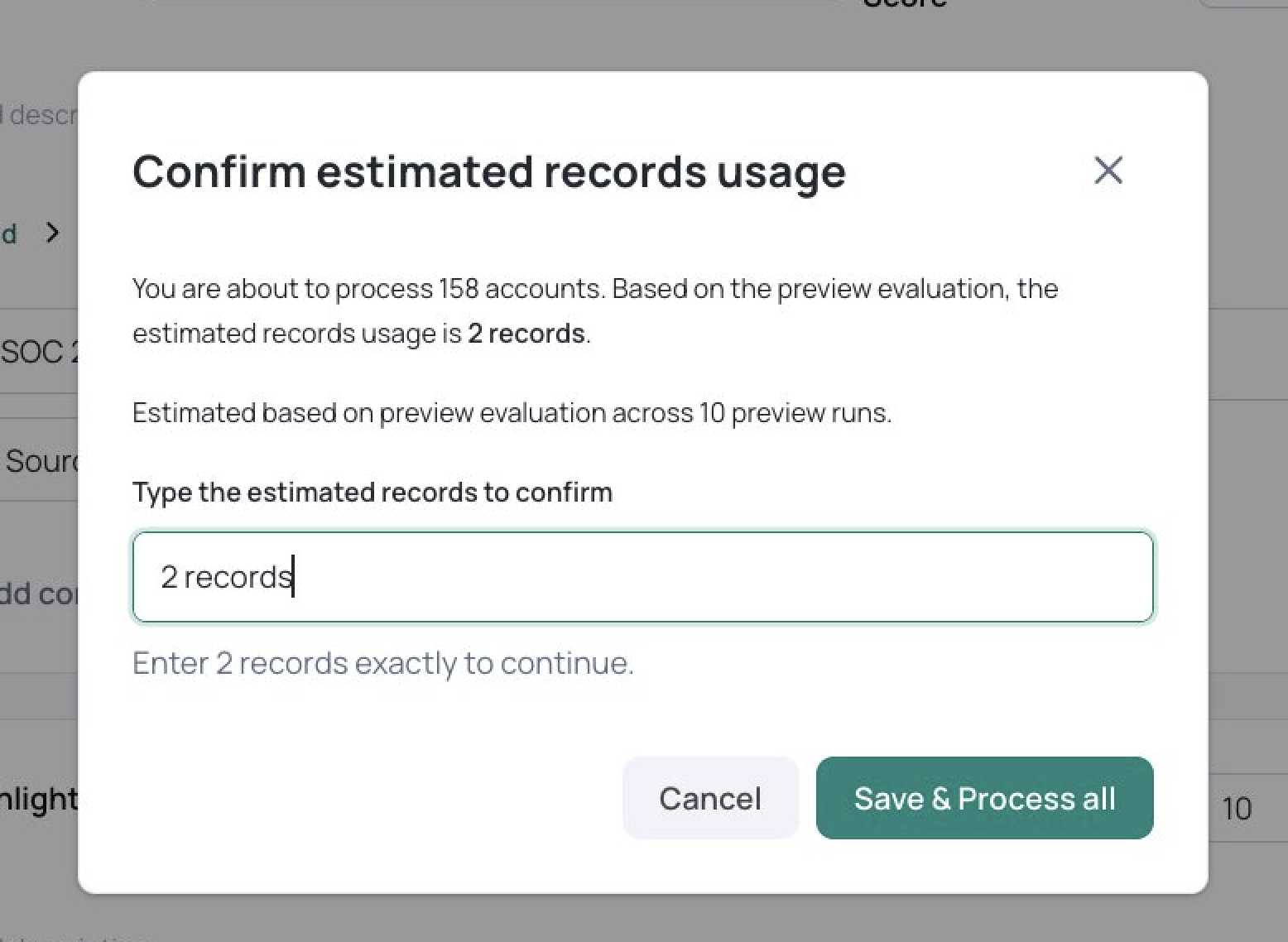
- A confirmation modal will appear showing:
- Type the exact number of estimated records to confirm
- Click Save & Process all
⚠️ You must type the estimated records count exactly as shown before the button activates. This step is intentional — it ensures you're aware of the records your signal will consume before it runs.
You can stop processing at any time after it begins. Your research signals will be visible within your audience within a few hours after processing (max 24 hours depending on the complexity of your questions and size of your report).
Viewing Results
After processing, Research Agent results are available directly on your accounts. Hovering over a signal will show the full research output, including the source URL and referenced text snippet.
All Research Agent data also flows into your scoring model and Audiences — so you can immediately use it to filter, segment, and prioritize without any extra steps.v
Credit Usage
Research Agent draws from your existing UserGems records — the same record pool used across the rest of the platform. There is no separate credit system.
How many records will ~1 research consume?
The answer depends on the complexity of your research. If you ask simple question that’s easy to find answers for — this will consume less credits compared to a research that is looking to answer 5+. The agent will always prompt you with a confirmation modal which shows the actual estimate calculated from your specific prompt and preview results.
A few things to know:
- You'll see an estimate before committing. When you click Save & Process, UserGems runs a sample across a preview set of accounts first and shows you the estimated total record usage. You must manually type and confirm that number before the full run executes.
- Simpler prompts cost less. The more focused and specific your research question, the fewer resources the agent needs per account. If your record estimate feels high, try simplifying your prompt.
- Re-running a signal consumes records again. Research results are a snapshot in time. If you re-run a signal to refresh data (e.g., to keep scores current), that counts as a new run and consumes records accordingly. Plan your refresh frequency with this in mind.
Frequently Asked Questions
Can Research Agent find answers to any question I ask?
As a rule of thumb: if you can manually find the information publicly, Research Agent can likely find it too. The best way to validate this is to run a Preview on a small set of accounts whose answers you already know, then check the results against what you expected.
Does Research Agent support contact-level research?
Not yet. The current version supports external, web-based company research only. Contact-level research is not yet available but is on the roadmap.
Can Research Agent find internal data like call transcripts or past emails?
Not yet. The current version supports external, publicly available web research only. Internal data sources are on the roadmap. For internal data — the Interaction Insights signal can be used to analyze past closed lost opportunities.
What if Research Agent can't find an answer for a company?
If Research Agent can't find the information, the field will be left empty — it will not guess or make up an answer.
Can I edit a signal after it's been processed?
You can edit the prompt, update the Custom Answer Format, re-run a Preview, and reprocess at any time. Though keep in mind: this will consume additional records.
Can I use an Audience instead of a Report?
Not directly — Research Agent currently supports Reports only. As a workaround, you can create a Report from an Audience via Track Companies, then select that report.
How soon will results appear in my Audiences and scoring model?
Results appear after the full processing run is complete — this time may vary depending on the size of your list and the complexity of your research. If you do not see your signal populated after the 24 hour mark contact your CSM for assistance.
Can Gem-E use my Research Agent signals?
Yes. Gem-E can reference any Research Agent signal you've created. To enable this, create a conditional instruction block in your Gem-E content that references the signal and tells Gem-E how to use it — for example: "If the SOC 2 Certified signal is active for this account, mention it in the first line of your message."