


Custom mappings let you control exactly what UserGems writes into your CRM fields. UserGems has its own standard set of values for things like industry, sub-industry, country, department, and seniority. If your CRM expects different values (a different spelling, a consolidated set, or your own internal picklist), you should map each UserGems value to the value you want written into your CRM instead.
For example, UserGems writes seniority values like C-Level, VP, and Director, but your CRM's picklist might expect C-Suite, Vice President, and Director +. Mapping lets you line those up so the right value lands in the field.
⚠️ If your CRM field is a restricted picklist, you must do a custom mapping of your picklist values and UserGems output values to avoid errors. When the values already line up, or the field accepts open text, no mapping is needed.
Where to find it
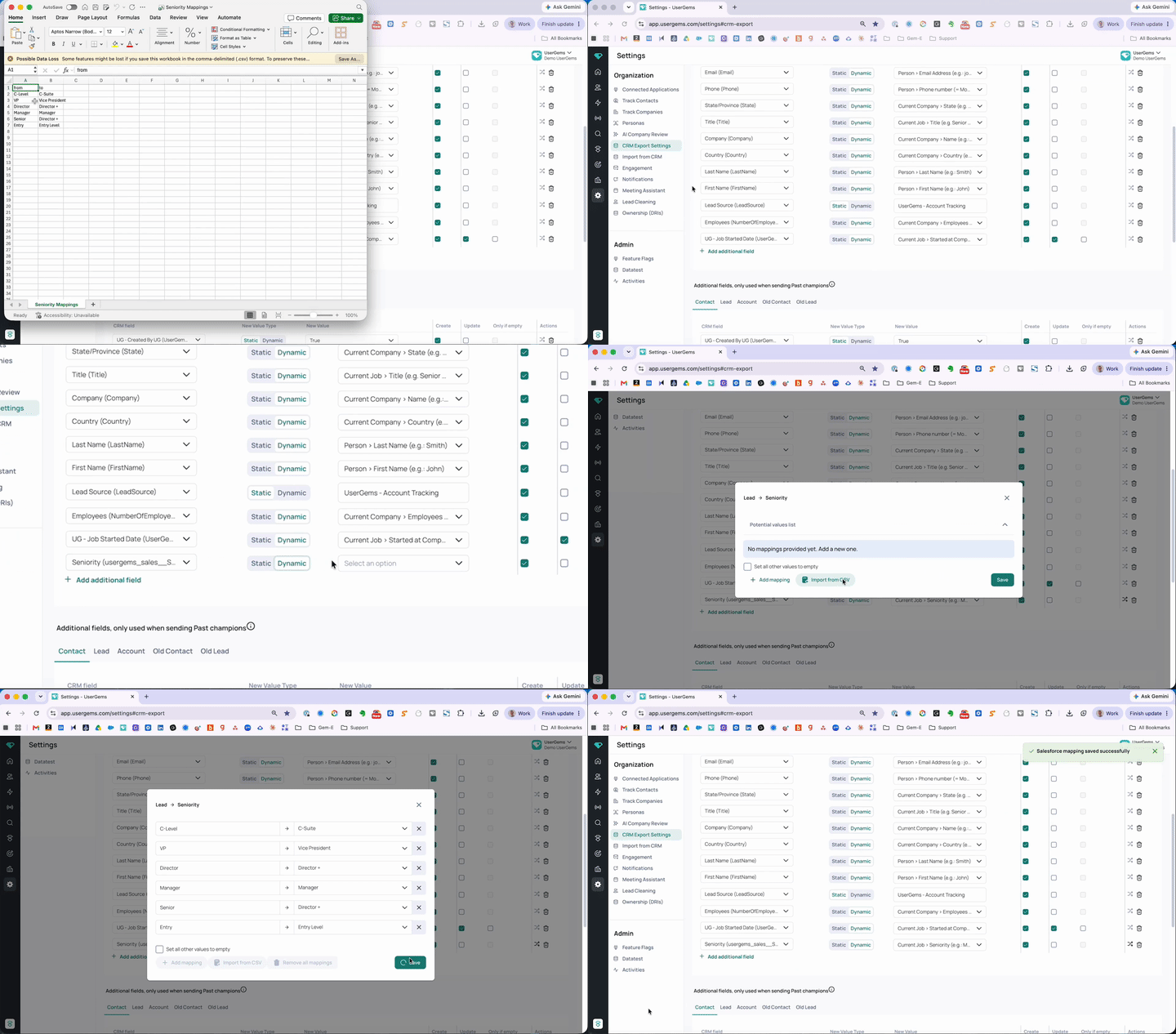
Go to Settings > CRM Export Settings. Each field that’s mapped appears as a row. The arrows / shuffle icon on a field's row opens the mapping screen for that individual field.

📝 Custom mapping applies to fields set to Dynamic. See below.
Static vs. Dynamic
Each field row has a Static / Dynamic toggle:
- Static always writes the same fixed value into the field, regardless of the record. When set to Static, the dropdown either shows the CRM's available picklist options, or open text box. This negates any reason to map, since the value never changes. A good use case is a field like Lead Source, where the value should always be "UserGems" for UserGems-sourced records.
- Dynamic writes a value that varies by the person or company being pushed through (industry of the company, seniority of the contact, etc.). This is what you want to customize in most cases, since each record is different.
When a field is set to Dynamic and the CRM has a strict list of accepted values, the UG values won't necessarily match the CRM's picklist. You'll see a warning on the row: Field has a strict list of values, please map values (through the arrow icon on the right).
This is a flag that mapping may be needed. It doesn't always mean mapping is required, just that you should check whether the UG values line up with what the CRM accepts.

Example: Seniority
This is a common case. The values UserGems writes for Current Job > Seniority are:
- C-Level
- VP
- Director
- Manager
- Senior
- Entry
- Empty (no seniority classified)
But the CRM's Seniority picklist accepts a different set:
- C-Suite
- Vice President
- Director +
- Manager
- Entry Level
Left as-is on Dynamic, UserGems would try to write values like VP and C-Level, which the CRM doesn't accept (Vice President and C-Suite), causing errors. Mapping reconciles them:
📝 Map each UG value to the closest accepted CRM value. Some UG values may map to the same CRM value (e.g. bothDirectorandSeniormap toDirector +above) depending on how you want them grouped.
Two ways to create mappings
Once you've opened the mapping screen, you can either add mappings manually or import them from a CSV.
📝 Before you start, request the full list of available UserGems values for the specific field you're mapping. The mapping screen only shows your CRM's accepted values, not the UG ones, so you'll need that list from your CSM to fill in the UG side.
Option 1 — Manually in-app
- On the mapping screen, the Potential values list shows only the accepted values from your CRM for that field. It does not list the UserGems values, so you'll need those on hand (see note above).
- Click a CRM value to add it to the mapping list.
- Enter the UserGems value you want mapped to that CRM value.
- Repeat for each value you want to map.
- Click Save.

Option 2 — Import from CSV
- Build a CSV with exactly two columns, headers
fromandtoor download one here. - In the
fromcolumn, list the UserGems values (must request from your CSM). - In the
tocolumn, list the value you want written into your CRM for each one. - On the mapping screen, click Import from CSV and upload the file.
- Click Save.
Example CSV:
⚠️ The from values must match the UserGems values exactly, including spelling and capitalization. There is no fuzzy matching. A mismatch means that the value won't map properly.
"Set all other values to empty"
The mapping screen has a Set all other values to empty checkbox. When checked, any UserGems value that you did not explicitly map is written to your CRM as blank.
Example: if a field has 10 possible UserGems values but you only mapped 7, any record that comes through with one of the 3 unmapped values will land in your CRM empty.
📝 Leave this unchecked if you'd rather have unmapped values pass through unchanged.
Saving
Click Save on the mapping screen to apply your mappings. Mappings take effect on future exports for that field.
Common questions
Do I have to map every possible value?
No. Map only the ones you care about. Just be aware of the "Set all other values to empty" checkbox, which decides what happens to the values you didn't map.
My CSV import didn't map some values. Why?
The most common cause is a spelling or capitalization mismatch in the from column. Those values must match the UserGems values exactly.
When do I need to do a custom mapping a field?
Any time UserGems' values don't match what your CRM's field accepts. The "Field has a strict list of values" warning is a flag that mapping may be needed, not a guarantee that it is. If UserGems already returns values that line up with your CRM's accepted values, no mapping is required.
For example, a State field might match exactly since there's little variation in how US states are written. But if your CRM uses "N. Carolina" and UserGems returns "North Carolina," you'd need to map that. You may also choose to do a custom mapping for other reasons, like consolidating values or matching your own naming conventions.