


UserGems Scoring is a custom, AI-powered model built from your own CRM data and signals. It analyzes the accounts and buyers that look like your best customers, then scores every account in your universe against that profile. Every account gets a grade from A to D, so your team knows where to focus first.
Every score is transparent and editable, with no data science team required.
Where to find scoring
Scoring lives under Scoring Model in the left navigation, with three tabs:
- Ideal Customer Profiles: your ICPs and the fit factors inside each one
- Personas: who you want to reach and how important each persona is
- Signals: company and people signals, ranked by importance and mapped to buying stages
💡 Tip: Click Watch tour next to the page title for a 2-minute walkthrough.
How an account gets its A–D grade
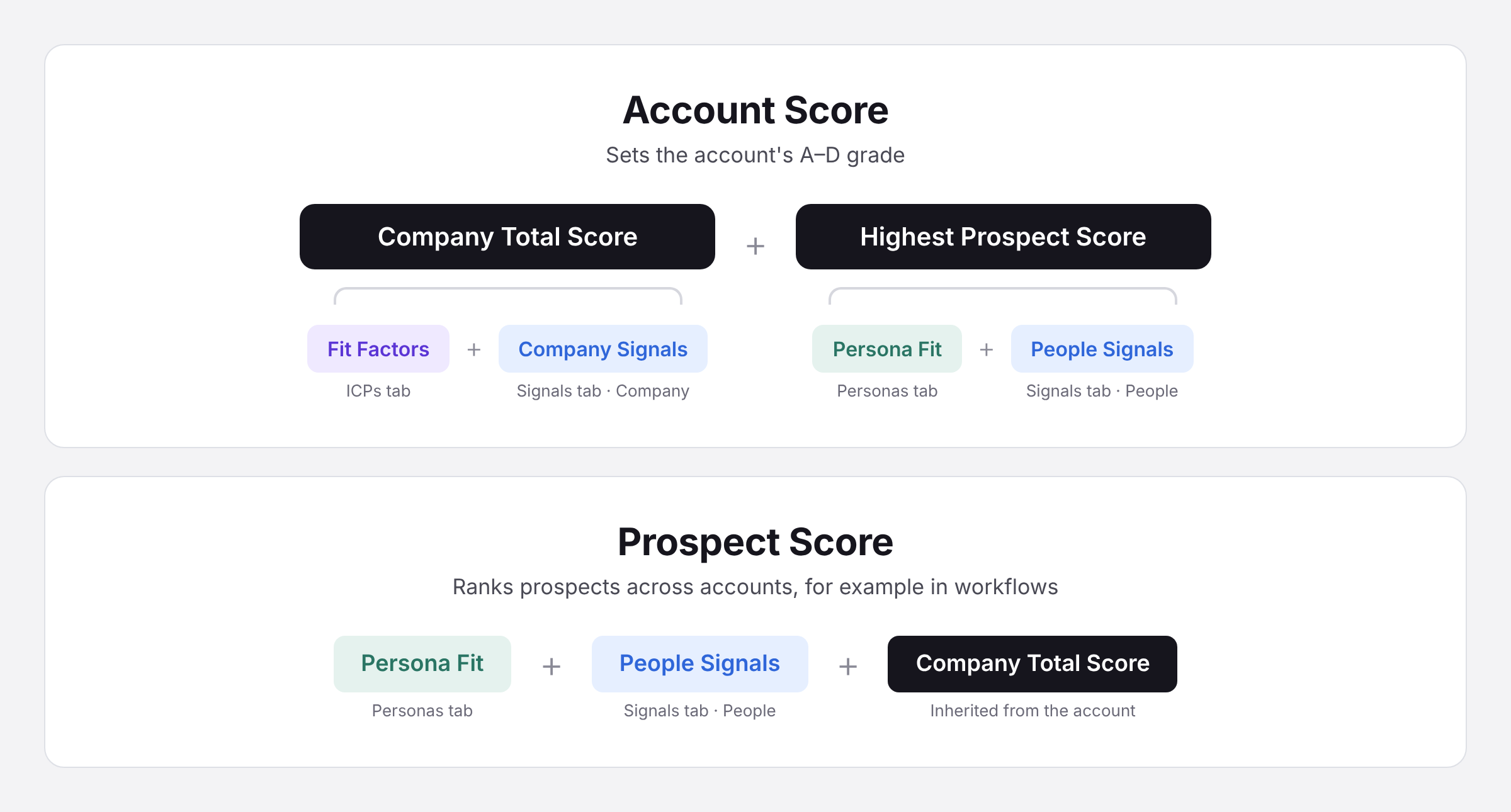
Account Score = Company Total Score + Highest Prospect Score
- Company Total Score: how good the company looks. Fit Factors (Ideal Customer Profiles tab) + Company Signals (Signals tab).
- Highest Prospect Score: how good the best person at that company looks. Persona Fit (Personas tab) + People Signals (Signals tab).
Why add the best prospect? A perfect-fit company with nobody worth reaching is a dead end.
When UserGems ranks prospects across accounts (for example, in workflows), each prospect also inherits their company's total score. Equally strong prospects at a better-fit account rank higher.
How points become grades
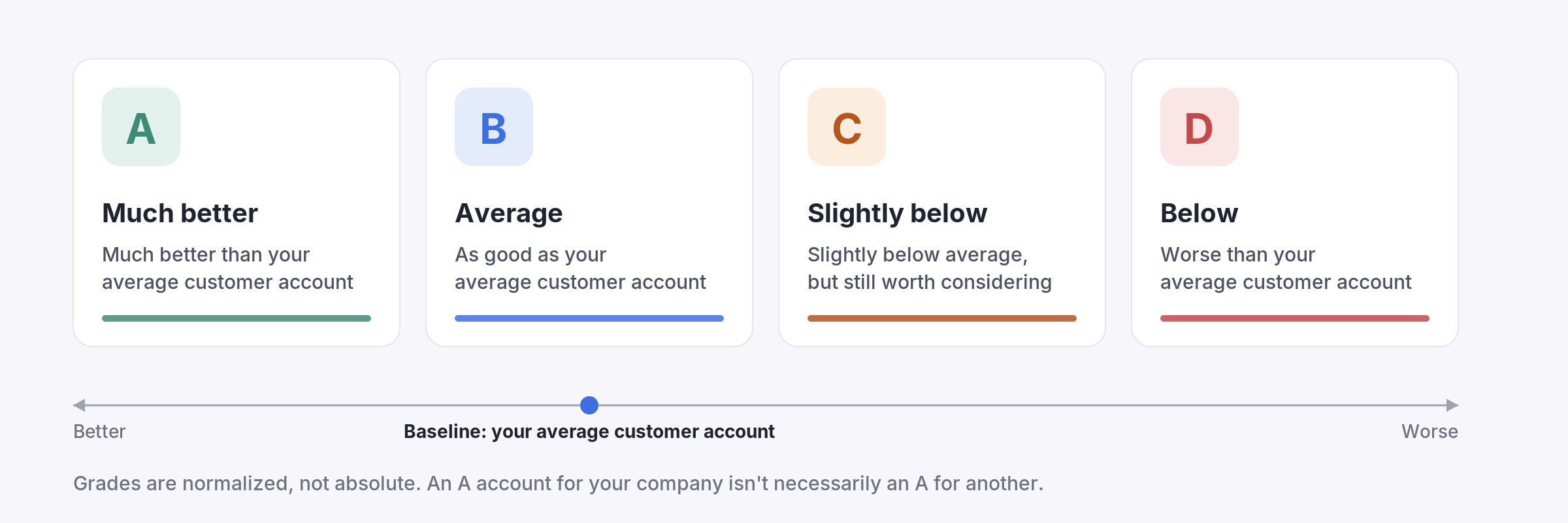
UserGems sums the points, then normalizes every score to a 0–100 scale. It also normalizes for company size, so large companies don't rank higher just because they collect more signals. Your average customer account sets the baseline:
- A: much better than your average customer account
- B: about as good as your average customer account
- C: slightly below average, but still worth considering
- D: worse than your average customer account
Grades are relative to your own customers, so an A account for you isn't necessarily an A for another company.
How importance becomes points: tiers
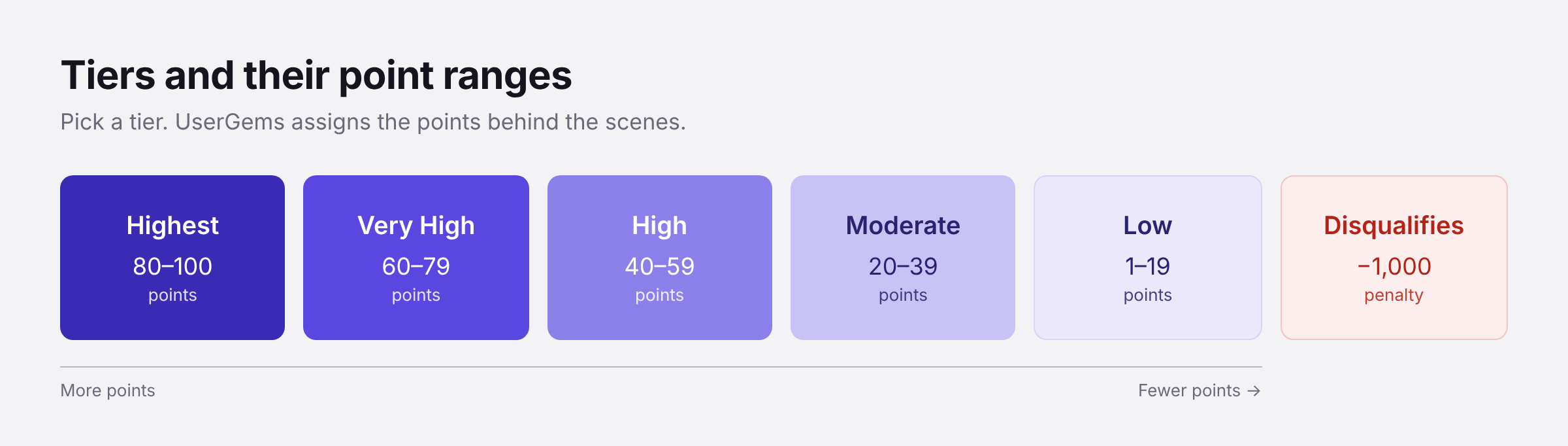
Fit factors, signals, and personas are made up of individual attributes, like a tech stack or a Past Champion signal. Instead of typing point values, you place each attribute in a tier and UserGems handles the math.
- Highest: 80–100
- Very High: 60–79
- High: 40–59
- Moderate: 20–39
- Low: 1–19
- Disqualifies: -1,000
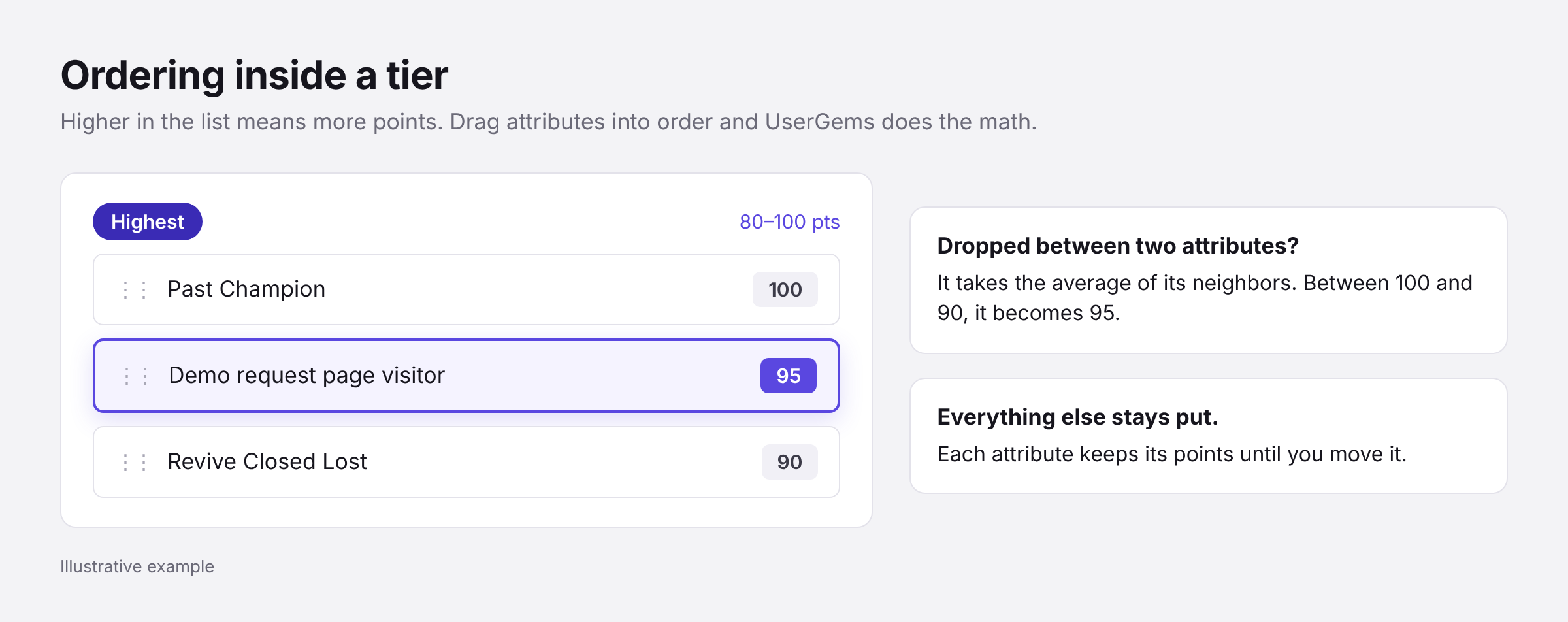
Order within a tier matters too. The higher an attribute sits in its tier, the more points it gets. Drop an attribute between two others and it takes the average of its neighbors: between 100 and 90, it becomes 95. Each attribute keeps its points until you move it again.
⚠️ Disqualifies is a penalty, not a filter. It applies -1,000 points, enough to sink an account in practice. To keep those accounts out of a campaign entirely, also filter them out at the audience level.
Step 1: Create an ICP and tune its fit factors
Create an ICP
When you create an ICP, UserGems scans the accounts you choose and automatically picks the fit factors that matter, scored on real patterns in your data. Treat it as a strong first draft.
- Go to Scoring Model → Ideal Customer Profiles.
- Click + New ICP.
- Select the accounts to use as your blueprint (for example, Customers, Closed Won opportunities, or a target list of dream accounts).
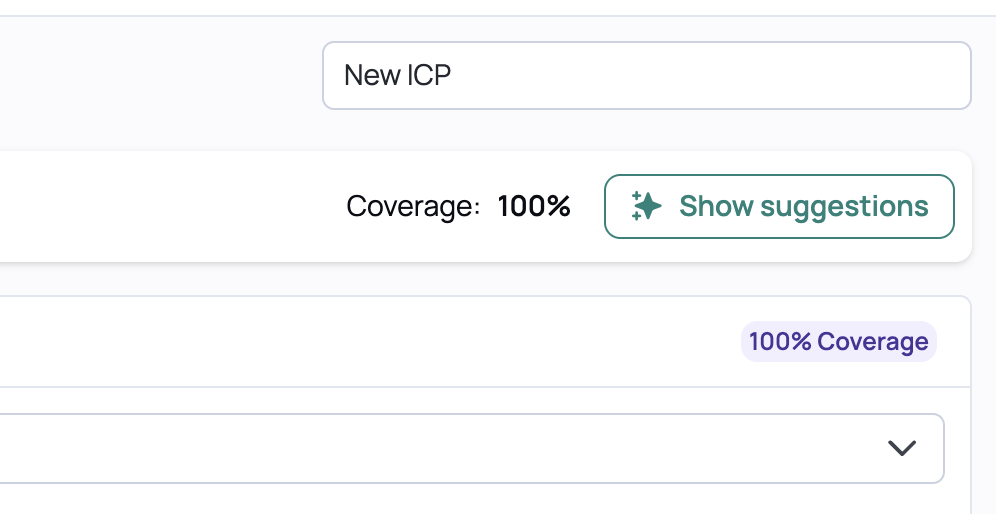
- Click Show suggestions to fill in industries, employee ranges, regions, and countries. We always recommend this.
- Name the ICP, then click Create ICP.
Scores update within 24 hours of creating or changing an ICP.
Reading the ICP list
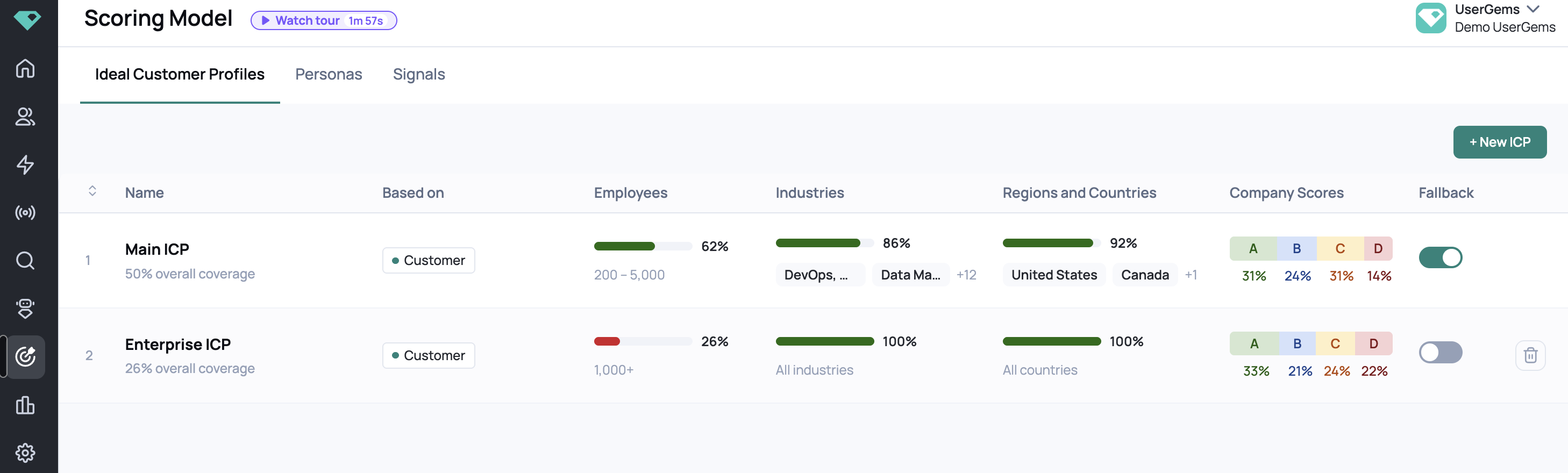
- Name and coverage: the % of your customer accounts the ICP matches
- Company Scores: the % of accounts graded A, B, C, and D
- Fallback: the ICP used to score accounts that don't match any of your ICPs. Only one ICP can be the Fallback.
What fit factors are
Fit factors are the firmographic and technographic facts that make a company look like your best customers: tech stack, target market, industry, company size, and more. There are thousands available, and UserGems picks the ones that matter for each ICP. Each ICP has its own fit factors, because an Enterprise ICP and an SMB ICP care about different things.
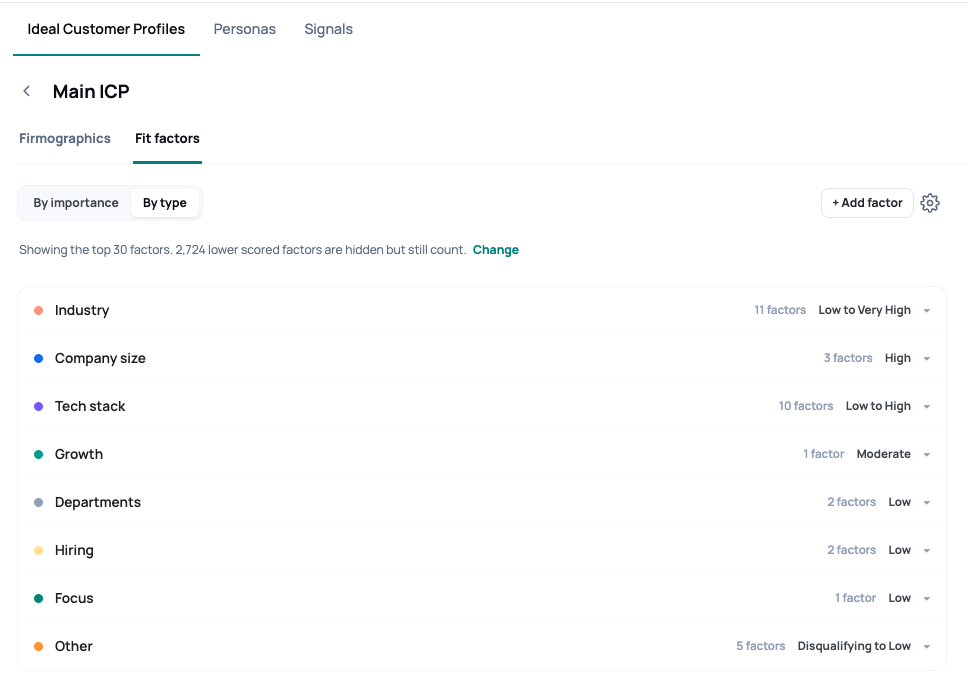
Open an ICP and click the Fit factors tab. Two views are available:
- By importance: grouped into tiers
- By type: grouped by Tech stack, Target market, Industry, Company size, and more
Adjust fit factors
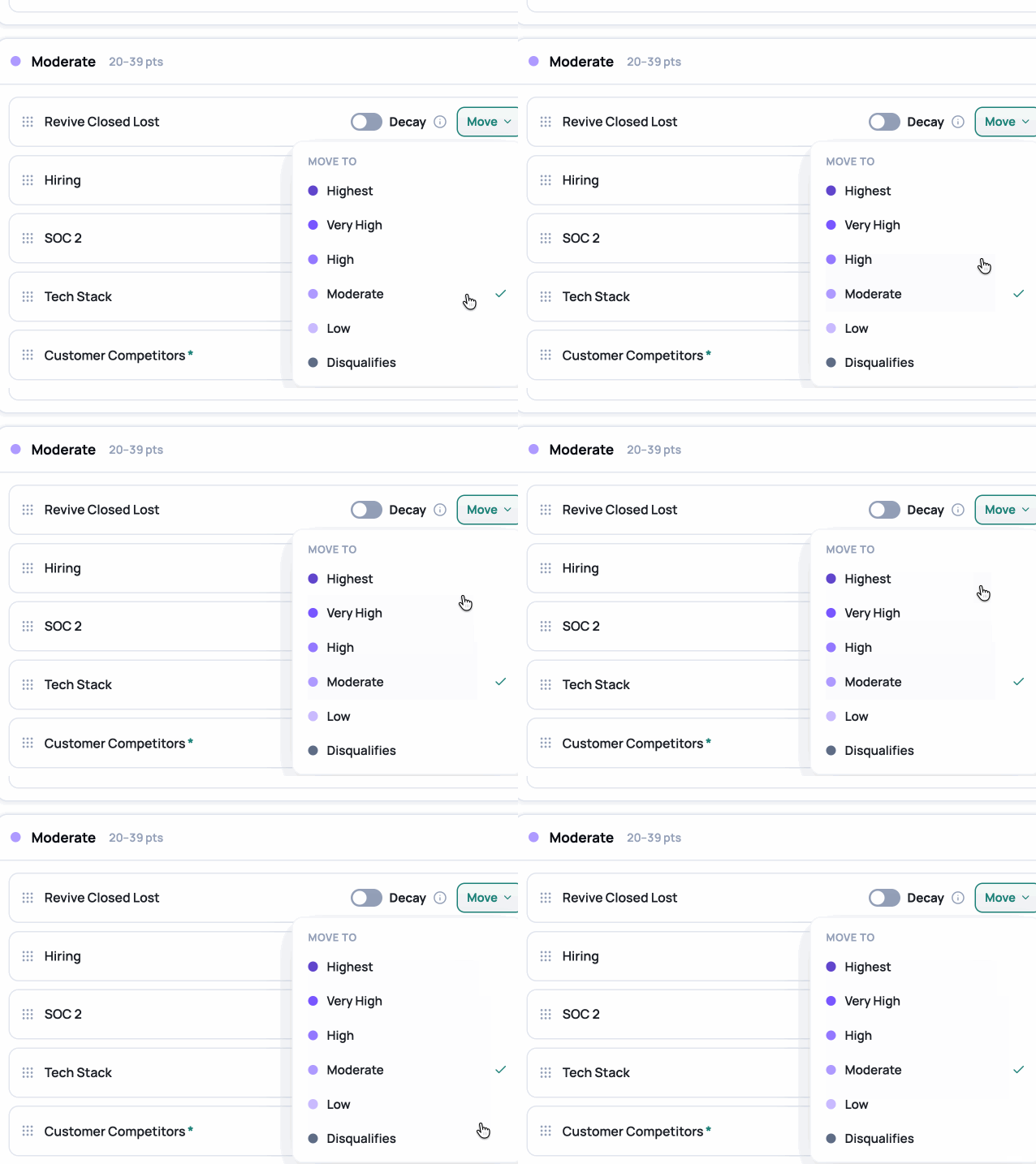
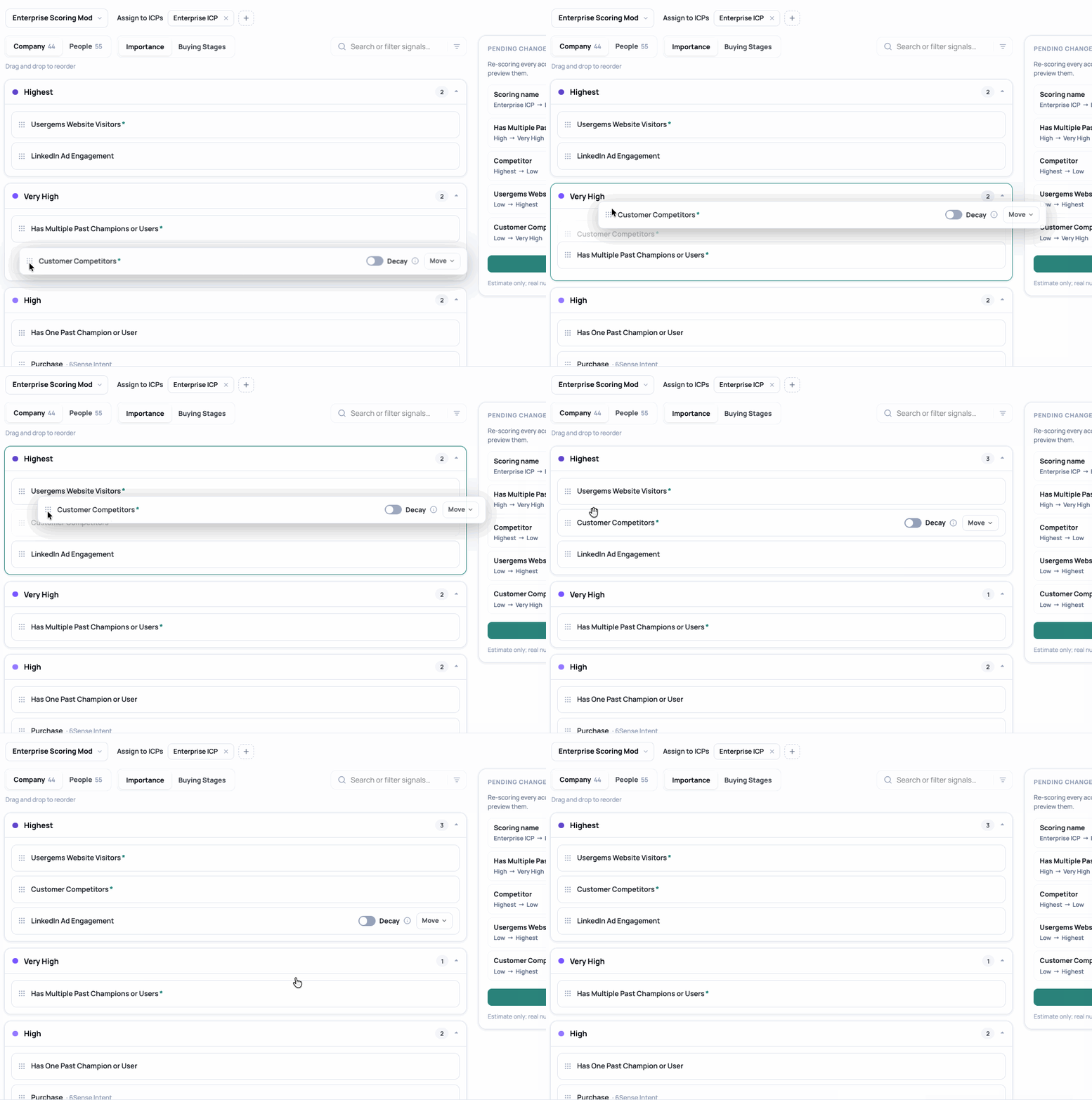
- Drag a factor between tiers, or use the Move button.
- Drag to reorder factors within a tier.
- Use + Add factor only if something's missing. UserGems already picked the factors that matter.
Fit factor settings
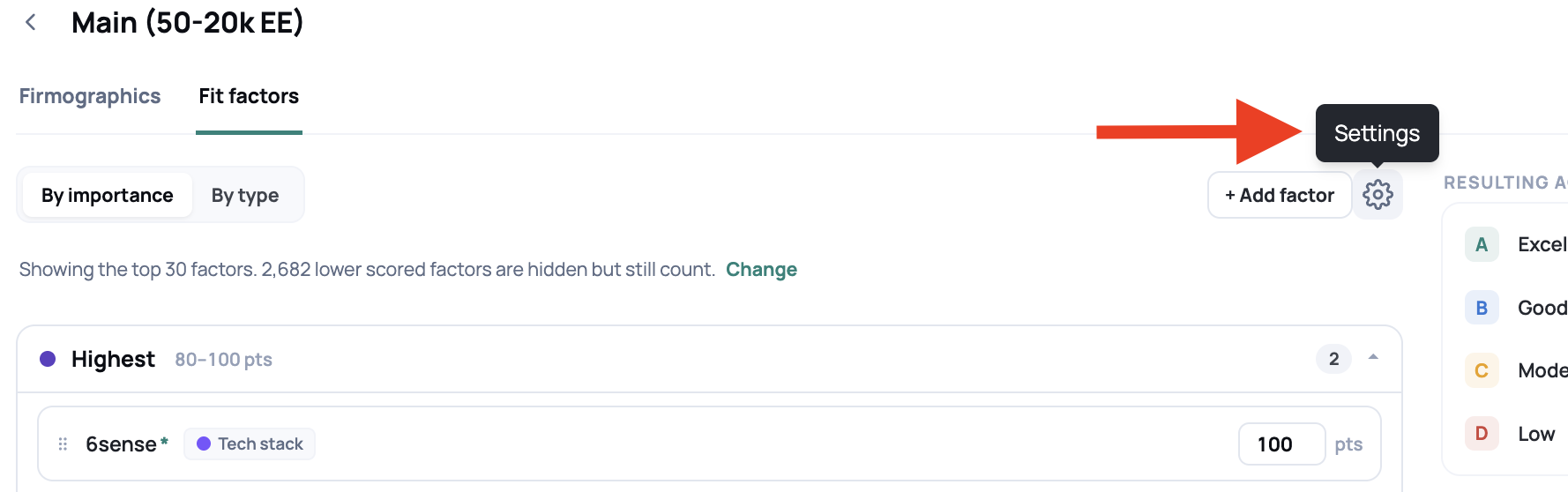
Click the gear icon next to + Add factor.
- Show top factors (10 / 30 / 50 / 100) sets how many of the highest-scored fit factors are displayed. It's the top factors overall, not per tier.
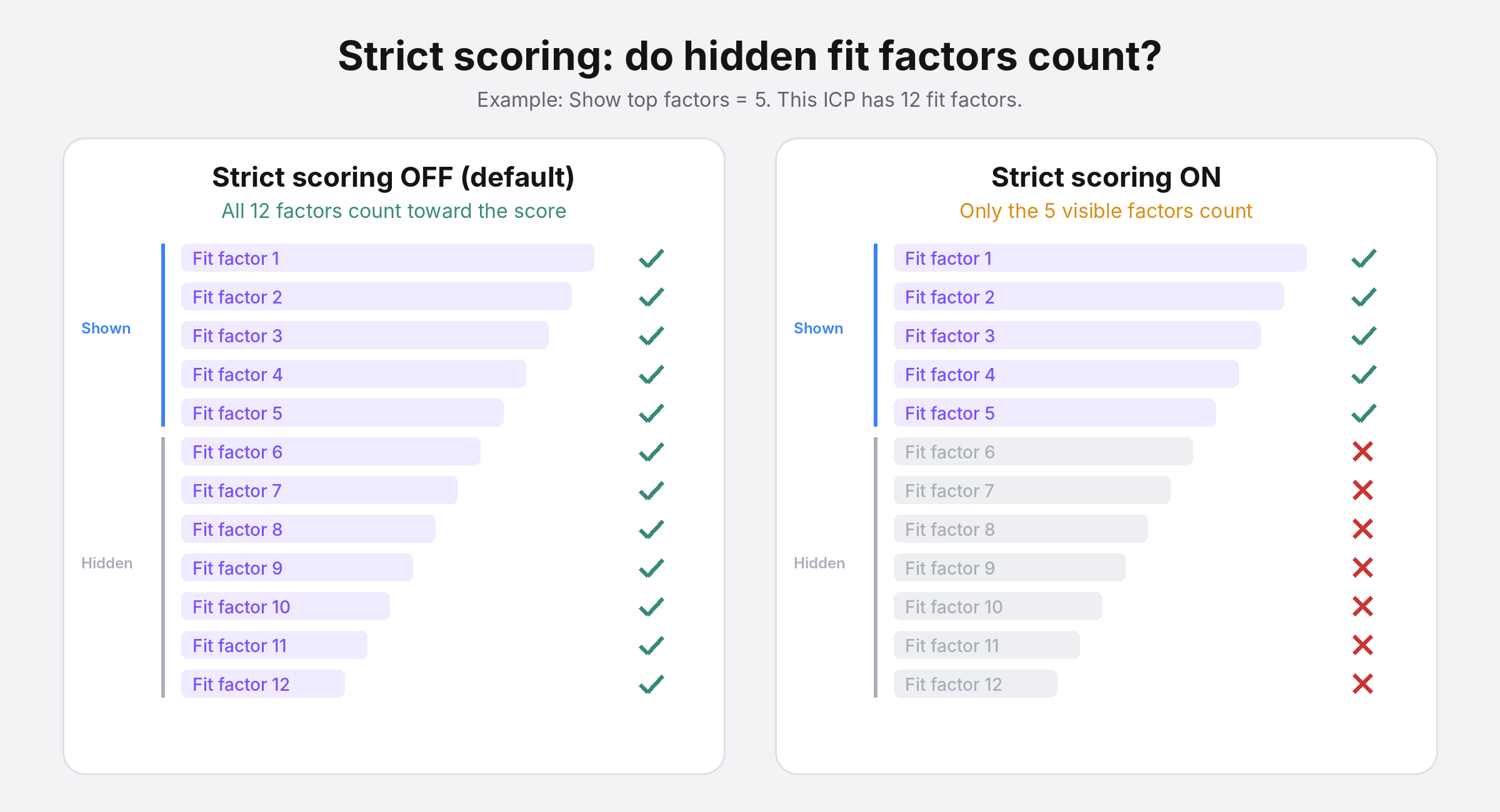
- Strict scoring controls whether hidden factors count:
- Off (default): every fit factor counts toward the score, including hidden ones.
- On: only the visible factors count.
Changing Show top factors doesn't change scores unless Strict scoring is on. We recommend leaving Strict scoring off, because scoring against every fit factor is more accurate.
Step 2: Set persona importance
Personas are to people what ICPs are to companies: who you want to reach. You set them up once, and every ICP uses them.
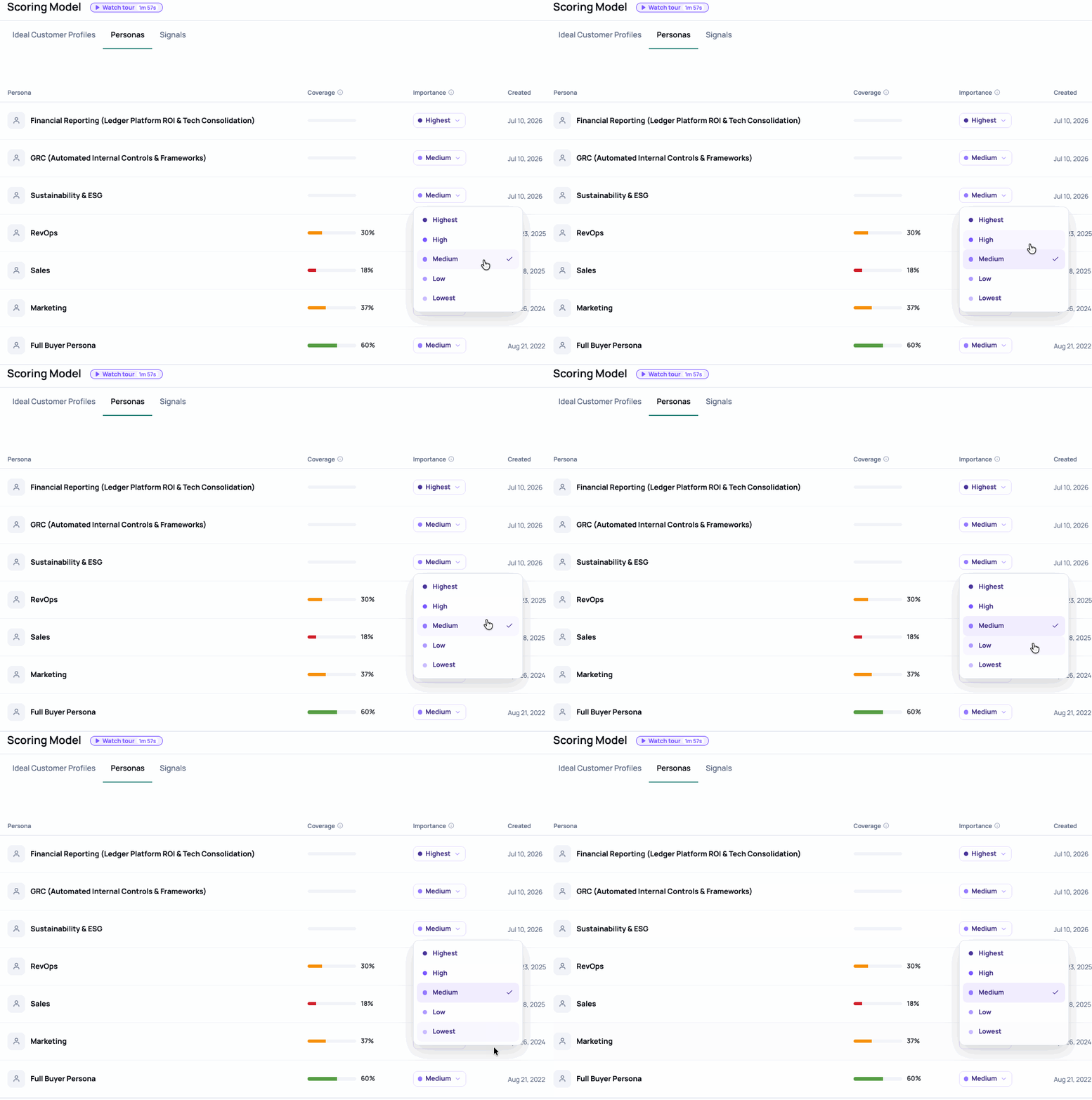
On the Personas tab, use each persona's Importance dropdown (Highest, High, Medium, Low, Lowest). It controls how much that persona counts toward a prospect's Persona Fit score, relative to your other personas.
Step 3: Set up signal scoring models
Signals are what's happening right now that makes an account worth reaching out to: Past Champions, website visits, Revive Closed Lost, intent, hiring, and more.
A signal scoring model is a saved set of signal priorities. Each ICP keeps its own fit factors, and one signal scoring model can score many ICPs, so you never set up the same signal priorities twice.

Default scoring
Default scoring is your baseline signal scoring model. It's always there and can't be removed.
- Every ICP uses exactly one signal scoring model. Any ICP not assigned to a model uses Default scoring.
- One model can score many ICPs, but an ICP can't be assigned to two models.
- Most teams only need Default scoring. Create a new model only when an ICP needs its own signal priorities.
When a second model makes sense: you have an Enterprise ICP and an SMB ICP. At a small company, one person visiting your demo page is a strong buying signal. At a 20,000-person enterprise, one visit means far less. With two models, you can place that signal in a higher tier for SMB and a lower tier for Enterprise.
Create a signal scoring model
- Go to Scoring Model → Signals.
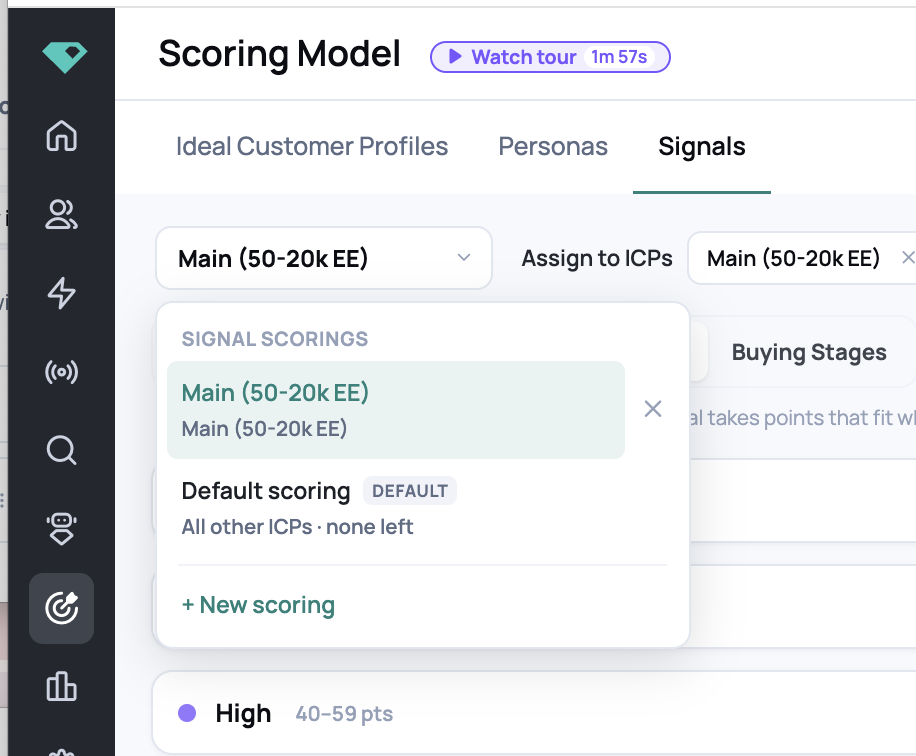
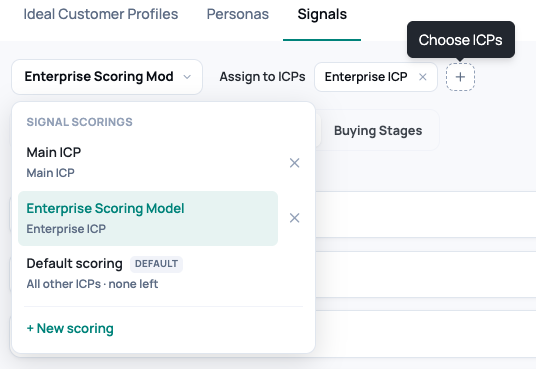
- Open the scoring model dropdown (top left) and click + New scoring.
- Name the model (for example, "Enterprise Model"). Each signal starts at its Initial Signal Score.
- Rank signals by importance and map buying stages (see below).
- Next to Assign to ICPs, click + and pick the ICPs this model should score.
- Preview and save (Step 4).
Initial Signal Scores
When a signal is set up in the Signals library, it gets an Initial Signal Score: the tier it starts in. Every new signal scoring model starts each signal at that tier.
Changing a signal in one model doesn't change it in your other models. To change it everywhere, update it in each model.
An asterisk (*) next to a signal means it was set manually in that model and no longer matches its Initial Signal Score.

Navigate the Signals tab
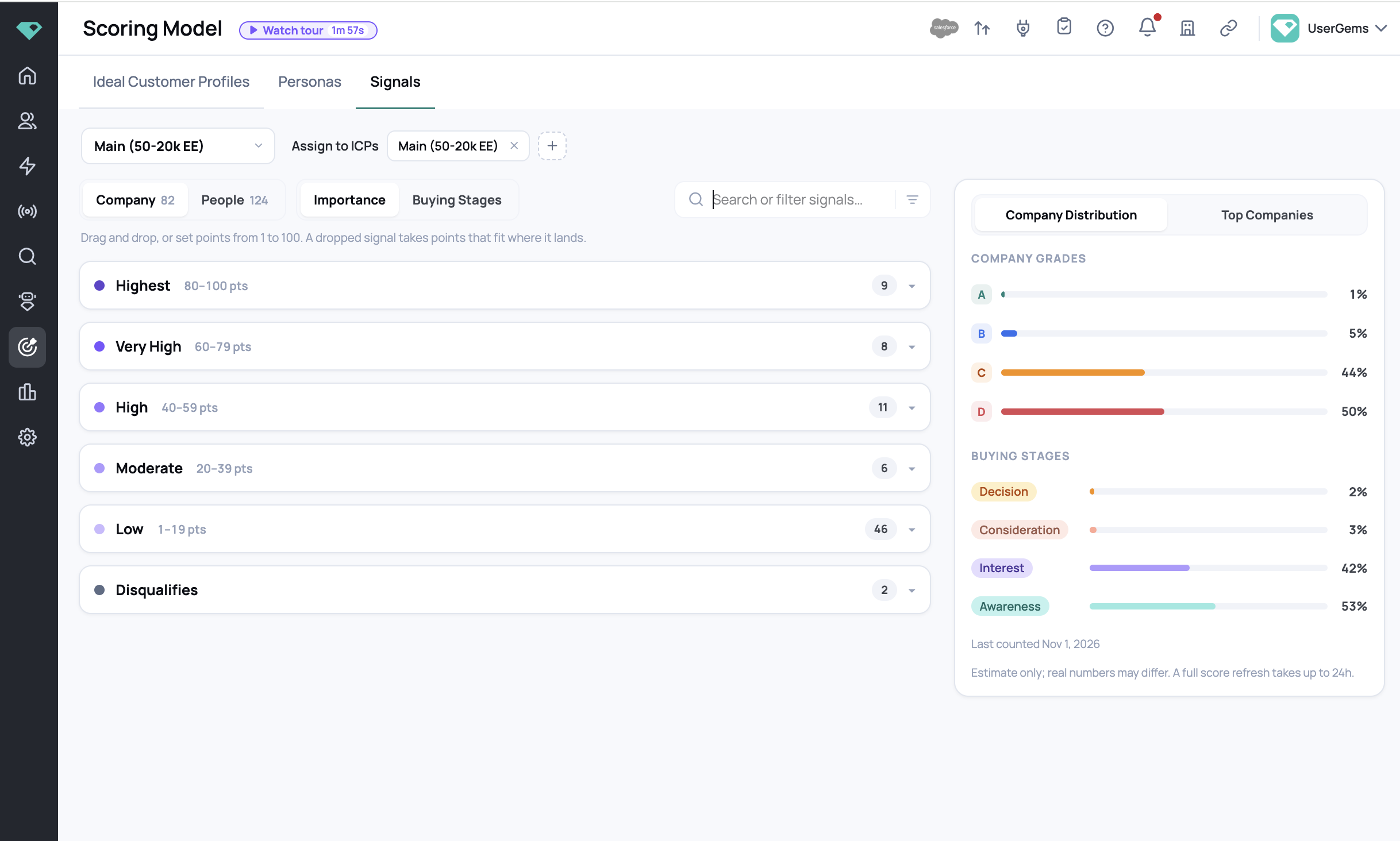
- Model dropdown (top left): pick the signal scoring model to edit.
- Company / People: switch between company-level and people-level signals. The counts show how many of each.
- Importance / Buying Stages: rank signals into tiers, or map them to buying stages.
- Search: find a specific signal.
- Hover over a signal to turn on Decay or use Move.
Sub-signals appear one per line, each labeled with its parent signal (for example, "Pricing Page · UserGems Website Visitors"), so you can place each one in its own tier.
Rank signals by importance
On Importance, adjust signals the same way as fit factors: drag between tiers, reorder within a tier, or use Move.
Map signals to buying stages
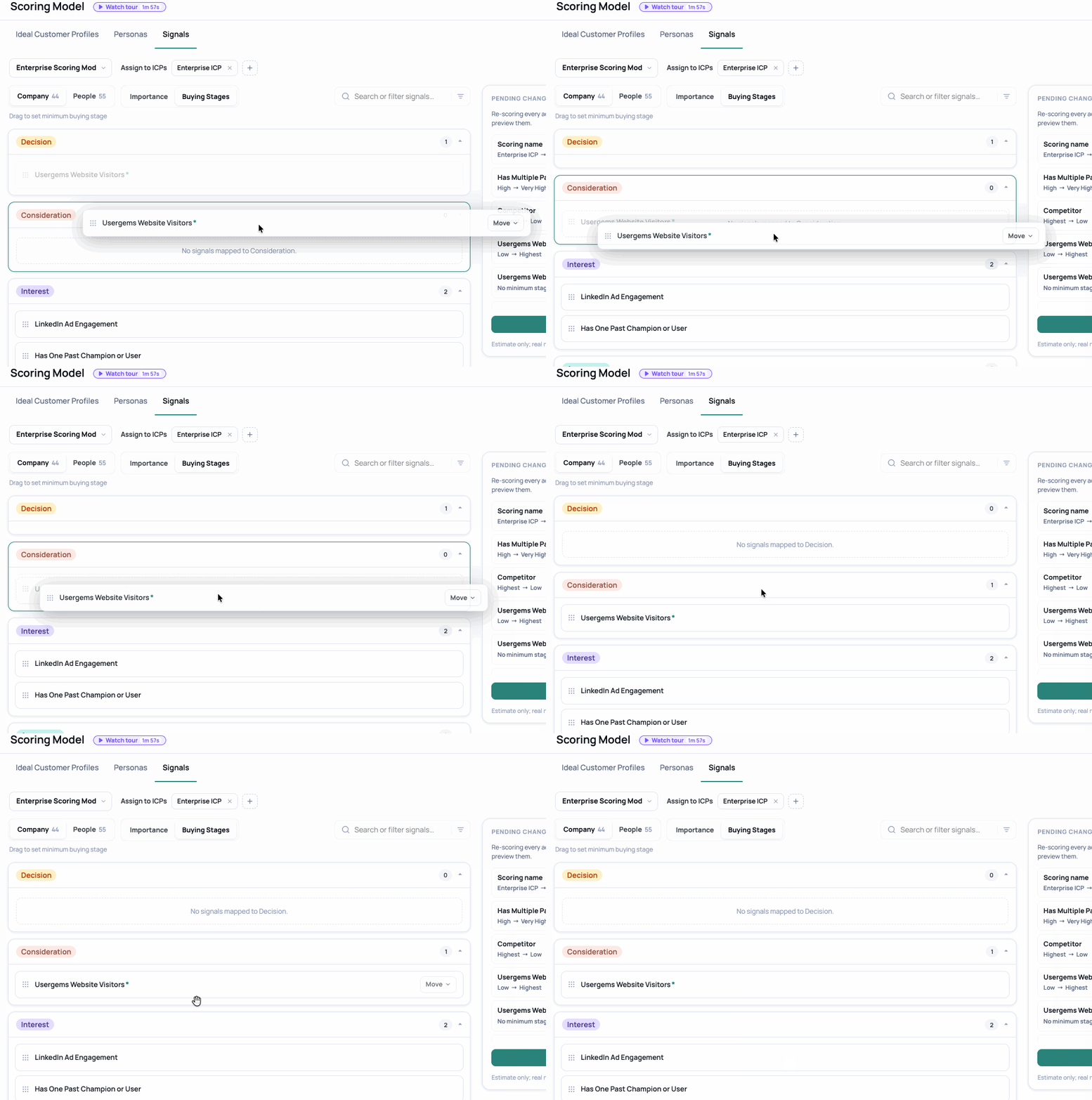
On Buying Stages, drag each signal into its minimum buying stage: Decision, Consideration, Interest, or Awareness. When that signal fires, the account lands in at least that stage.
Two more buckets sit at the bottom:
- No minimum stage: the signal still counts toward the account's buying stage, but doesn't guarantee a minimum stage.
- Not used for buying stage: the signal doesn't affect buying stages at all.
Decay
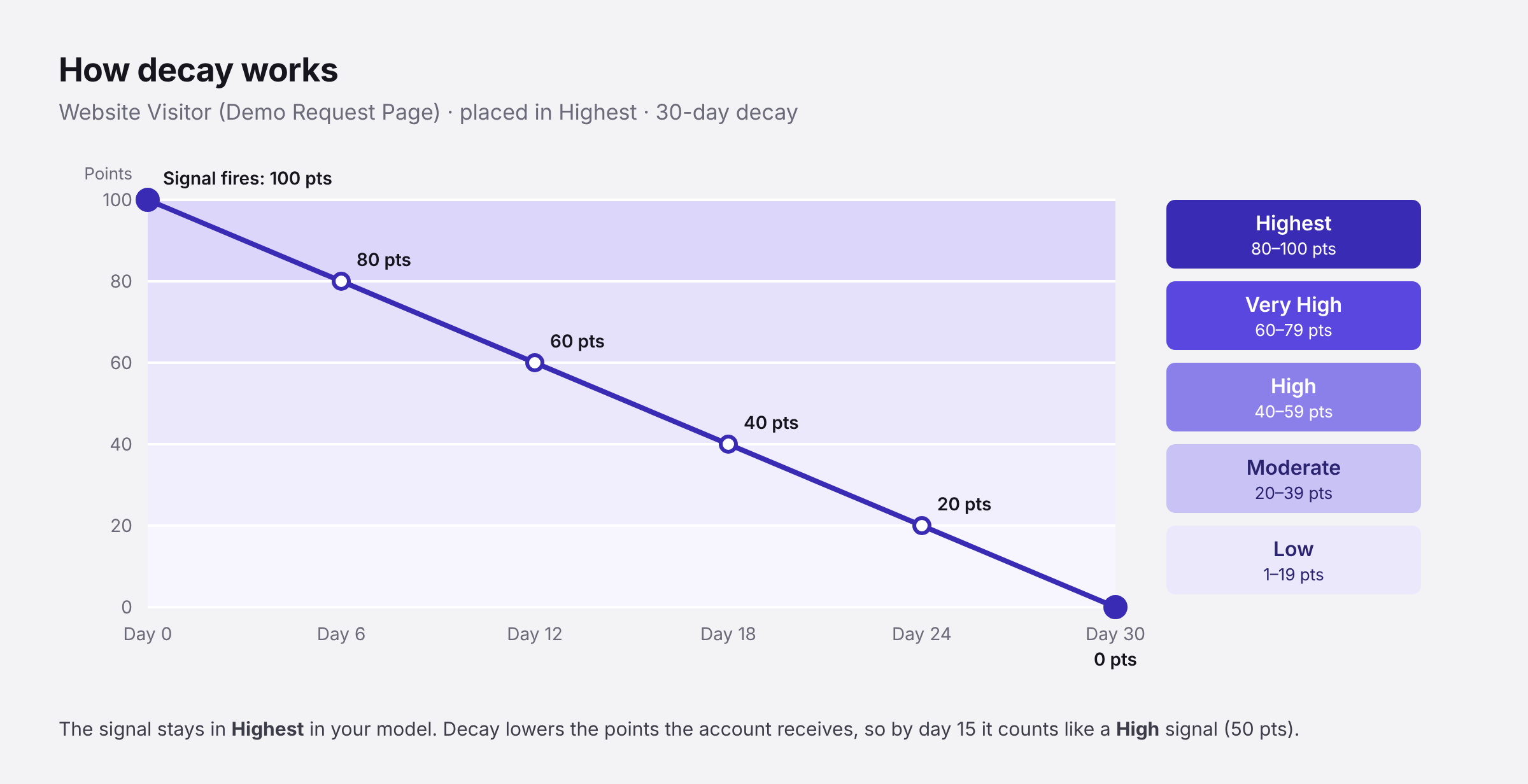
For time-sensitive company signals, turn on Decay and set the number of days. The signal starts at full points when it fires, then drops linearly to zero over that window. It stays in the same tier; the account just receives fewer points over time.

Step 4: Preview and save
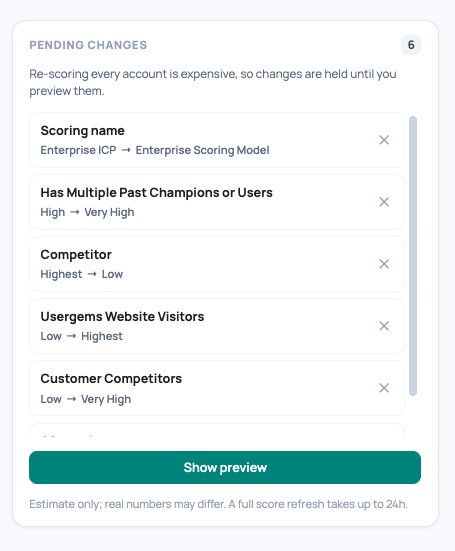
Re-scoring every account takes time, so your edits are held as pending changes until you preview them.
- Make your changes (drag, reorder, move).
- The Pending changes panel lists everything you changed. Click ✕ to remove any single change.
- Click Show preview (it can take a minute).
- Review:
- Company Distribution: how the share of A / B / C / D accounts would change
- Buying Stages: how the stage distribution would change
- Top Companies: which companies would enter or leave your top list
- Click Save changes or Revert all.
A full score refresh takes up to 24 hours after saving. The preview is an estimate; final numbers may differ slightly.
📝 Note: On the Signals tab, the preview needs an ICP to score against, so assign the model to an ICP first.
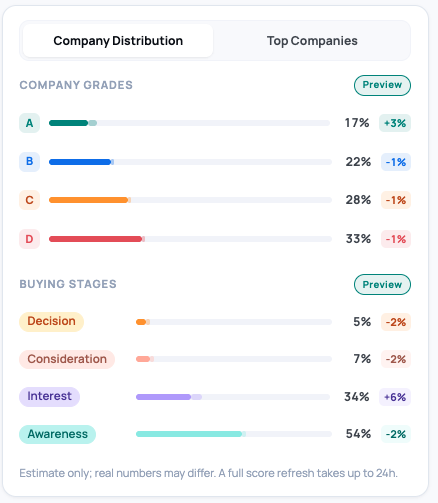
Iterate until the ranking looks right. Review Top Companies. If an unexpected company is near the top or the distribution looks off, check which signals or fit factors are driving it, adjust, and preview again.
Advanced options (ask your CSM)
Your CSM can turn these on for you:
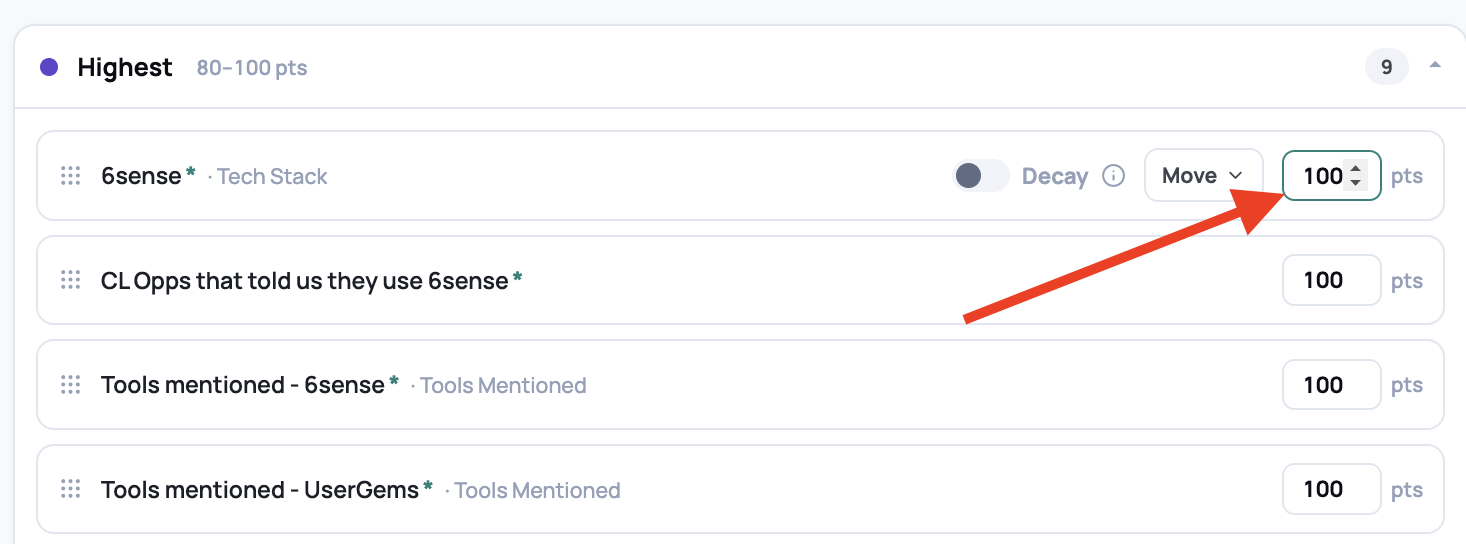
- Advanced scoring shows and lets you edit the exact points (1–100) next to every fit factor and signal. Tiers and points stay in sync: type a new number and the attribute moves to the matching tier; drag an attribute and its points update to fit where it lands. Turning it on doesn't change any scores.
- Category weights set how much Fit Factors, Company Signals, People Signals, and Persona Fit each count toward a prospect's score. They don't change account scores or A–D grades. The four weights add up to 100% and apply across your whole workspace. They help when your top-prospect lists fill up with people from the same one or two accounts.
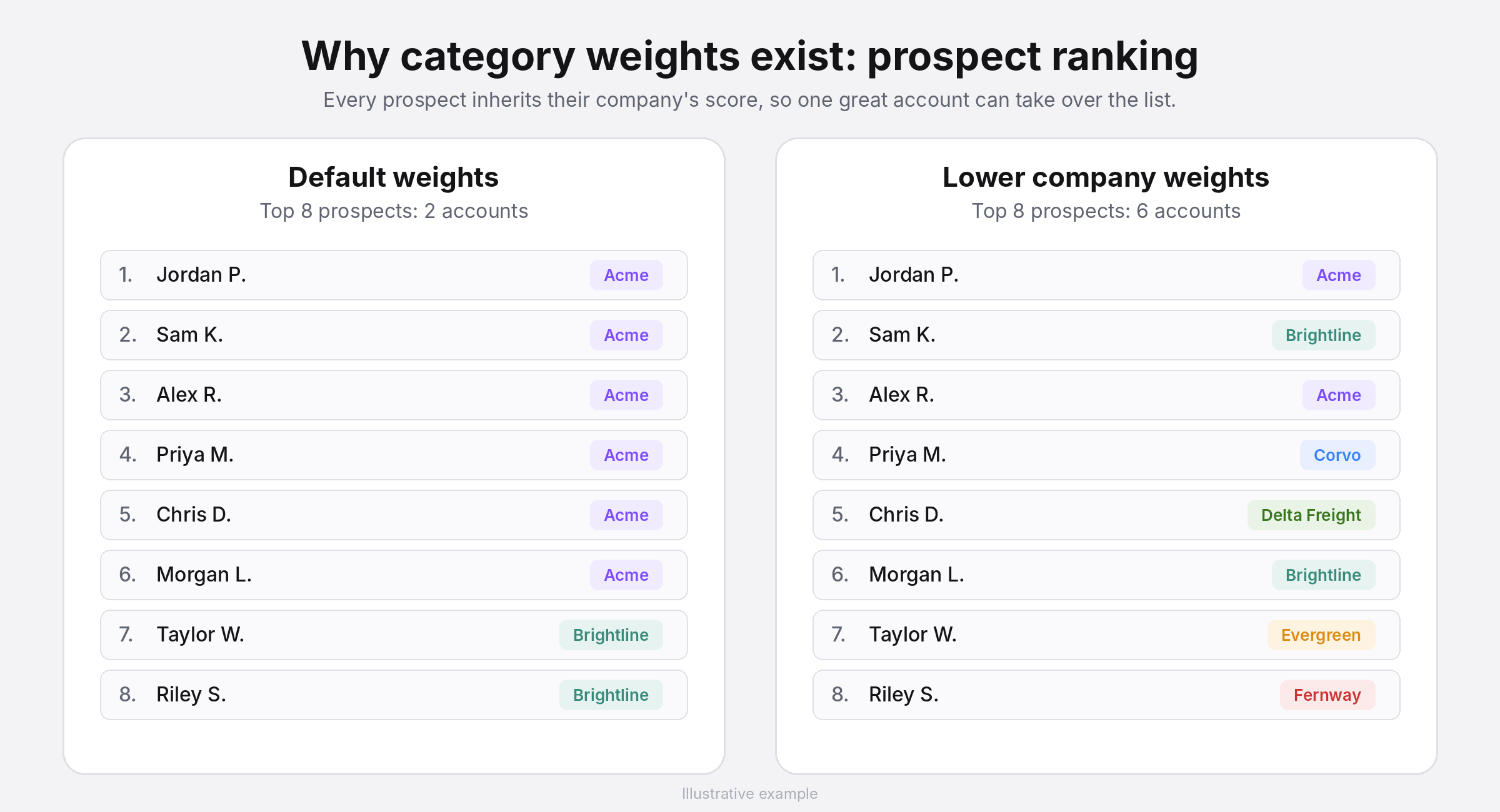
⚠️ Heads up: Category weights change every prospect's score, so a small change can reshuffle your top-prospect lists.
Best practices
- Start from the fit factors UserGems suggests, and adjust only where you know better.
- Leave Strict scoring off unless you need to see exactly which factors move your accounts.
- Stay on Default scoring until an ICP clearly needs its own signal priorities.
- Preview every change before saving, and review Top Companies first.
- Pair Disqualifies with audience filters to keep accounts out of campaigns.
FAQ
Can I see the exact points behind each tier?
Yes. Every attribute still has a point value behind the scenes. Ask your CSM to turn on Advanced scoring.
How long until my changes show up?
Up to 24 hours after you save.
Why did my fit factor order shift slightly?
Fit factors recalibrate on their own as you bring on new customers and close more opportunities. Changes are small, respect your order, and rarely move a factor into a different tier.
What changes automatically, and what do I control?
Fit factors recalibrate over time. Signal scores only change when you change them, because signals like a pricing page visit are too specific to infer from closed-won data.
Why doesn't the Initial Signal Score in the Signals library match my scoring model?
The Initial Signal Score is only where a signal starts in each new model. The Scoring Model page is the source of truth for how it's scored today.
An account doesn't match any of my ICPs. How is it scored?
By your Fallback ICP.
Do I need a separate signal scoring model for each ICP?
No. Leave ICPs on Default scoring, and create a new model only when an ICP needs different signal priorities.
Does putting something in Disqualifies remove accounts from my campaigns?
No. It applies a -1,000 point penalty. To keep those accounts out of a campaign, filter them out at the audience level.
Why are competitors showing up in my top accounts?
A competitor can look like a great fit, and the model doesn't know they're off-limits. Find the Company Type = Competitor fit factor and move it to Disqualifies.
What's the difference between "No minimum stage" and "Not used for buying stage"?
No minimum stage still adds to an account's buying stage but doesn't guarantee a minimum stage. Not used for buying stage doesn't affect buying stages at all.
Why is my top-prospect list dominated by one or two accounts?
Prospects inherit their company's score, so one strong account can take over the list. Your CSM can adjust category weights to spread it out.
Do bigger companies score higher because they have more signals?
No. Scores are normalized for company size.
What does an A grade mean?
The account is much better than your average customer account. Grades are relative to your own customers.