

Your favorite outbound agent is getting a major upgrade. Now you can ask Gem-E 2 to handle tasks like "make the tone friendlier" or "sharpen the CTA" and watch emails be rewritten in real time.
This guide walks you through how to setup and chat with Gem-E to shape your outbound messaging.
Setting up Content
Your Content is the foundation for how Gem-E communicates your product to different personas. It tells Gem-E what you sell, who you sell to, and what matters most to each audience—so it can choose the right message and content every time.
Content Types Available
- Value Propositions (required) - Foundation of what you sell and who you sell to
- Sample Emails - Set tone, style, and structure for messaging
- Case Studies - Share customer success stories with relevant prospects
- New Features - Announce product updates to the right audience
- Links - Store calendar, gifting, and resource links for dynamic insertion
- Conditional Instructions - Trigger specific behaviors based on prospect attributes
For detailed setup instructions including filters, formatting requirements → review the Gem-E Content Setup Guide.
Where to chat with Gem-E 2?
It’s important to understand there two different areas where you can chat with Gem-E
Company-Level
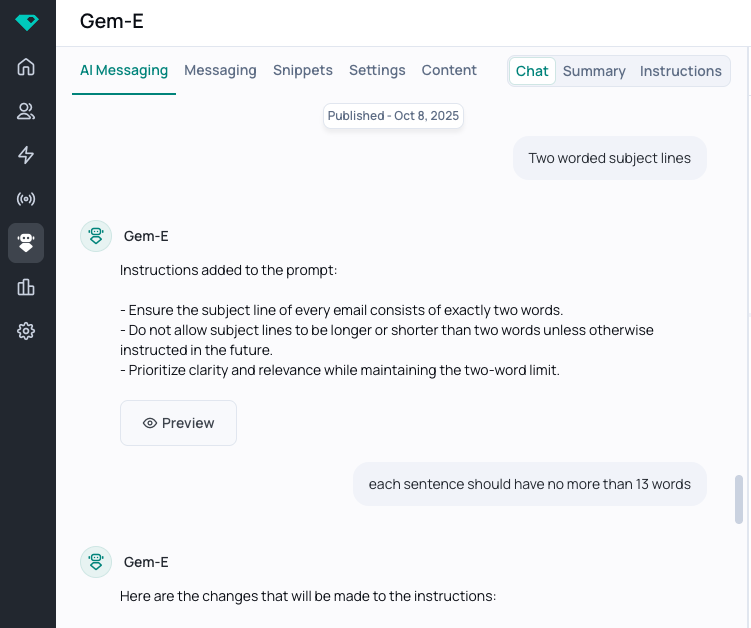
Inside the UG platform → head to the "Gem-E" tab → you should now see "AI Messaging" as an option.
This is where you can chat with Gem-E on the Company-Level. Use this for global rules that should apply to all workflows.
Think tone, structure, style, banned words, subject/CTA, max/min word count length.
Examples: Never use the term “free” or “lead gen”, Keep subject lines <= #, Bodies should be only 4-6 sentences” ask only open ended CTAs
Campaign-Level
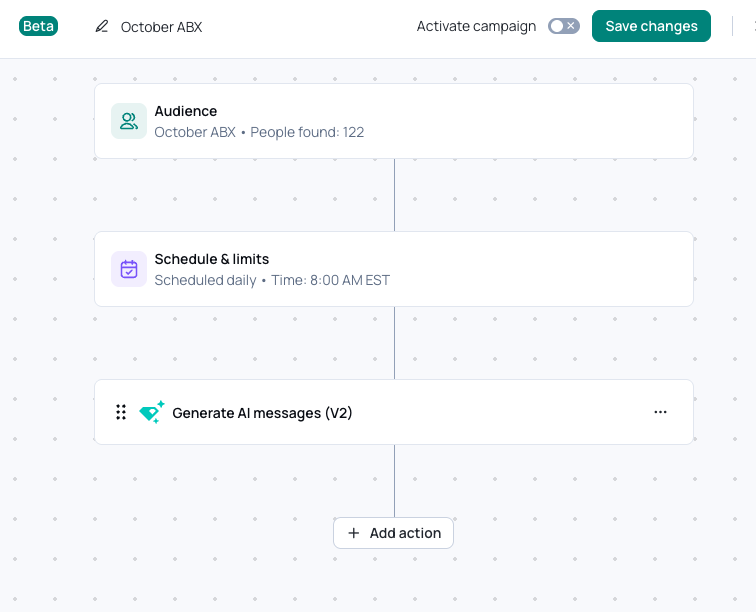
Inside the UG platform → head to the Campaigns tab → open a campaign → select "Generate AI messages (V2)"
Use the campaign-level chats for localized adjustments tied to a specificcampaign. These are highly contextual rules that you don’t want leaking into every campaign.
How Company-Level and Campaign-Level Instructions Work Together
Company-level instructions act as the default baseline for Gem-E 2, while campaign-level instructions act as an override layer.
Here’s how Gem-E 2 processes instructions behind the scenes:
- Gem-E always receives both company-level instructions and campaign-level instructions.
- If a campaign has no custom instructions, company-level instructions apply automatically.
- If a campaign does have custom instructions (that conflict with Global level instructions) those remain unchanged when company-level instructions are edited.
- Company-level instructions still apply as long as they do not conflict with campaign-level instructions.
- If there is a conflict or contradiction, campaign-level instructions always win.
Examples:
- Company-level instruction: “Add a question at the end of each email.”
Campaign-level instruction: “Use a more formal tone.”
Result: Emails will be formal and include a question at the end. - Company-level instruction: “Use an informal tone.”
Campaign-level instruction: “Use a formal tone.”
Result: Emails will be formal.
Key takeaway:
Campaign-level instructions do not replace company-level instructions. They override them only when there is a direct conflict. Otherwise, company-level instructions continue to apply.
Navigating Gem-E 2
There' two places to "prompt" Gem-E to shape your messaging. The Chat Tab VS the Instructions tab (also called "Company Prompt" if you're editing on the company-level.
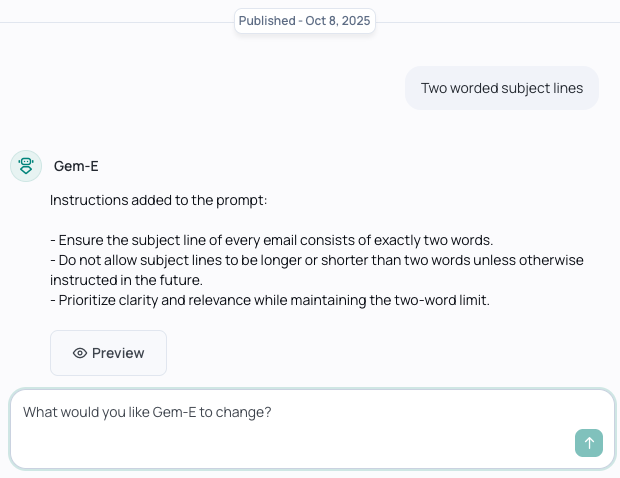
Chat tab
Shape messaging via chat and works best for broad guidance that should apply across all emails in the campaign (or if you’re chatting on the company-level - it will apply to all emails).
Example uses: “Never use this word/phrase”, “make the messaging warm and friendly”, “keep subject lines under # characters”, never use the term “leadgen”
Instructions tab
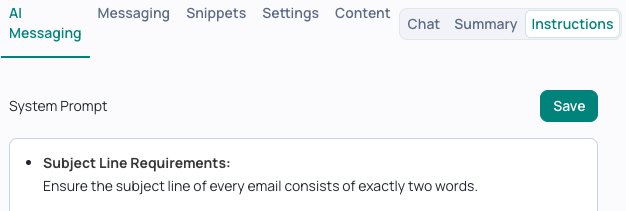
Shape messaging via prompt instructions (advanced mode). This tab is only meant for small tweaksafter the user has already shaped messaging via chat.
- Example: In the instructions tab, if there’s a line specifically mentioning “each subject line should be two words” → user can change the # in the instruciton tab– this is an example of a small tweak. Here we aren’t specifically adding new instructions or modifying anything large
- Note: on the Company-Level, the instructions tag is labeled as “Company Prompt”
Summary tab
This allows you to review a summary of all changes with your messaging based on your chat history.
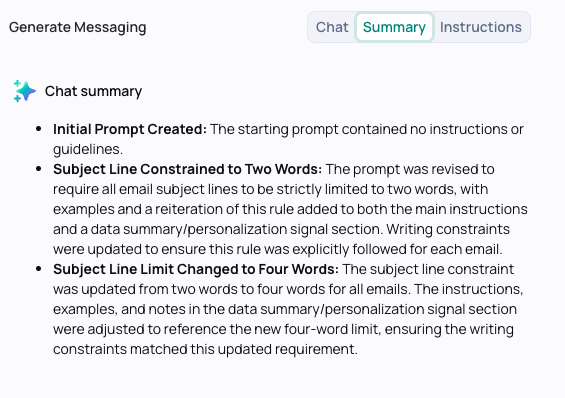
Saving drafts, reviewing messages, and publishing
Autosave Drafts
All of your chats are automatically saved as a draft. When you exit Gem-E 2 and return it will prompt you with this message:

Stay on published means you'll stay on the originally published version (and discard your draft). All chats from this draft will then disappear.
Continue from draft wll allow you to pick up where you left off
Revert or Undo
You can preview previously published versions by scrolling through your chat history and clicking "preview" - where you can see the (1) original prompt and (2) what the emails looked like on the right hand panel.
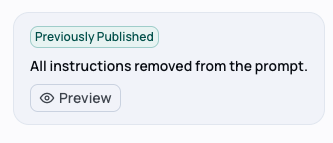
Once in preview mode → hit "Restore" if you want to go back to the previously published prompt (this will automatically publish)
If you sent a chat tht you'd like to remove → click the "undo" icon next to the publish button
Review & Publish
This button will publish Gem-E 2's new instructions to emails going forward.
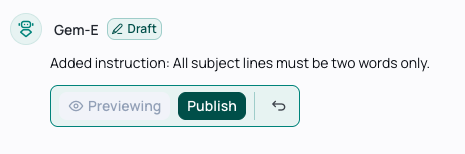
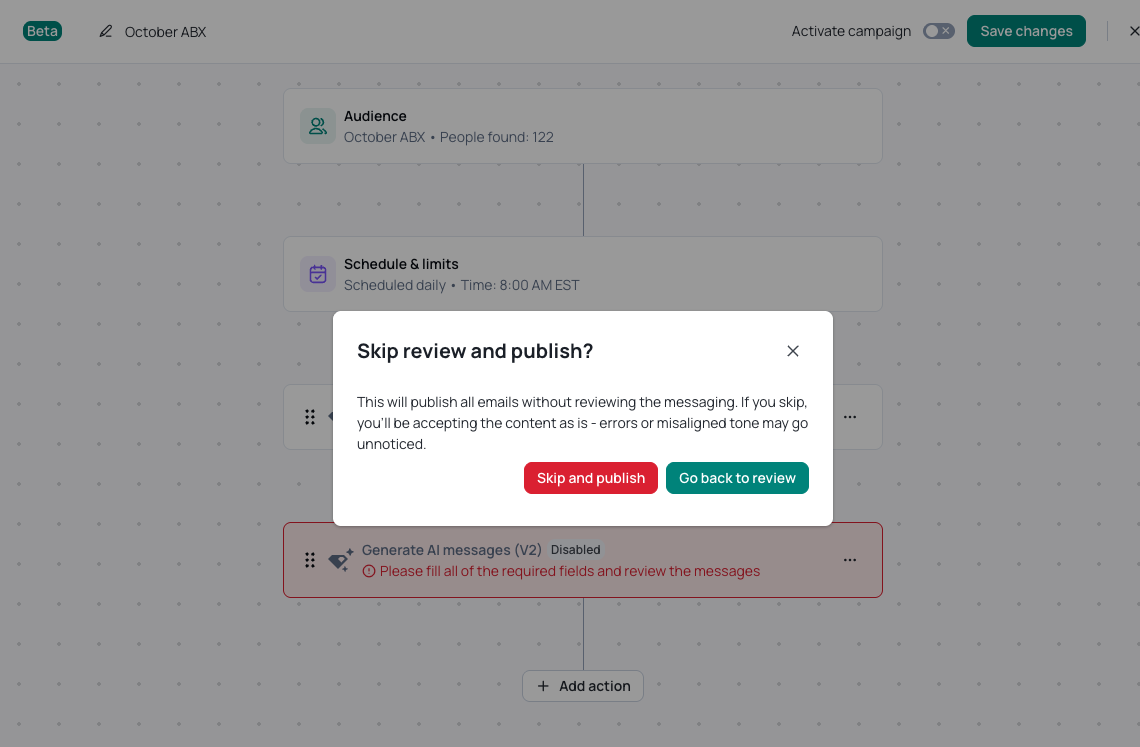
Before continuing you'll be prompted to review messaging for 10 prospects to ensure the messaging looks good.
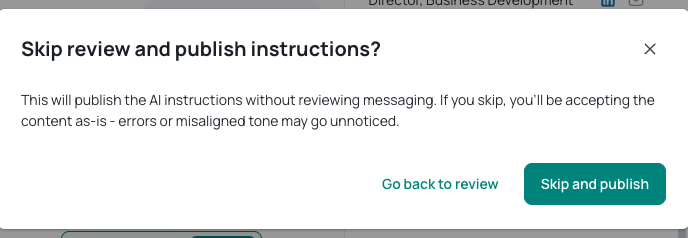
The same warning will appear if you're on the workflow level and try to save the campaign without reviewing prospects.
Best Practices (How to Chat w/ Gem-E)
Regardless of where you’re editing messaging (company- or workflow-level, Chat tab or Instructions tab), instructions must be broad enough to apply across the full set of emails.
This means you cannot get overly specific in the chat-based editor alone. If you do, the results will be brittle, inconsistent, or break when emails generate.
#### Do's and Don'ts
- Sample-level edits (too granular): Avoid focusing on one specific prospect in the email preview
- ❌ “Prospect #2 (John Doe) — change John Doe’s CTA in the first email to XYZ.”
- ✅ “In the 1st email, use XYZ as the CTA”
- Sentence-level edits with hard coded phrases: Steer away from hardcoded phrases unless they can be applied broadly
- ❌ “In sentence 3 of Email 1, always use this exact phrase: ‘since your team is growing are you focused on ramp? ”
- ✅ “In sentence 3 or Email 1, ask the prospect about relevant initiatives based on the best available signal. "
- Asking Gem-E 2 to do things outside of messaging
- ❌ "Change my audience for me" or "Update my workflow to XYZ"
- ❌ Asking Gem-E to pull information it doesn't have access to
Need some inspiration? Here's a few ideas on how to chat with Gem-E 2:
- “Make the tone friendlier”
- “Use 2-3 word subject lines”
- “Only use open ended questions”
- “Never ask for a meeting directly, only use interest based CTAs”
- "Change the language to Spanish"
- "Subject lines should never mention the organizations name"