What is the UserGems MCP?
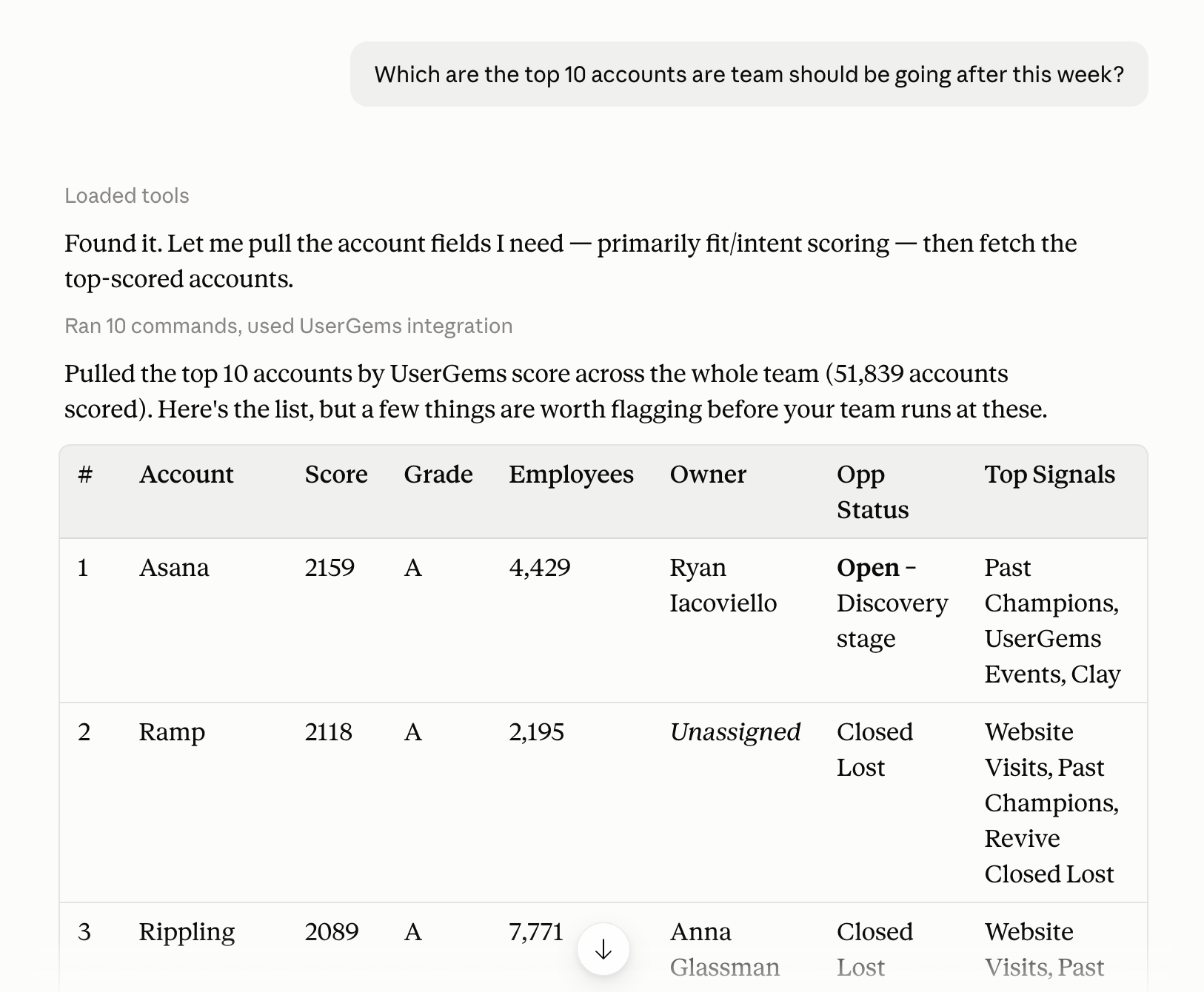
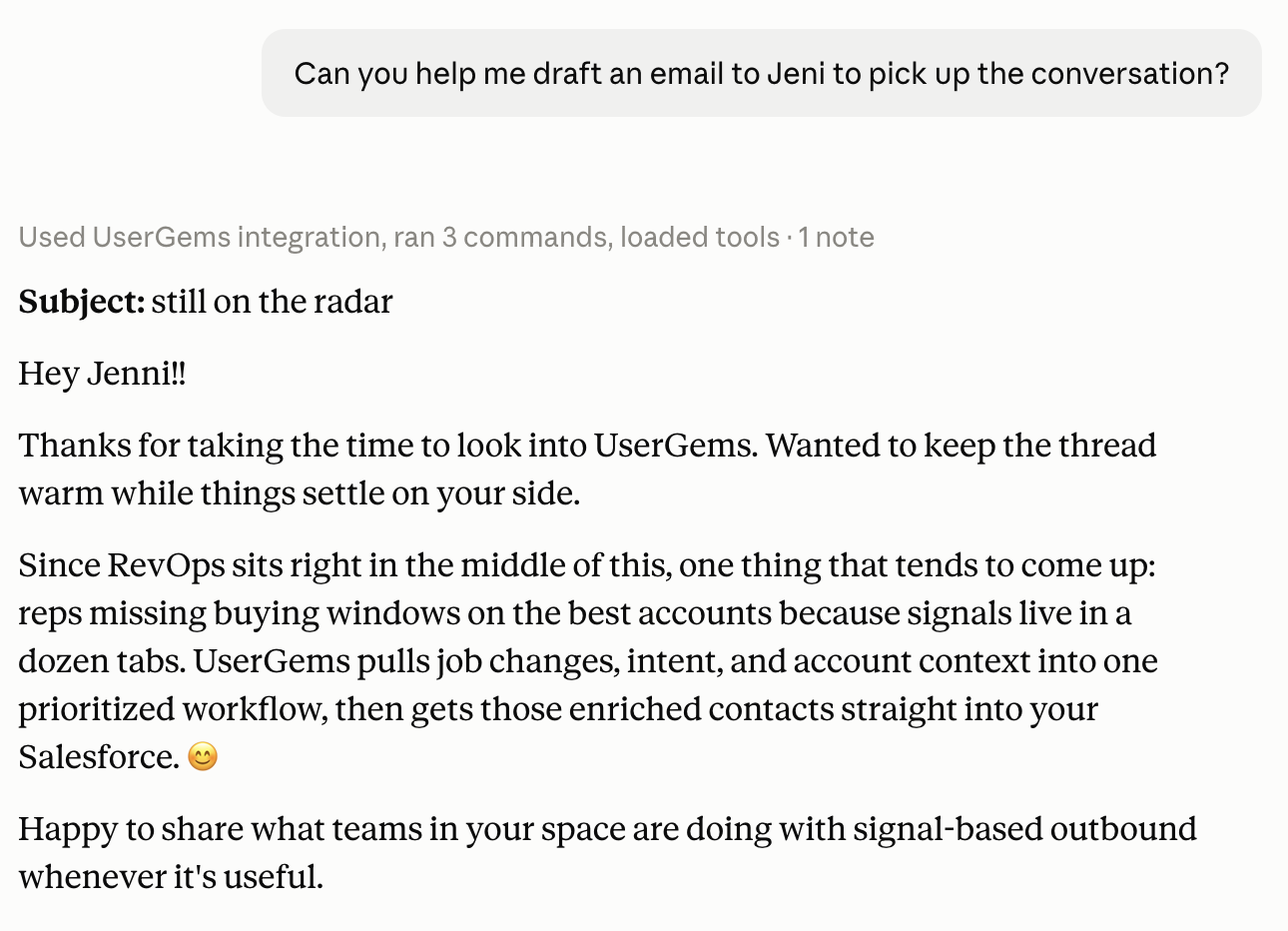
The UserGems MCP (Model Context Protocol) is our headless interface into the UserGems Command Center — accessible directly from Claude or ChatGPT. Instead of clicking through the UserGems app, you ask, and UserGems does the work behind the scenes: finding accounts, ranking prospects, drafting messages, building campaigns, and more.
MCP stands for Model Context Protocol — an open standard that lets AI assistants like Claude and ChatGPT connect to apps and other systems.
This guide only covers the UserGems MCP and using it inside Claude or ChatGPT. It does not cover bringing other MCPs into UserGems. That is coming soon!
The problem
Everyone knows they need a GTM brain now.
Today most of them are trying to build it themselves.
Here's the problem with building it yourself:
Other MCPs don't solve this, because they stop at data. They hand your AI a list of accounts and contacts, and everything after that — who matters, what to say, what to do about it — falls back on whoever is prompting.
Why it matters
With the UserGems MCP, you get the entire Command Center from wherever you're prompting. Ours reaches both halves:
The UserGems brain moves all of these off your plate.
That's when your team gets to focus on the go-to-market of go-to-market engineering instead of becoming the engineers themselves.
It's also what makes always-on campaigns possible.
Campaigns fire off a signal the moment it happens, so a rep has warm leads waiting every morning and never hunts for a list again.
Setting up and accessing the UserGems MCP
Setup is a one-time connection that takes about a minute.
Prerequisites. The MCP is included on Advanced and up plans, and access needs to be turned on by your CSM.
Adding the UserGems connector (as Claude or GPT Admin)
UserGems is added as a custom connector. Getting listed in the Claude and ChatGPT connector directories is actively in the works, and we'll update you once it lands.
The connector gets added at the org level, and that usually takes admin access — either someone who can add it themselves, or someone who approves the request. On Claude Team or Enterprise, a workspace Owner has to do it before anyone else can connect.
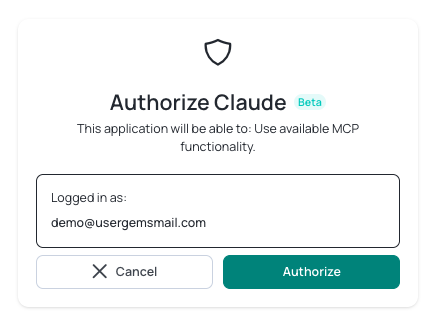
Before clicking + Add Connector, the person adding it has to already be logged into UserGems in another tab. If they aren't, Claude sends them to the UserGems login screen and the authorization won't complete.
Once the connector is installed for the organization, anyone in the organization can install it for themselves.
For a full step-by-step guide, follow these help docs: Chat GPT Setup <> Claude Setup
Adding it for yourself
Once the connector is on for the organization, each person authorizes their own access.
In Claude: head to your profile → add the UserGems connector → authorize.
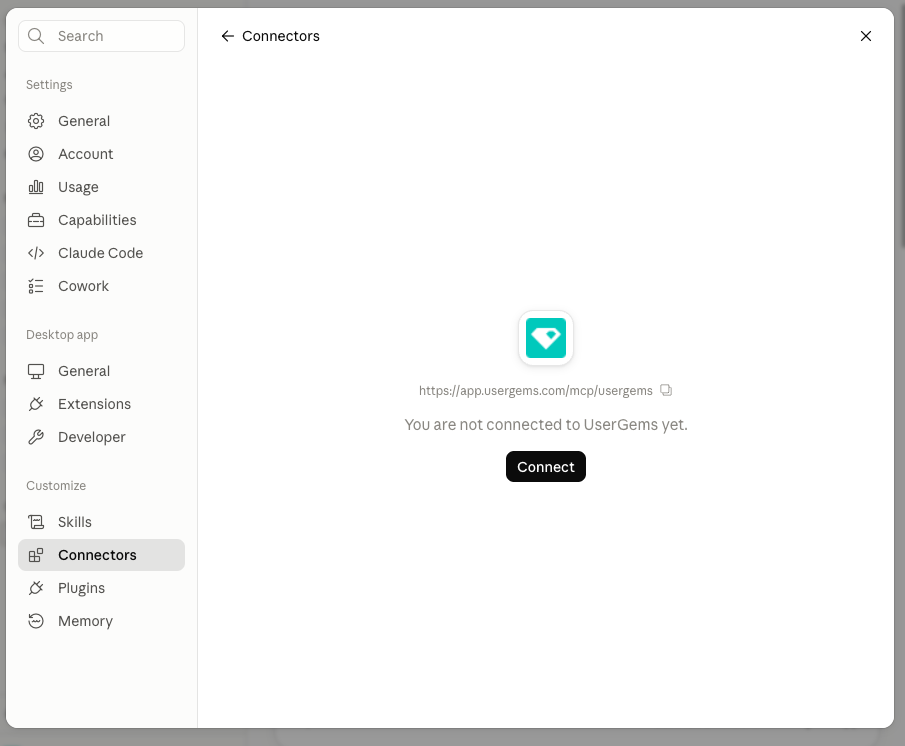
In ChatGPT: the process is nearly identical (Plugins → add UG plugin → sign in to UserGems → authorize). Full steps are in the help articles linked above.
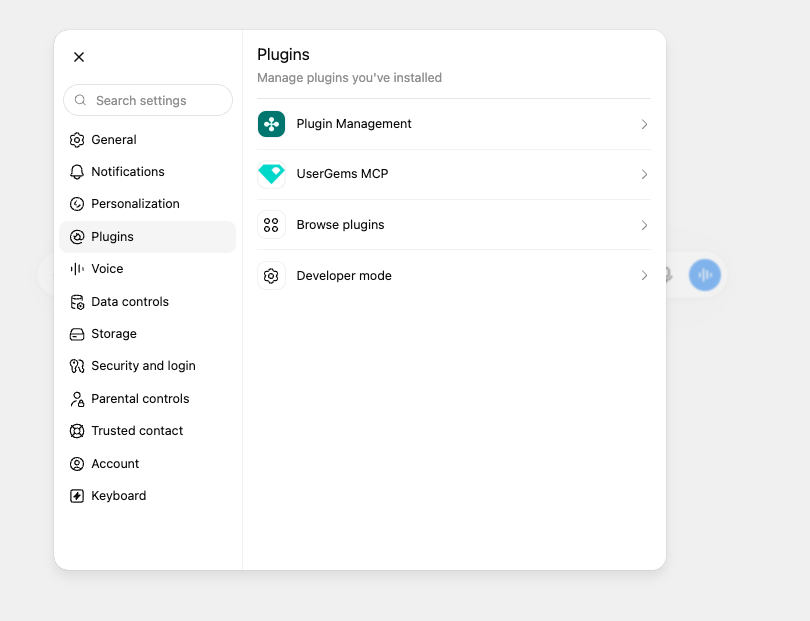
Test the connection
Once you're connected, check that it's working. Open a fresh chat and ask:
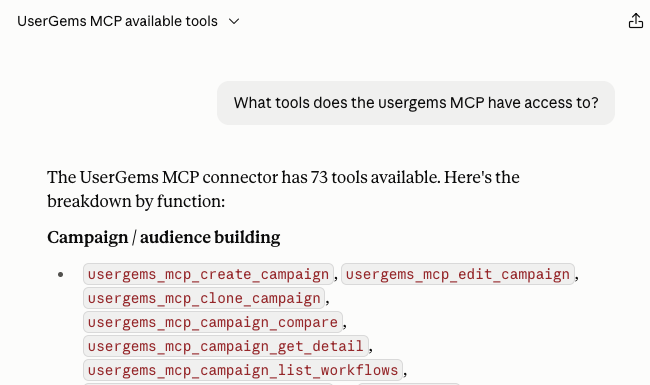
What UserGems tools do you have available?
A list of tools comes back. That list is different depending on who's asking, which is where the next section picks up.
Tools and permissions
When you asked "What UserGems tools do you have available?" at the end of the last section, the list that came back is what you personally have access to.
Someone else at the same company might see a different list.
Two things decide it: your UserGems profile, and what your AI admin allowed when they added the connector.
What tools are available
Rep tools
Admin tools — everything above, plus:
Notice that delete and activate are missing from this list. Nothing can be permanently deleted or activated through the MCP. It can only pause and archive campaigns, and archived campaigns stay inspectable.
For a full list of MCP tools, check out this page here.
Who sees which tools
Everyone connects with their own UserGems login and inherits their own permissions. There's no shared connection or service token.
Your UserGems profile decides the split:
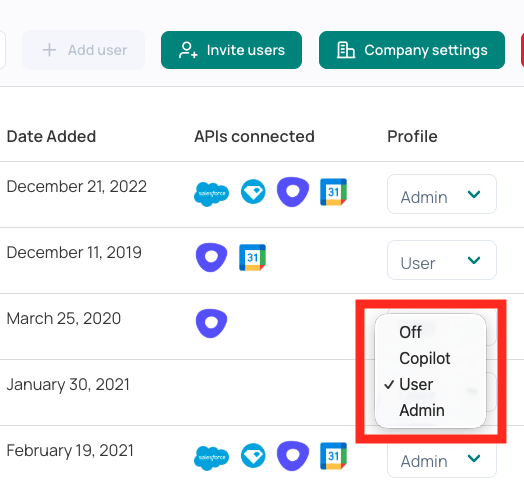
Someone without a UserGems login can't finish the connection at all, because authorization runs against an active UserGems session.
To take access away, either your workspace admin removes the connector in Claude or ChatGPT, or we change your UserGems profile on our end.
Approving tools
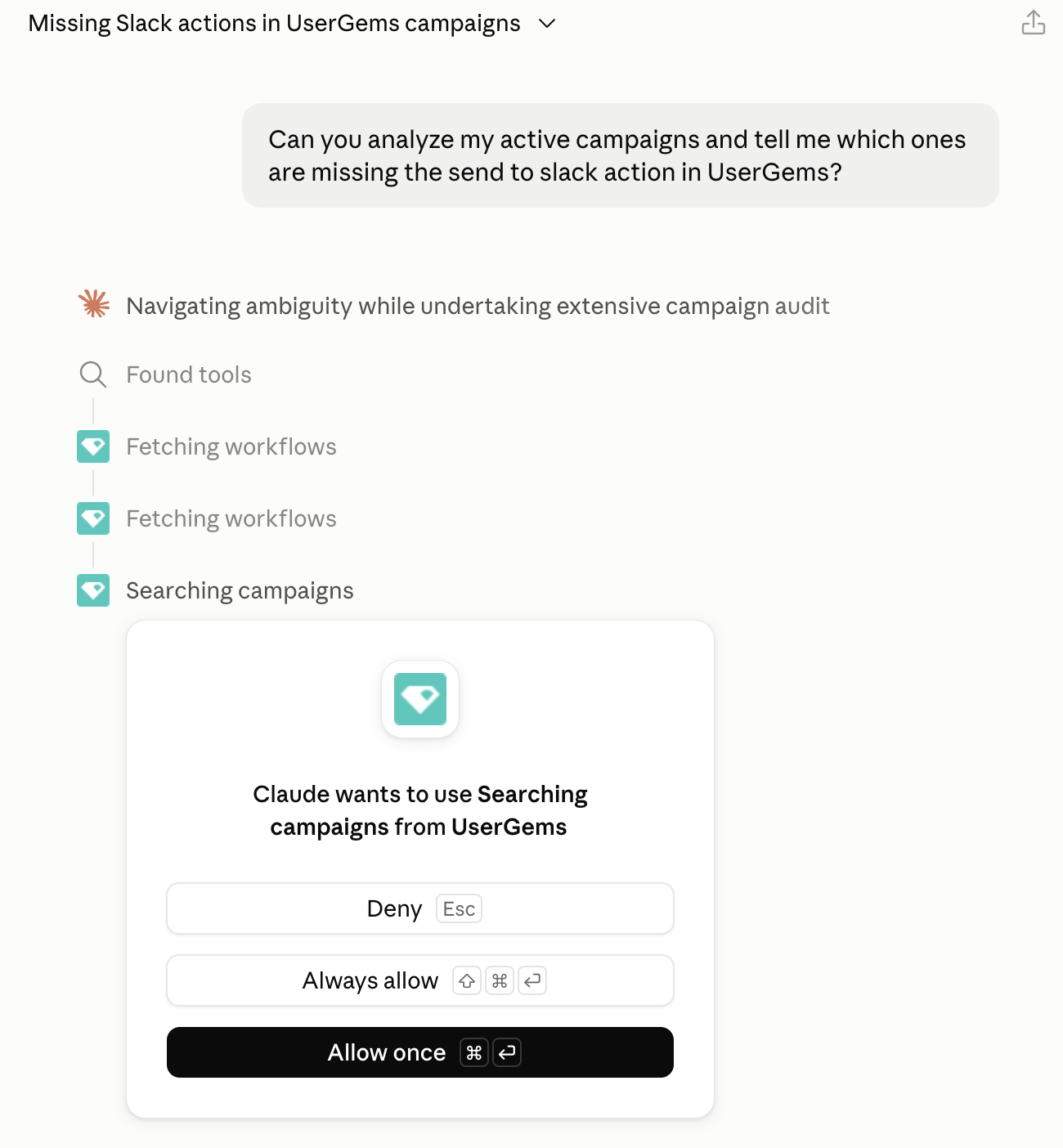
Two layers of control for approving tools.
Read-only tools are safe to always-allow. We recommend keeping write tools, like campaign create and edit, on always ask.
How the MCP impacts credits
Every request to the MCP consumes credits, and they come out of the same pool you already have. Some of that pool goes to AI tasks and some to data tasks, and MCP usage always counts as AI.
There's no fixed price per tool or prompt.
Think of it the way you'd think about what one Claude prompt costs you — it varies a lot depending on what you asked and which tools had to run.
Seeing usage and setting limits
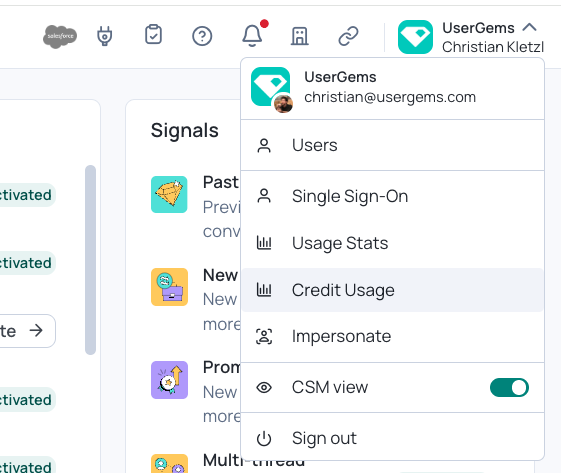
Head to the credit usage page under your avatar in the top right.
Usage breaks down by category, the MCP appears as its own line alongside campaigns and tracking, and there's a per-user view.
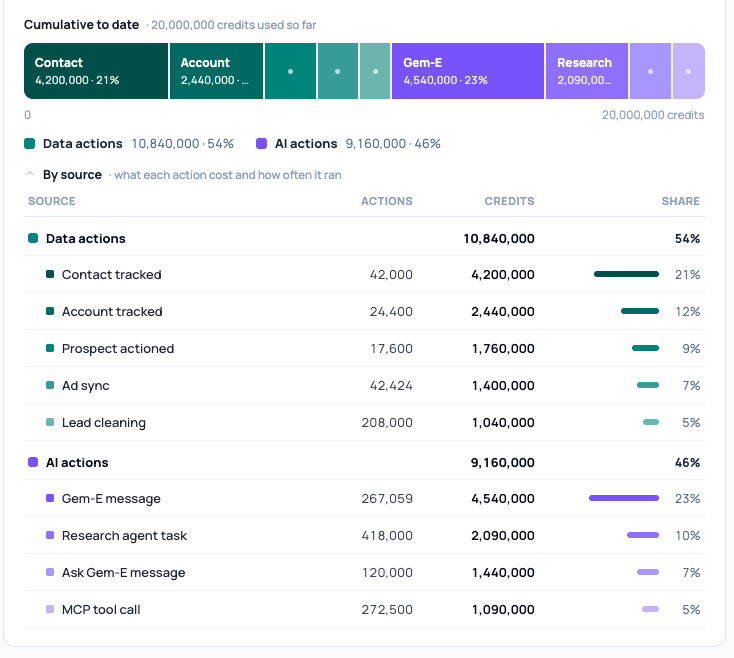
Admins can set a weekly limit per user, so one person can't burn through the company's credits.
Best practices and use cases
Making sure you're calling UserGems
Most teams have several MCPs connected. Your assistant picks which one to answer with based on how the question sounds, and anything that sounds like a CRM question goes to the CRM — slow, generic, and it burns your Claude or ChatGPT usage on work UserGems has already done.
In Claude, name UserGems in your prompt. To stop repeating yourself, paste these instructions into your project instructions or memory once.
In ChatGPT, nothing routes on its own. Hit the + button next to the message box and pick UserGems before you send. That selection applies to the conversation you're in, so a new chat means picking it again.
Standing instructions still help in ChatGPT — they guide which UserGems tool gets called once the app is selected.
Best practices
- Start small, then widen. Building an account list? Cap it at 10 to see what comes back before you ask for everyone who matches your filters.
- Anchor your dates. "In the last 30 days" beats "recently" — otherwise the model picks a range for you.
- Ask for a count before a list. "How many accounts match X" comes back much faster than the full list.
- Surface the person before you ask for a draft. Gem-E personalizes from a known contact.
A few common use cases
There's a lot you can do with the MCP, and no way to cover every combination here. Below are a few common ones — one admin play and a couple of rep plays. For more, check out our prompt library here.
Admin use case — setting up a signal-based campaign. With the MCP, you get hand-held through an entire campaign build. Seven playbooks ship by default: past champions, competitor takedown, closed-lost revive, multi-thread, website visitors, job changes, and account list segment. You say which one you want to run, and the MCP takes it from there. It asks one question at a time, aligns on the audience filters, works out which actions you need, and fills in the gaps you'd otherwise miss. It also helps configure each of those actions. Take closed-lost revive — it sizes the audience first, then walks the activation one step at a time.
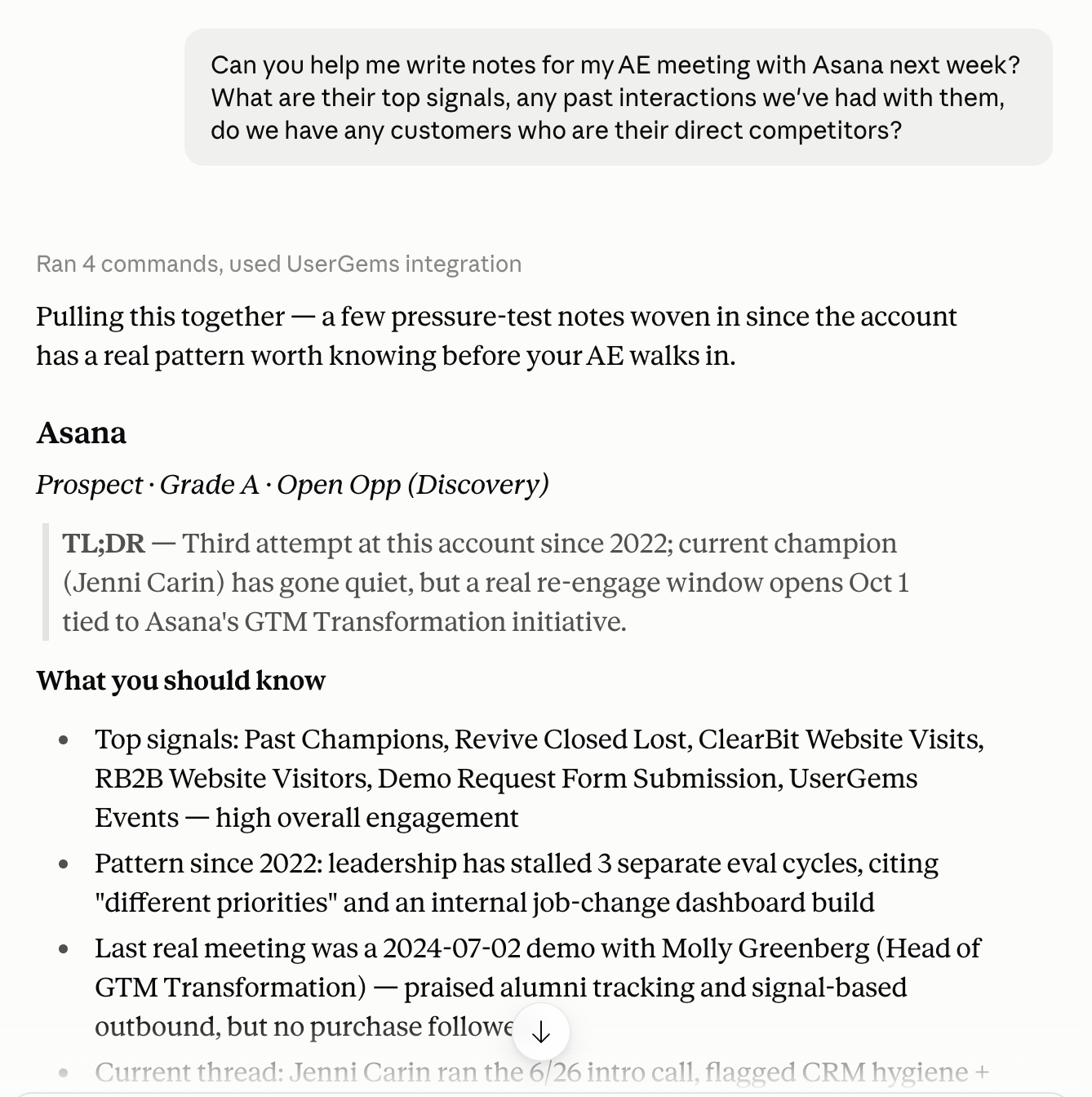
Rep use case — call prep. "We have a call with [account]. Why were they targeted, who was the ADR, have we met with them before?" Back comes the account's grade and buying stage, why it's in play right now, who owns it, and what happened on any prior calls. Call history requires Past Interactions. If you don't have that add-on, you can still get call history if you've connected a separate call-recording MCP in Claude — Gong or Granola, for example.
Rep use case — finding the right accounts and prospects to go after. "Show me [rep]'s top accounts to go after today. At each account, who are the best prospects?" Back comes a ranked set of accounts, why each one matters, the person to reach first, and a short list of other contacts worth knowing. Gem-E writes from the instructions and content in the Command Center.