


The HubSpot Web-form Submission Signal tracks contacts who have submitted a HubSpot web form. Use it to boost contact and account scores and advance accounts through Buying Stages — ensuring that high-intent form activity is reflected in how you prioritize which accounts and contacts to go after.
⭐ Availability: Requires an active HubSpot integration.
📝 Integration user access: The HubSpot user account used to connect to UserGems must have access to the objects being synced. If you’re unsure, check with your HubSpot admin before connecting.
Where to Find It
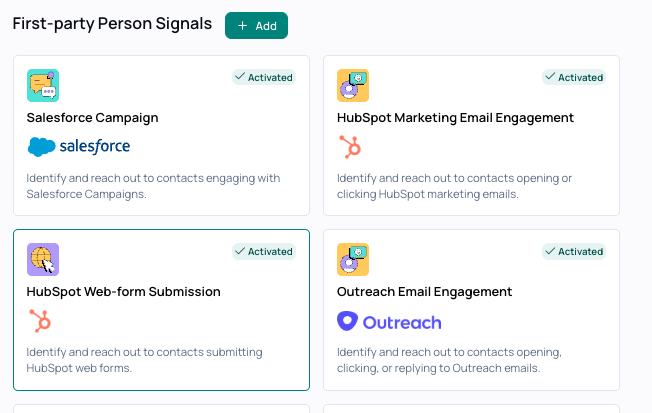
Navigate to Signals Library and look under First-party Person Signals. Click HubSpot Web-form Submission to open the configuration panel.
Connect to HubSpot
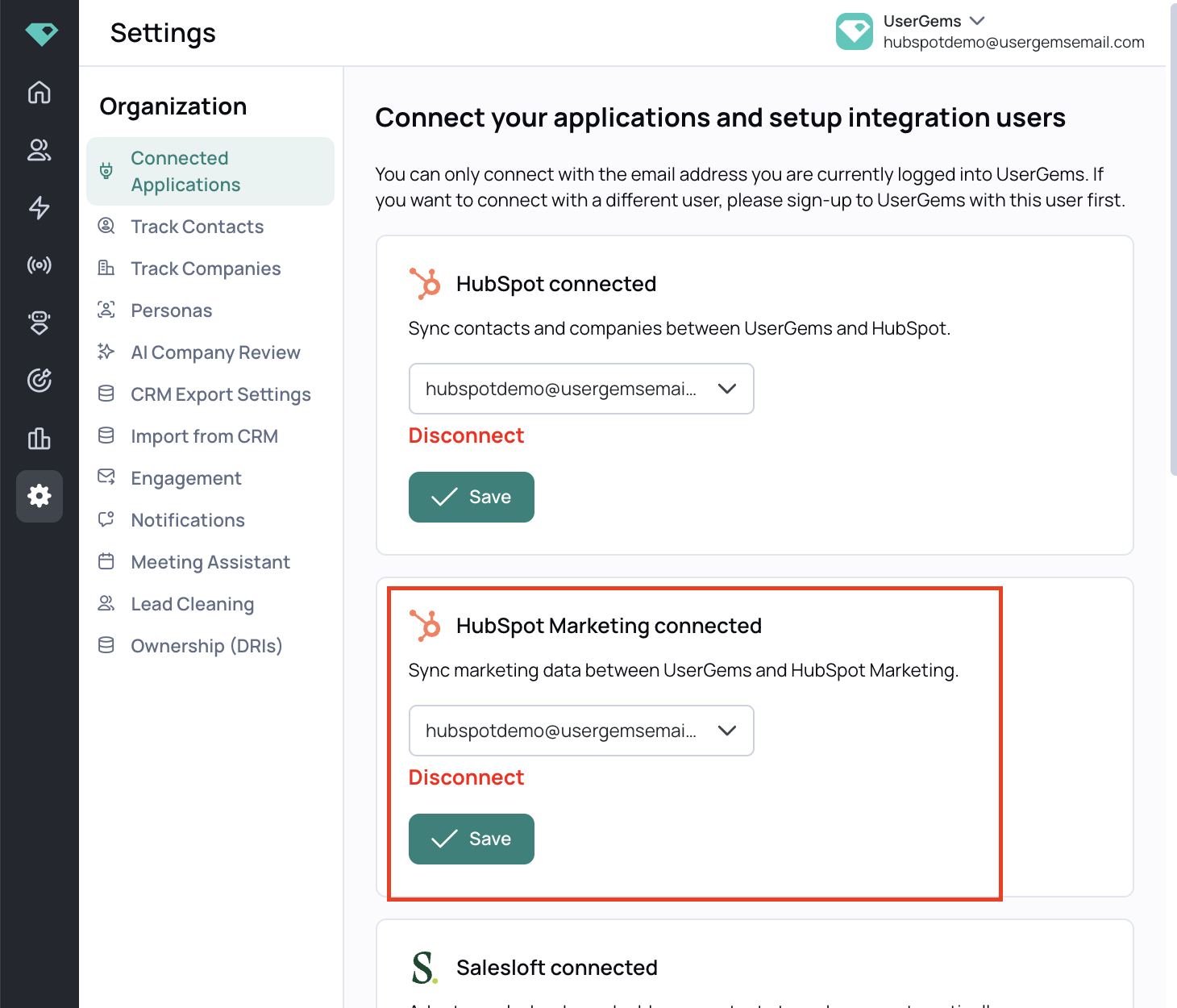
Before activating this signal, you'll need to connect your HubSpot marketing automation account to UserGems.
- Go to Settings
- Click Connected Applications
- Find Marketing Automations and click to connect
Sign in to HubSpot when prompted — you'll be redirected back to UserGems once the connection is complete. Note: You may need a HubSpot admin to help make this connection.
How to Configure It
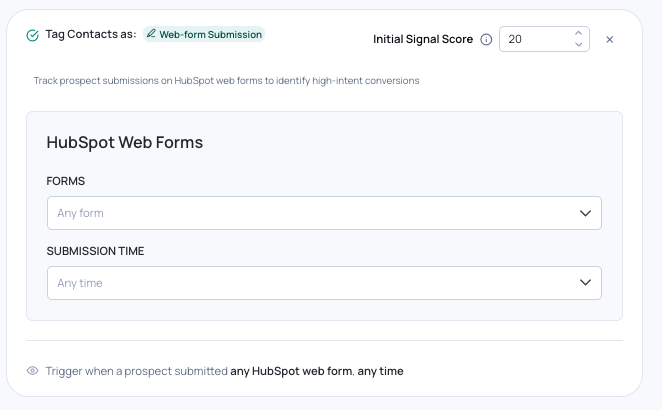
The signal panel has two settings:
1. Forms
Select which HubSpot web forms this signal should track. By default, all forms are included. You can narrow it to one or more specific forms by selecting them from the dropdown.
The live summary at the bottom of the panel updates in real time to reflect your selection — for example: "Trigger when a prospect submitted [Form Name], in the last 30 days."
2. Submission Time
Set the look-back window for form submissions. Defaults to Any time.
A tighter window (e.g., last 30 days) surfaces contacts who submitted recently. A wider window (e.g., last 6 months or any time) is useful for catching contacts who submitted a form but were never converted — see Tips and Best Practices below.
Initial Signal Score
The default signal score is 20. Adjust this in the Scoring page based on how much intent the form submission represents. See Creating Multiple Instances below.
Creating Multiple Signals
Different forms represent very different levels of intent — and they shouldn't carry the same weight in your scoring model. The recommended approach is to create a separate signal instance for each meaningful form type, each with its own score.
Example setup:
- Instance 1: Demo Request form → high score
- Instance 2: Content download or gated asset → mid score
- Instance 3: Newsletter signup → low score
Someone requesting a demo is showing far stronger buying intent than someone signing up for a newsletter. Separating them gives your scoring model the granularity to reflect that difference accurately.
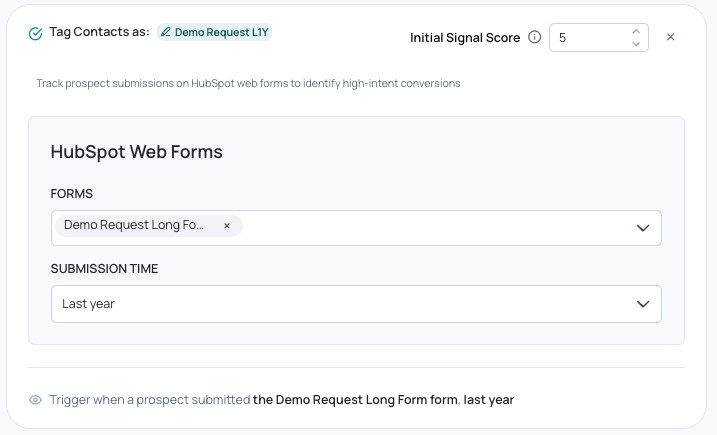
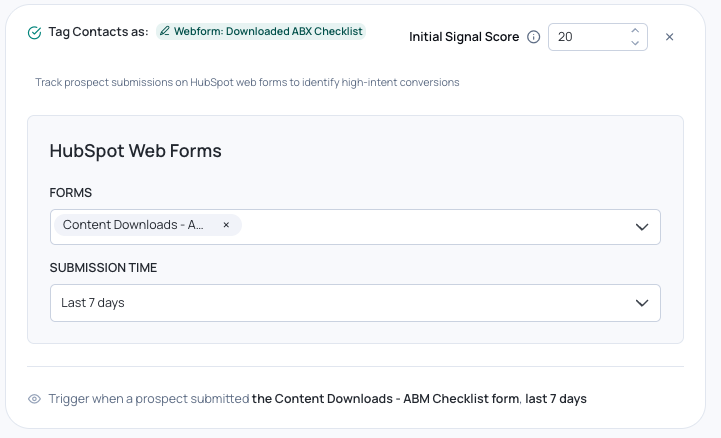
Click + Add Web-form Submission signal at the bottom of the panel to add another instance.

How It Connects to Scoring and Buying Stages
Scoring: When a contact matches the signal criteria, they receive the point value you set. Those points roll up into the contact score, which in turn contributes to the account score. A high-intent form submission — like a demo request — can meaningfully lift an account's overall score and grade, surfacing it higher in your audiences.
Buying Stages: Form submissions map to the Consideration or Decision stage depending on how you configure it. A demo request, for example, is a strong enough indicator of active buying intent to map to Decision. You can set the Minimum Stage for this signal in ICP & Scoring → Scoring.
📝 Buying Stages and Company Scoring are calculated independently. Grade reflects ICP fit; stage reflects current buying activity.
Tips and Best Practices
Use this signal based on what the form represents. Segment by form type. All form submissions are not equal. Creating separate signal instances for different forms — and scoring them accordingly — ensures your prioritization reflects actual buying intent rather than treating a newsletter signup the same as a demo request.
- Demo request — The contact is likely already being worked by sales. The value is making sure that intent is reflected in scoring and Buying Stages so the account is properly prioritized.
- Content download or gated asset — A good outreach trigger: the contact has shown interest but hasn’t been contacted yet.
Use this to re-engage non-converted form submissions. Someone who submitted a demo request 6 months ago but never converted is still worth a second look. Setting a wider time window (or “any time”) on a high-intent form signal can surface these contacts and push their accounts back up in your scoring — putting them in front of your team again without any manual work.
Already tracking web form submissions through a custom signal?
If your custom signal was set up via a manual CSV upload, here’s how to migrate to this native one:
- Create a new HubSpot Web-form Submission Signal instance scoped to the same form(s) as your existing custom signal.
- Update any audiences currently using the custom signal to use the new native signal instead.
- Delete the custom signal once all audiences have been updated.
The native signal stays automatically in sync with HubSpot — no manual exports, no stale data — and comes with sensible scoring defaults out of the box.
If you already have a live HubSpot CRM connection syncing form submission data into UserGems, you can consider keeping it — migration is optional as long as the data is updating regularly.