


The LinkedIn Ad Engagement Signal tracks which companies are engaging with your LinkedIn Ads. Use it to boost account scores, influence Buying Stages, and surface net-new accounts that aren't yet in your CRM — so you can prioritize the right accounts and expand your TAM.
Unlike contact-level signals, the LinkedIn Ad Engagement Signal tells you which companies are engaging with your ads — not which individuals. There is no person attached to this signal by default.
This shapes how you use it: its primary value is in boosting account scores, advancing accounts through Buying Stages, and identifying companies worth researching and prospecting into — not in triggering direct outreach on its own.
Where to Find It
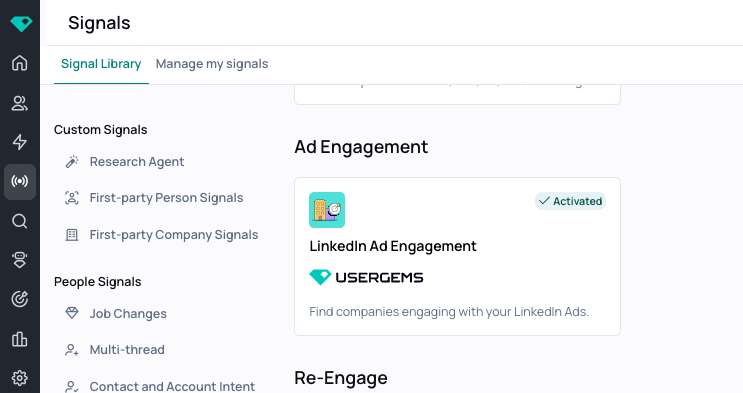
Navigate to Signals Library and scroll to the Ad Engagement section. Click LinkedIn Ad Engagement to open the configuration panel.
Connect to LinkedIn
Before activating this signal, you'll need to connect your LinkedIn Ads account to UserGems.
- Go to Settings
- Click Connected Applications
- Find LinkedIn Ads and click to connect
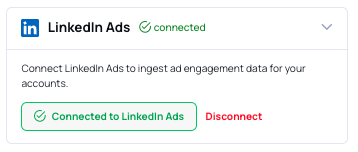
Sign in to LinkedIn when prompted — you'll be redirected back to UserGems once the connection is complete.
How to Configure It
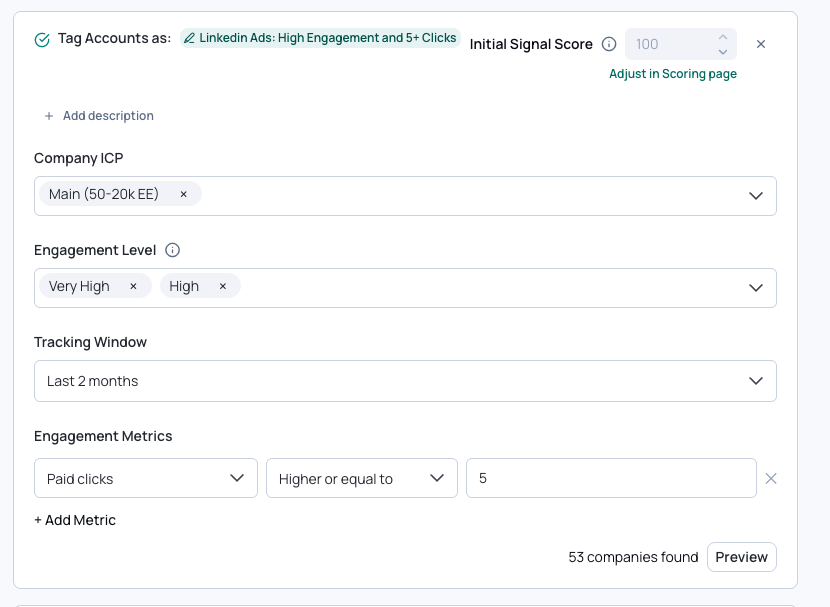
The signal panel has four settings:
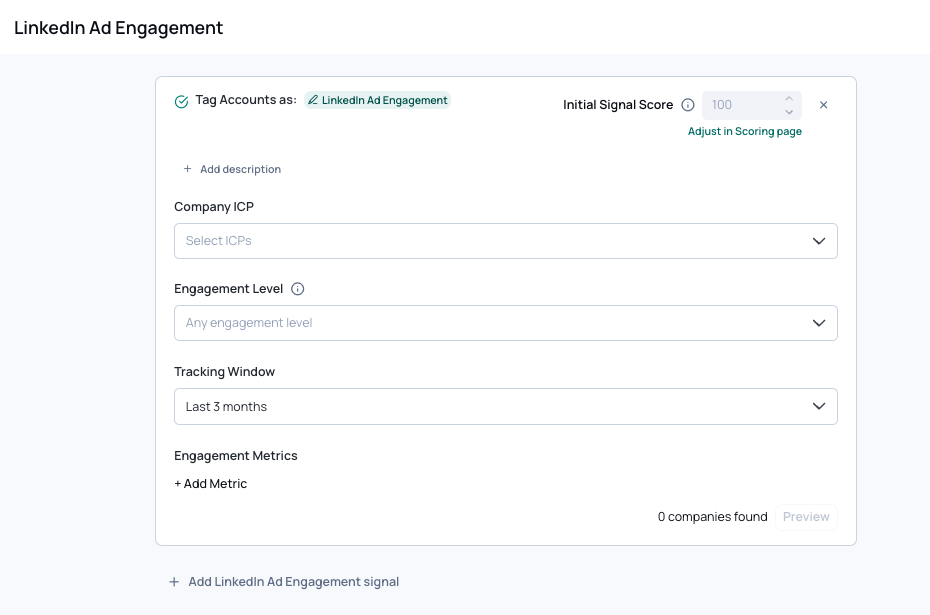
1. Company ICP (Optional)
Filter the signal to only apply to companies that match a specific ICP. If left blank, the signal will apply to any company engaging with your ads, regardless of fit.
This is strongly recomnended — see Tips and Best Practices below.
2. Engagement Level
Select one or more engagement levels to track: Very High, High, Medium, Low, or Very Low.
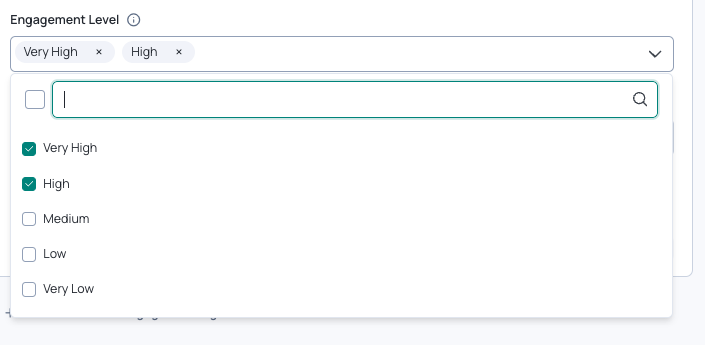
Engagement level is a LinkedIn-calculated property — not something UserGems computes. LinkedIn determines this by combining ad engagement, organic engagement, and website visits, dividing by the number of members targeted at that company, and then benchmarking the result against all other companies running ads on LinkedIn. In other words, it's a relative measure: a "High" engagement company is highly engaged compared to other companies on the platform, not just compared to your own campaigns.
For a full breakdown of how LinkedIn defines each engagement level, see LinkedIn's Company Engagement Report documentation.
Because engagement level is relative and can be noisy on its own, it's best used in combination with an Engagement Metrics threshold (see below in section #4).
3. Tracking Window
Set how far back the signal looks for engagement data:
- Current month
- Last 2 months
- Last 3 months
- Last 6 months
LinkedIn data is aggregated monthly — not daily or weekly. This is a LinkedIn platform limitation. You cannot set a window like "last 30 days from today" — the data is always bucketed by calendar month. Keep this in mind when interpreting results: "Last 2 months" means the current and previous calendar months, not the last 60 days.
4. Engagement Metrics (Optional)
Add one or more metric conditions to filter companies by a minimum activity threshold. Available paid metrics include:
- Paid impressions — number of times your ad was displayed to members at that company
- Paid clicks — clicks on your ad (chargeable, objective-based)
- Paid engagements — likes, comments, shares, and clicks combined
- Paid conversions — completed conversion events tied to your ads
- Paid leads — leads submitted via LinkedIn Lead Gen Forms
%20.png)
Each metric uses a "Higher or equal to" condition — you set the minimum value a company must meet for the signal to fire.
For full definitions of each metric, see LinkedIn's Performance Metrics Campaign Manager definitions.
Engagement metrics are optional but strongly recommended. See Tips and Best Practices for guidance on how to use them effectively.
Creating Multiple Signals
You can create more than one instance of this signal — each scoped to a different engagement level, with different scores. This is the recommended approach because Very High and Low engagement should not carry the same weight in your scoring model.
The standard setup is three signals:
- High signal: Very High + High engagement levels → highest score
- Medium signal: Medium engagement level → mid score
- Low signal: Low + Very Low engagement levels → lowest score
Each instance can also carry its own Engagement Metrics threshold. Because engagement level is relative, a company labeled "High" by LinkedIn might have only a handful of actual clicks — or it might have hundreds, depending on your ad spend and the companies you're compared against. Adding a threshold (e.g., paid clicks) to each instance ensures that companies must show a minimum level of concrete activity, not just a relative label.
What threshold should you use? There's no universal answer — it depends on your ad spend, your target company size, and how active your campaigns are. A threshold that's meaningful for a startup running a small campaign will be completely different from what's meaningful for a large enterprise with heavy ad investment. Start conservative, check the live preview to see how many companies qualify, and adjust from there.
Click + Add LinkedIn Ad Engagement signal at the bottom of the panel to add another instance.
How It Connects to Scoring and Buying Stages
This signal feeds into your Account Scoring and Buying Stages — and this is where its core value lies.
Scoring: LinkedIn Ad Engagement contributes to Company Signals in your scoring model — meaning it lifts the account score directly, rather than flowing through a contact. An account's total score is calculated from its company-level attributes and signals plus the highest-scoring contact within it. This signal boosts the company side of that equation, which means even an account with no contacts yet in UserGems can start accumulating a score based on ad engagement alone.
Buying Stages: Ad engagement maps to the Interest stage by default — meaning a company engaging with your LinkedIn ads will move to at least Interest in your Buying Stages view. You can configure the exact Minimum Stage mapping in ICP & Scoring → Scoring by enabling the signal for Buying Stages.
Buying Stages and Company Scoring are calculated independently. A high fit score (A or B grade) doesn't mean a company is actively engaged, and a C-grade company can be in Interest or higher. Grade reflects ICP fit; stage reflects current buying activity.
Using Ad Engagement for TAM Expansion and Net-New Account Discovery
This signal has a use case that goes beyond scoring accounts you're already working: it can surface companies that aren't in your CRM at all.
When a company engages with your LinkedIn ads, UserGems tracks that engagement regardless of whether that company exists in your system. This means you can use the LinkedIn Ad Engagement Signal to identify net-new accounts — companies actively engaging with your brand that you haven't contacted or tracked yet — and bring them into your prospecting motion.
If a company with no CRM presence shows up with High or Very High engagement and meets your paid clicks threshold, that's a signal worth acting on: find the right contacts there and add them to an audience.
Tips and Best Practices
💡 Don't use this signal in isolation. It tells you a company is engaging — not who at that company to reach out to. Without stacking it with other signals or manually identifying contacts, there's no one to actually contact. Use it to inform Scoring and Buying Stages, then layer in UserGem’s ability to discover new contacts when an account rises to the top.
Scope to an ICP. Without an ICP filter, you'll score companies that don't fit your target market. A competitor researching you, a job seeker at a large irrelevant company, or an out-of-segment business can all show up as high-engagement. Filtering to your ICP ensures the signal only boosts accounts you'd actually want to work.
Use Engagement Metrics as a quality gate. Engagement level is a relative benchmark — it can be noisy. Adding a paid clicks threshold ensures companies have demonstrated real, active engagement with your ads, not just passive impressions. What counts as meaningful varies by company size and campaign scale, so treat the threshold as something to calibrate over time using the live preview.
Use wider tracking windows for lower engagement tiers. Lower-engagement companies are naturally harder to catch in a short window. Setting the tracking window to Last 3 months or Last 6 months on your Low signal casts a broader net while your High signal stays tighter (Last 2 months) to keep it fresh.
Check the live preview before saving. The preview shows how many companies currently match your criteria. If you're seeing far too many or too few, adjust your engagement level selection, tracking window, or metrics threshold before activating.