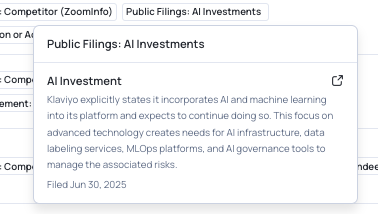
The Public Filings Signal scans key SEC filings and identifies predefined, high-intent business events such as acquisitions, executive changes, investment initiatives, restructuring, risk disclosures, and more.
When a filing contains one of these events, UserGems generates a signal that can:
- Tag accounts
- Impact company score
- Trigger downstream workflows (Segment audiences or influence Gem-E messaging)
Supported filing types:
- 10-K — Annual reports for U.S. public companies
- 10-Q — Quarterly reports for U.S. public companies
- 8-K — Current reports for material events
- 20-F — Annual reports for foreign private issuers
- 6-K — Current reports for foreign private issuers
Why It Matters
Without this signal, finding meaningful intel inside a public filing is a manual, time-consuming process. A rep would typically have to:
- Go to a search engine and hunt for the company's latest filing
- Navigate to the SEC website or the company's investor relations page
- Download and open a document that could be hundreds of pages long
- Read through dense corporate language and try to summarize it themselves
And even after all of that, they'd likely miss things — because they're searching for specific words, not the themes and signals that actually matter.
This is what UserGems does instead. Rather than hunting for keywords, the Public Filings Signal reads the entire document and identifies themes that emerge.
How It Works
UserGems reads entire filings and identifies business events by theme — not by searching for specific words. That distinction matters because SEC filings are written in corporate and legal language that rarely matches how reps or buyers talk about what's actually happening.
Real Example: Customer Churn
Let's say a company's 10-K spends several pages discussing how they lost internet subscribers due to competitive pressure, with revenue tables showing quarter-over-quarter declines. The keyword "churn" might not even appear once in the filing — but the AI reads all of that and decides: this belongs in the Customer Churn category.
Here's what UserGems actually receives:
Filing Signal: Customer Churn
Summary: "The company is experiencing significant customer losses in its core internet business, contributing to a $311 million overall revenue decrease. Competitive pressure from lower-cost providers is cited as the primary driver."
So if you set up a filter using the Customer Churn Filing Signal, this company gets flagged correctly — even though the word "churn" never appeared in the filing itself.
The Full List of Available Signals
Below is the full list of categories the Public Filings signal can detect. The list is fixed — these are the only events the signal will ever surface, and no custom categories can be added. If you're looking for a theme that isn't here, or specific events (e.g., "Show me public filings that mention an investment in AI SDRs"), the Research Agent will be the right tool to use instead of this signal.
How to Set It Up
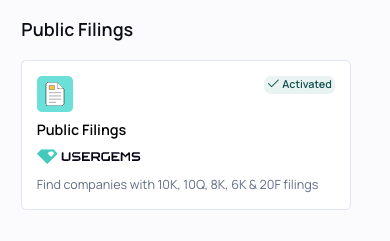
- Go to the Signals Library → find "Public Filings"
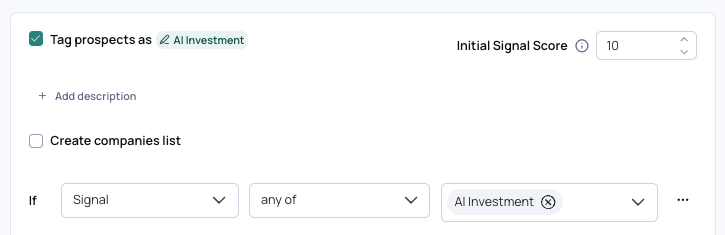
- Name your signal by clicking the edit button next to "Tag prospects as"

- Select "+ Add Condition" to begin creating your signal
- Select the blank dropdown → "Signal" → select your public filing signals (e.g., "AI Investment" will tag any companies that are investing in AI/ML capabilities)
Filing Type & Date (Optional)
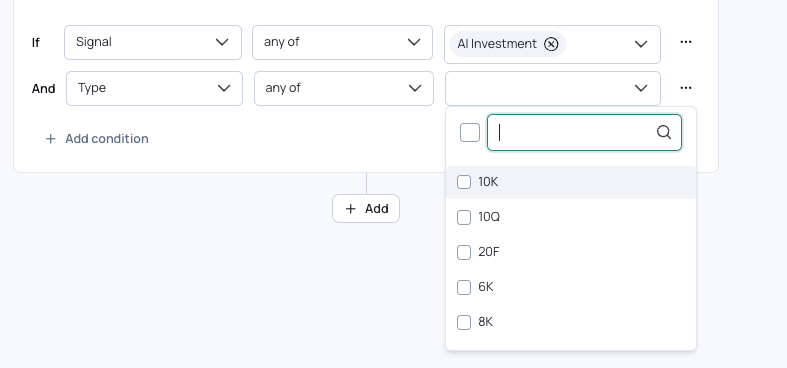
Filing Type lets you narrow to a specific SEC form — useful if the cadence or type of disclosure matters for your use case. For example, 8-Ks are filed whenever a material event occurs (often multiple times a year), while 10-Ks are annual. If you're only interested in acting on immediate events, filter to 8-K. If you want strategic annual disclosures, filter to 10-K.
When you do apply a Filing Type filter, we recommend matching your Date filter to the filing cadence:
- For 8-Ks and 6-Ks, a shorter window like "last month" makes sense — these fire frequently.
- For 10-Ks and 20-Fs, use a wider window like "last 12 months" — otherwise you'll miss most filings.
If filing type or cadence doesn't matter for your use case, leave both filters blank.
Post-Setup
Once configured, your Public Filing Signal will appear as a filter in Audience Builder. Any account that matches will be tagged with the signal — and on hover, you'll see which signal was triggered along with a brief summary of the relevant filing content. This works in both Audience Builder and the Chrome extension. In the Chrome extension, reps can hover for details and click through directly to the original SEC filing.
The brief summary is also fed into Gem-E by default, where the writer agent uses it to personalize outbound messaging.