


The Salesloft Email Engagement Signal lets you track how your prospects are engaging with your Salesloft email cadences. Use that engagement to boost your Contact and Account Scoring and influence the right Buying Stages — so you can better prioritize which accounts and contacts to go after.
⭐ Availability: Requires an active Salesloft integration.
📝 Integration user access: The Salesloft user account used to connect to UserGems must have access to the email cadence objects being synced. If you're unsure, check with your admin before connecting.
Where to Find It
Navigate to Signals Library and look under First-party Person Signals. If the signal hasn't been activated yet, it will appear as "Ready to activate." Click it to open the configuration panel.
How to Configure It
The signal panel is labeled Salesloft Cadences. You'll configure four settings:
1. Actions
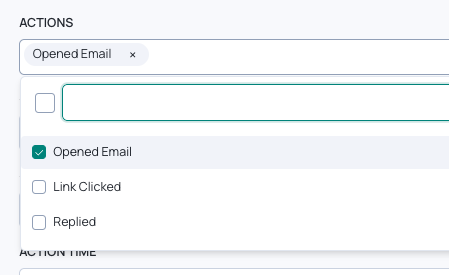
Select one or more engagement types to track:
- Opened Email
- Link Clicked
- Replied
You can select multiple — for example, capturing both opens and clicks in a single signal instance. To create separate signals for different action types (recommended for scoring granularity), see Creating Multiple Signals below.
2. Cadence (Optional)
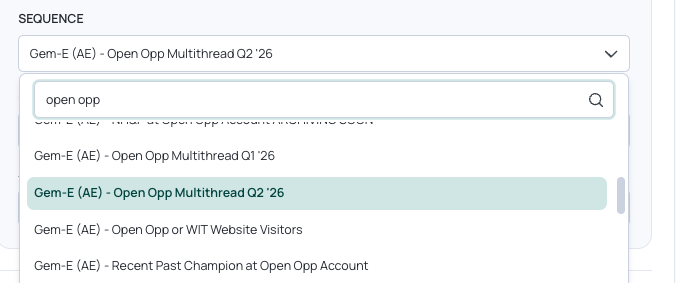
Filter by a specific Salesloft cadence, or leave it set to Any cadence to capture engagement across all cadences.
You can search by cadence name. If you leave this blank, the signal will fire for engagement in any cadence.
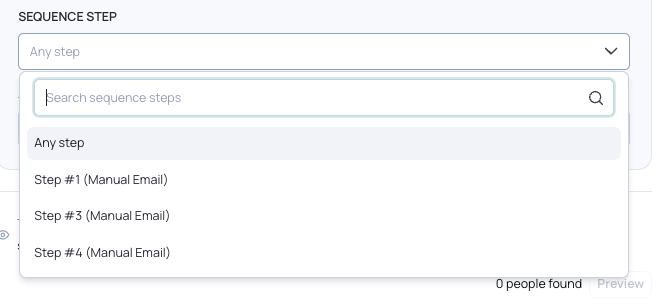
3. Cadence Step (Optional)
This field only becomes available after you select a specific cadence. You can then narrow the signal to a particular step (e.g., Step #1, Step #3). Leave it on Any step to capture engagement at any point in the cadence.
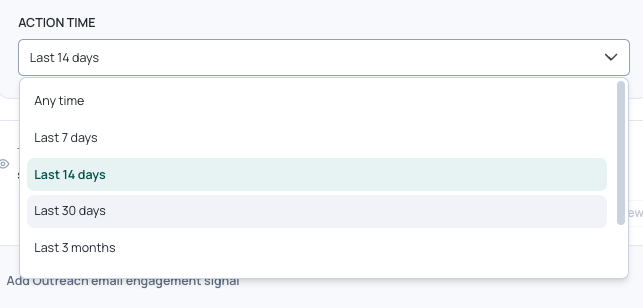
4. Action Time
Set the lookback window for engagement:
- Any time
- Last 7 days
- Last 14 days
- Last 30 days
- Last 3 months
A tighter window (e.g., Last 14 days) surfaces people who engaged very recently. A wider window (e.g., Last 30 days) will return a larger audience.
Initial Signal Score
The default signal score is 20. This is the score applied to a contact when they match the signal criteria. You can adjust this in ICP & Scoring → Scoring — click "Adjust in Scoring page" directly from the signal configuration panel.
Creating Multiple Signals
You can create more than one instance of this signal within the same configuration — each with different settings. There are two complementary approaches worth understanding.
Approach 1: Separate signals by action type (recommended baseline)
Create one instance per action type, each with a different score to reflect engagement strength:
- Instance 1: Opened Email, Any cadence, Last 14 days → score: 5
- Instance 2: Link Clicked, Any cadence, Last 14 days → score: 10
- Instance 3: Replied, Any cadence, Last 30 days → score: 25
A reply is a much stronger signal than an open, so weighting them separately gives you more accurate scoring. Using "Any cadence" also ensures you capture engagement across all your cadences — not just ones you remembered to filter for.
Approach 2: Cadence-specific signals for high-intent cadences
If you have a cadence where the context itself signals high intent — like a demo request follow-up or an open opportunity cadence — any engagement with that cadence is more meaningful than general prospecting activity, regardless of whether it's an open, click, or reply. In that case, bundle all three actions into a single instance scoped to that cadence and give it a higher score:
- Instance: Opened Email + Link Clicked + Replied, Demo Request Follow-up Cadence, Last 30 days → score: 20
The hybrid approach is to do both: set up action-type signals for weighted scoring across all cadences, then layer in one or two cadence-specific signals for your highest-intent cadences. This gives you broad coverage with the right context-aware weighting on top.
Click + Add Salesloft email engagement signal at the bottom of the panel to add another instance.
Using the Live Preview
Before saving, the panel shows a real-time preview of contacts who currently match your criteria. Use this to verify your configuration — if you're seeing too many or too few people, adjust the action type or time window before saving.
How It Connects to Scoring and Buying Stages
Once activated, this signal feeds directly into your Contact and Account Scoring and Buying Stages. This is the primary value of the signal — not to trigger direct outreach on its own, but to make your prioritization smarter.
Scoring: When a contact matches the signal criteria, they receive the point value you set. Those points roll up into your contact score, and your contact score rolls up into your account score — specifically, an account's score is calculated from its company-level attributes plus the highest-scoring contact within it. This means a single engaged contact can meaningfully lift an account's overall score and grade.
The signal contributes to Prospect Signals in scoring, alongside things like past champions, job changes, and website visits. Stacking multiple prospect signals on the same contact compounds their score, surfacing the accounts where multiple people are showing engagement — which is a much stronger buying indicator than one contact opening one email.
Buying Stages: Email engagement (opens and replies) maps to the Interest stage by default — meaning an account where a contact engages with your Salesloft emails will move to at least Interest in your Buying Stages view. You can configure this in ICP & Scoring → Scoring by enabling the signal for Buying Stages and assigning it a Minimum Stage.
📝 Buying Stages and Company Scoring are calculated independently. A high fit score (A or B grade) doesn't mean a company is actively engaged, and a C-grade company can be at the Interest stage. Grade reflects ICP fit; stage reflects current buying activity.
Signal decay also applies: if you set a "Days Until Cold" value on this signal, its contribution to Buying Stages will decrease over time and eventually drop off — keeping your stages reflective of recent activity, not historical engagement that may no longer be relevant.
Tips and Best Practices
💡 Don't use this signal in isolation. Email engagement on its own — an open, a click, a reply — doesn't tell you enough to warrant reaching out. Opens in particular are unreliable (Apple Mail Privacy Protection and spam filters inflate them). The signal is best suited for influencing your contact and account scoring and Buying Stages, not as a standalone trigger for outreach. Stack it with other signals to surface accounts where engagement is part of a larger pattern.
Separate opens from replies. Opens are a weak signal; replies are strong. Create separate instances with different scores so your prioritization reflects actual intent.
Use tighter time windows for active outbound. If you're running an active cadence, Last 14 days keeps your audience fresh and avoids surfacing people who engaged months ago with no follow-through.
Combine with other signals. This signal is most powerful when stacked. A contact who opened your email and visited your pricing page in the last 14 days is a very different prospect from someone who just opened an email once.
Add a description to your signal instance. A one-line description helps Gem-E reference the engagement context when writing outreach — e.g., "Prospect opened Salesloft email in the last 14 days."