


The HubSpot Marketing Email Engagement Signal tracks how your prospects are engaging with your HubSpot marketing emails. Use that engagement to boost contact and account scores and influence the right Buying Stages — so you can better prioritize which accounts and contacts to go after.
📝 Integration user access: The HubSpot user account used to connect to UserGems must have access to the objects being synced. If you’re unsure, check with your HubSpot admin before connecting.
Where to Find It
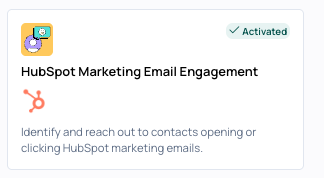
Navigate to Signals Library and look under First-party Person Signals. Click HubSpot Marketing Email Engagement to open the configuration panel.
Connect to HubSpot
Before activating this signal, you'll need to connect your HubSpot marketing automation account to UserGems.
- Go to Settings
- Click Connected Applications
- Find Marketing Automations and click to connect
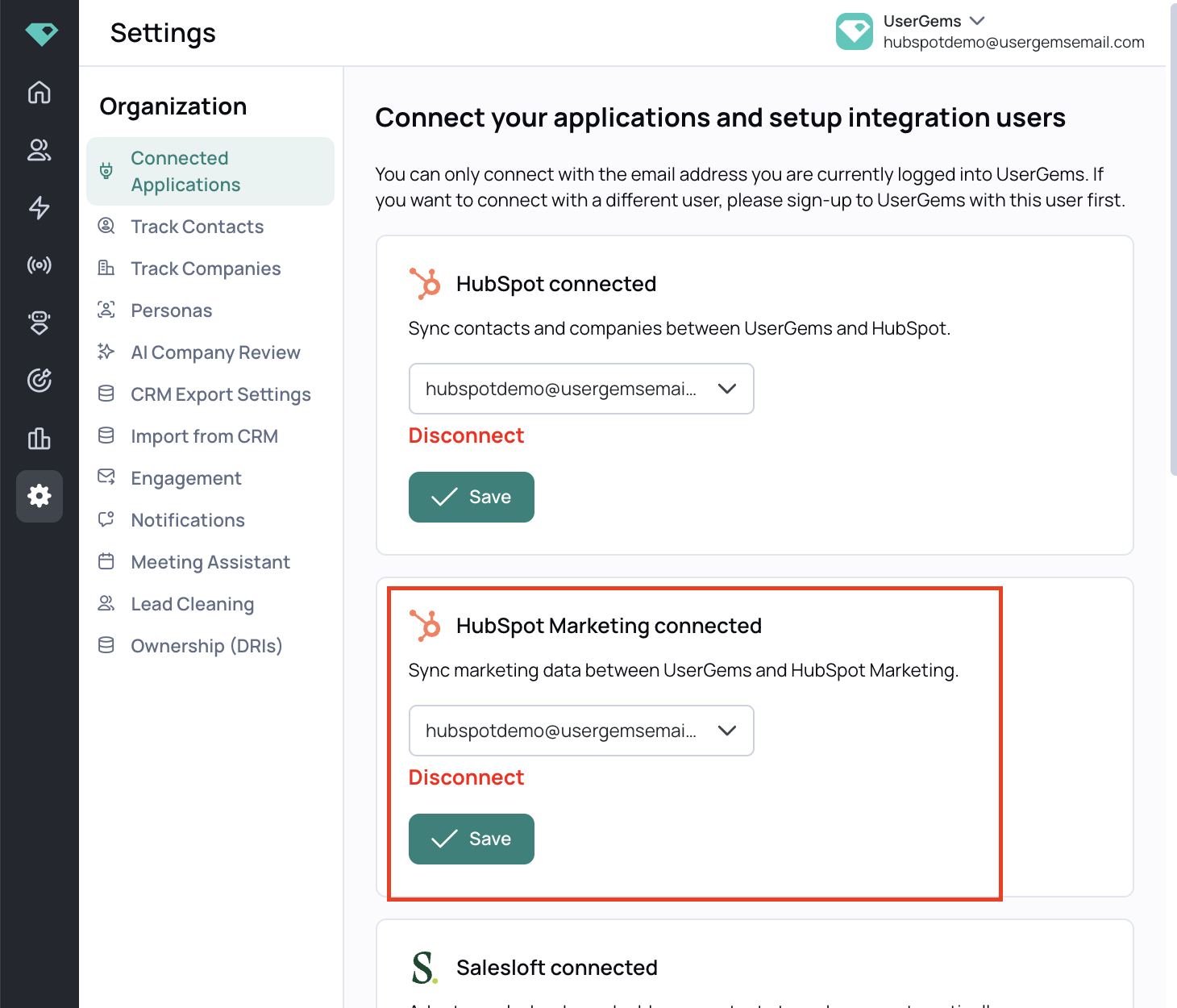
Sign in to HubSpot when prompted — you'll be redirected back to UserGems once the connection is complete. Note: You may need a HubSpot admin to help make this connection.
How to Configure It
The signal panel is labeled HubSpot Marketing Emails. You'll configure three settings (example below):
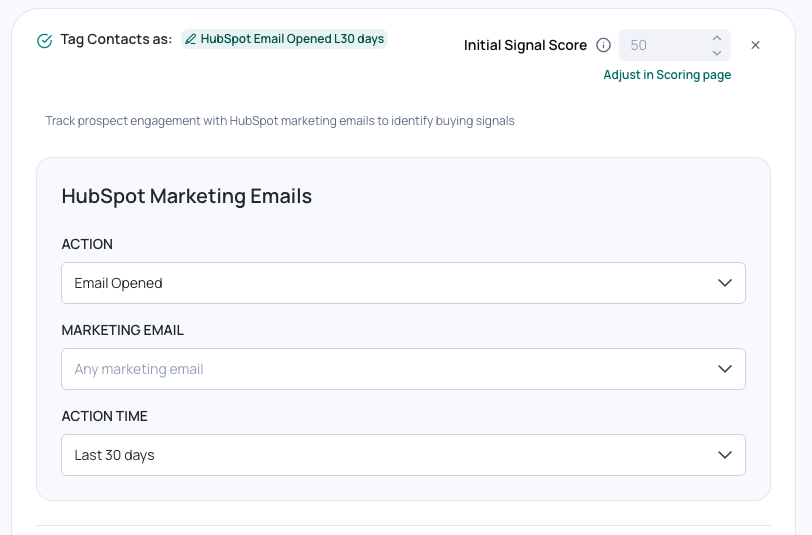
1. Action
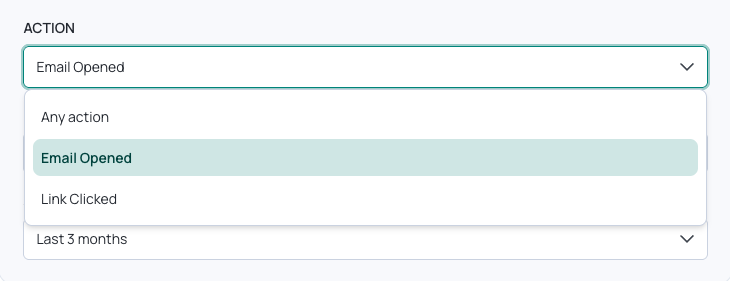
Select the type of engagement to track:
- Any action — captures both opens and clicks
- Email Opened
- Link Clicked
📝 Reply is not yet available for this signal. It's on the roadmap and will be added in a future update. See Coming Soon below.
2. Marketing Email (Optional)
Filter the signal to one or more specific HubSpot marketing emails, or leave it set to Any marketing email to capture engagement across all your marketing sends.
All marketing emails from your connected HubSpot account are available in the dropdown. If left blank, the signal fires for engagement with any email.
3. Action Time
Set the lookback window for engagement. Defaults to Any time.
A tighter window (e.g., Last 30 days) surfaces contacts who engaged recently. A wider window captures a broader history — useful when you want to score contacts who engaged with marketing emails over a longer period.
The live summary at the bottom of the panel reflects your current configuration — for example:
Trigger when a prospect’s action is Email Opened in a HubSpot marketing email, any marketing email, last 30 days
Trigger when a prospect’s action is Link Clicked in a HubSpot marketing email, any marketing email, last 30 days
Creating Multiple Signals
The recommended approach is to create separate signal instances for different action types and campaign categories, each with its own score.
Separate opens from clicks. A link click is a much stronger signal of intent than an email open. Give clicks a meaningfully higher score than opens so your prioritization reflects actual engagement.
Example setup:
- Instance 1: Link Clicked, new prospect campaigns, Last 30 days → highest score
- Instance 2: Email Opened, new prospect campaigns, Last 30 days → mid score
- Instance 3: Any action, customer success or product update campaigns → low score (or exclude entirely)
Segment by campaign type. Not all marketing emails represent the same kind of engagement. We recommend creating separate signals for new prospect campaigns vs. existing customer communications. A prospect opening your demand generation email is a buying signal. An existing customer opening a product update newsletter is not. Mixing them inflates scores for accounts that don't warrant it.
Example setup:
- Instance 1: Any action, Marketing email = prospect facing newsletter → highest score
- Instance 2: Any action, Marketing email = customer facing newsletter→ low score (or exclude entirely)
Click + Add HubSpot Marketing Email Engagement signal at the bottom of the panel to add another instance.

How It Connects to Scoring and Buying Stages
Once activated, this signal feeds directly into your Contact and Account Scoring and Buying Stages. This is the primary value of the signal — not to trigger direct outreach on its own, but to make your prioritization smarter.
Scoring: When a contact matches the signal criteria, they receive the point value you set, which rolls up into their contact score and contributes to the overall account score. For a full breakdown of how scoring works, see Company Scoring.
Buying Stages: This signal is mapped to the Interest stage by default, meaning an account where a contact engages with your marketing emails will move to at least Interest in your Buying Stages view. You can configure the exact Minimum Stage mapping in ICP & Scoring → Scoring by enabling the signal for Buying Stages For more on how Buying Stages work, see Buying Stages.
Tips and Best Practices
💡 Don't use this signal in isolation. Marketing email engagement on its own — especially an email open — doesn't tell you enough to warrant reaching out. The signal is best suited for influencing your Contact and Account Scoring and Buying Stages, not as a standalone trigger for outreach. Stack it with other signals to surface accounts where engagement is part of a larger pattern.
Separate opens from clicks. Opens are a weak signal; clicks are stronger. Create separate instances with different scores so your prioritization reflects actual intent rather than treating both the same.
Segment new prospect emails from customer communications. If your team uses HubSpot to send both prospect-facing campaigns and customer success or product update emails, score them differently — or don't score customer emails at all. Commingling them inflates the scores of accounts that aren't actually in a buying motion.
Use tighter time windows for active campaigns. Last 30 days keeps your audiences fresh and avoids surfacing contacts who engaged with a campaign months ago and have since gone cold.
Combine with other signals. A contact who clicked a link in your marketing email and also visited your pricing page is a very different prospect from someone who just opened one email. Stacking signals is best practice when creating audiences.
Replace manual custom signals with this native one. If your custom signal was set up via a manual CSV upload, here’s how to migrate to this native one:
- Create a new HubSpot Marketing Email Engagement Signal instance scoped to the same action type and email(s) as your existing custom signal.
- Update any audiences currently using the custom signal to use the new native signal instead.
- Delete the custom signal once all audiences have been updated.
The native signal stays automatically in sync with HubSpot — no manual exports, no stale data — and comes with sensible scoring defaults out of the box.
If you already have a live HubSpot CRM connection syncing marketing email data into UserGems, you can consider keeping it — migration is optional as long as the data is updating regularly.