

Research Agent lets you ask a question about your accounts in plain English and get back a structured, sourced answer — researched from publicly available web sources, across your entire account list or TAM, without anyone on your team doing the digging.
Answers come back as structured fields rather than paragraphs: a yes/no you can filter on, a date you can sort by, a value from a list you defined, and the source URL it came from.
Why it matters
The research your team actually needs is usually findable — it's just not worth anyone's afternoon. Looking up whether one company has an office in the Bay Area takes two minutes. Doing it across 500 target accounts is a week nobody has, so it doesn't get done, and campaigns go out generic.
Research Agent does that work across your whole list and hands the answers back in a form the rest of UserGems can use.
Why not just ask ChatGPT or Claude?
You can. Ask your favorite AI tool the same research question and it'll fetch the information — probably do a decent job of it.
What it won't do is feed that answer into your messaging, your scoring model, or your audiences. It isn't integrated with your go-to-market motion, so you end up stitching things together by hand: export the results, clean them up, re-import them, paste them into a sequence.
Research Agent is purpose-built for B2B go-to-market, so your research doesn't live in a silo. The moment a research finishes, its answers become a signal you can filter an audience on, weight in your scoring model, and pull into the Writing Agent so it shapes the actual message.
A real example. Our team does a lot of gifting, and we like to send gifts to outbound teams where they actually work. Rather than having reps look up office addresses company by company, we have Research Agent find the address for every account on the list — and then feed it straight into the messaging.
The difference isn't whether the answer can be found. It's whether the answer does anything once you have it.
Where to find it
Research Agent lives in two places:
- The Research tab — run research across a report, account type, or audience, either once or on a cadence
- Inside a campaign — add it as a workflow action to research accounts one at a time, as they enter the campaign
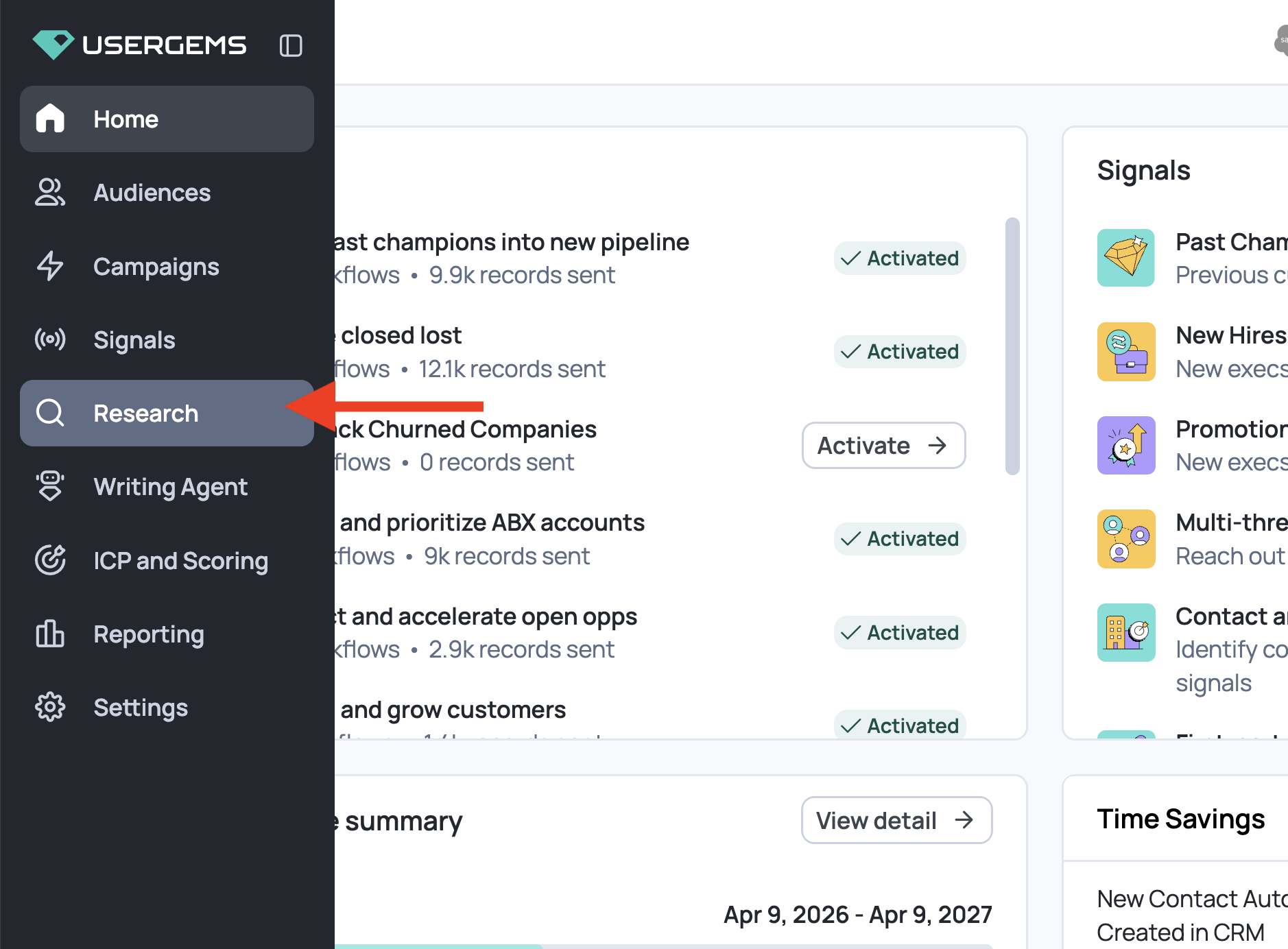
Navigating the page
When you open Research, you'll see your totals across the top — researches, companies researched, and questions answered — plus every research you've built, filterable by All · Draft · Preview · In progress · Done.
Inside a research, the screen is split:
- Left side — chat with Gem-E. Describe what you want and it builds the research for you.
- Right side — manual mode. Build and edit every field yourself.

Both drive the same research. You can switch between them at any point mid-build.
Not sure where to start? Type / in the chat and choose What can you do for a quick tour of what Research Agent handles.
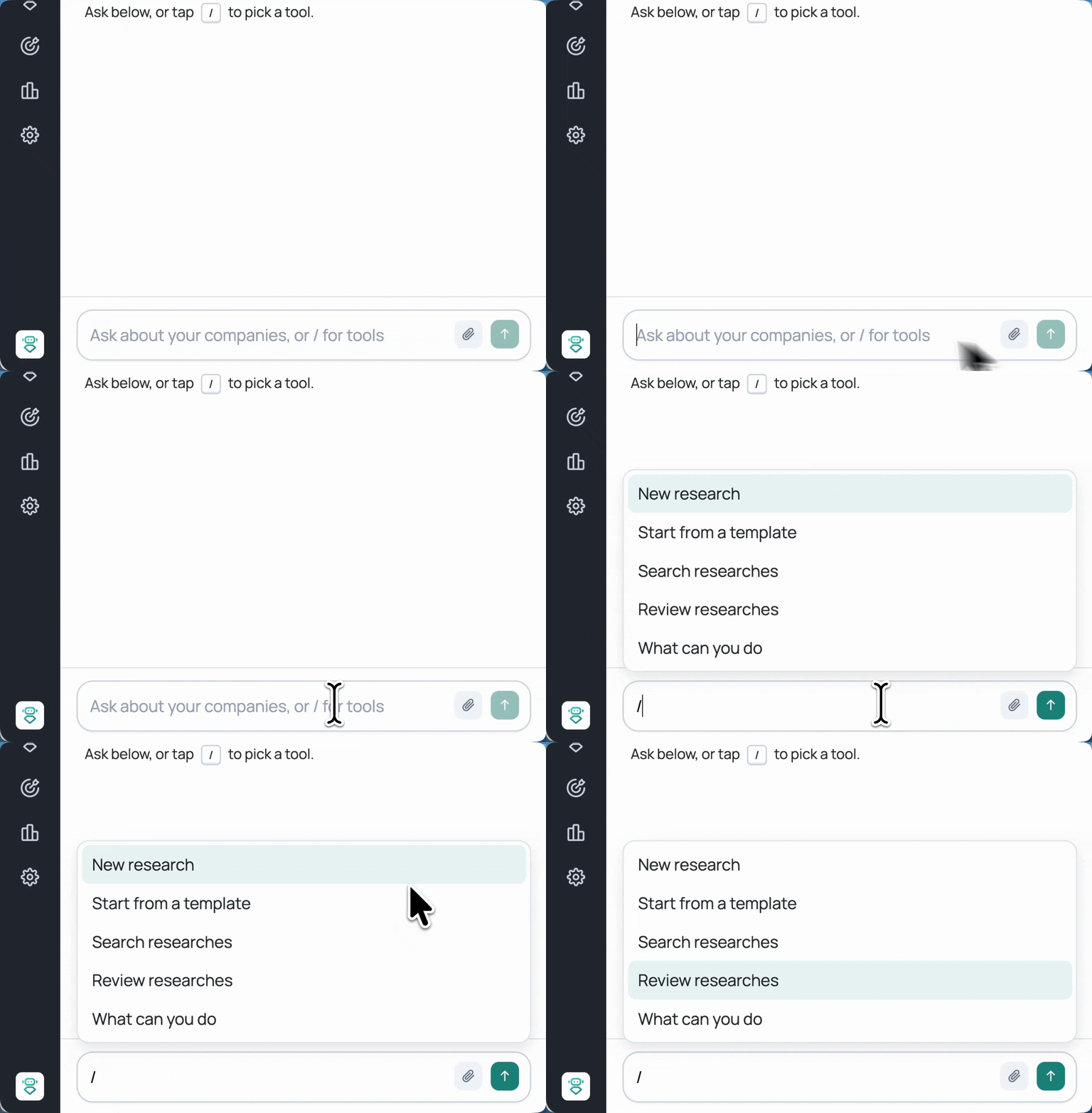
⚠️ The version of Research Agent inside a campaign does not have the chat panel. There, you build the research manually, or select a pre-existing research to run.

How to set up a research
Step 1 — Start your research
There are two ways to kick off a research:
- Assisted (recommended) — describe your question in the chat and Gem-E turns it into a research brief, with clear instructions on where to look and in what order. You can also type / and choose New research or Start from a template.
- Manual mode — type your question straight into the Research Prompt field on the right. That sentence becomes your prompt, word for word. Nothing is added to it or optimized.
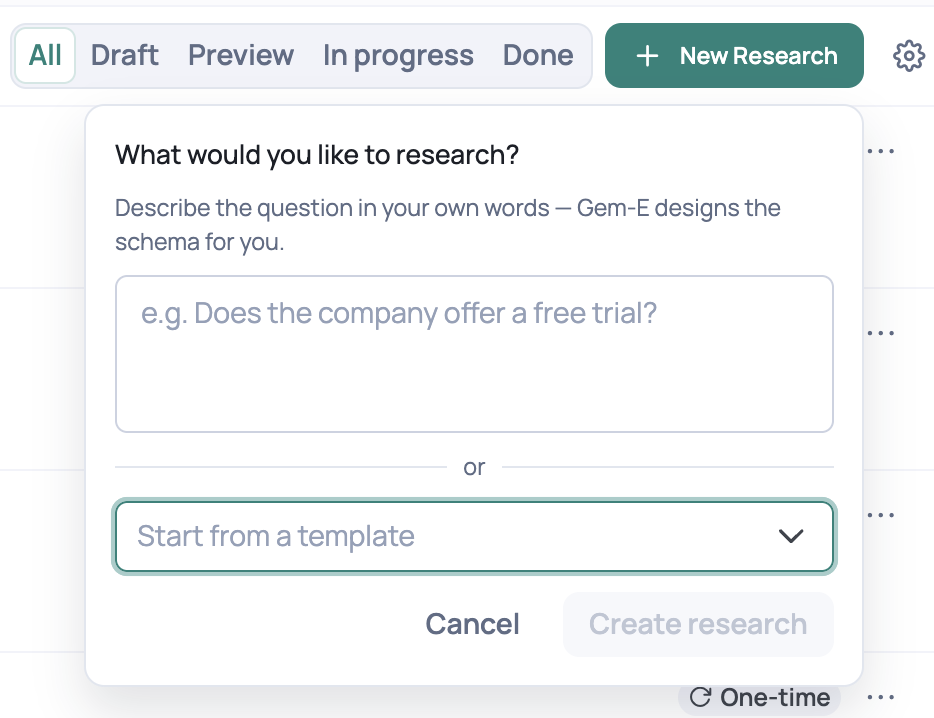
To get started either way, click + New Research in the top right of the Research page. You'll be asked to describe what you want to research in your own words, or to start from a saved template.

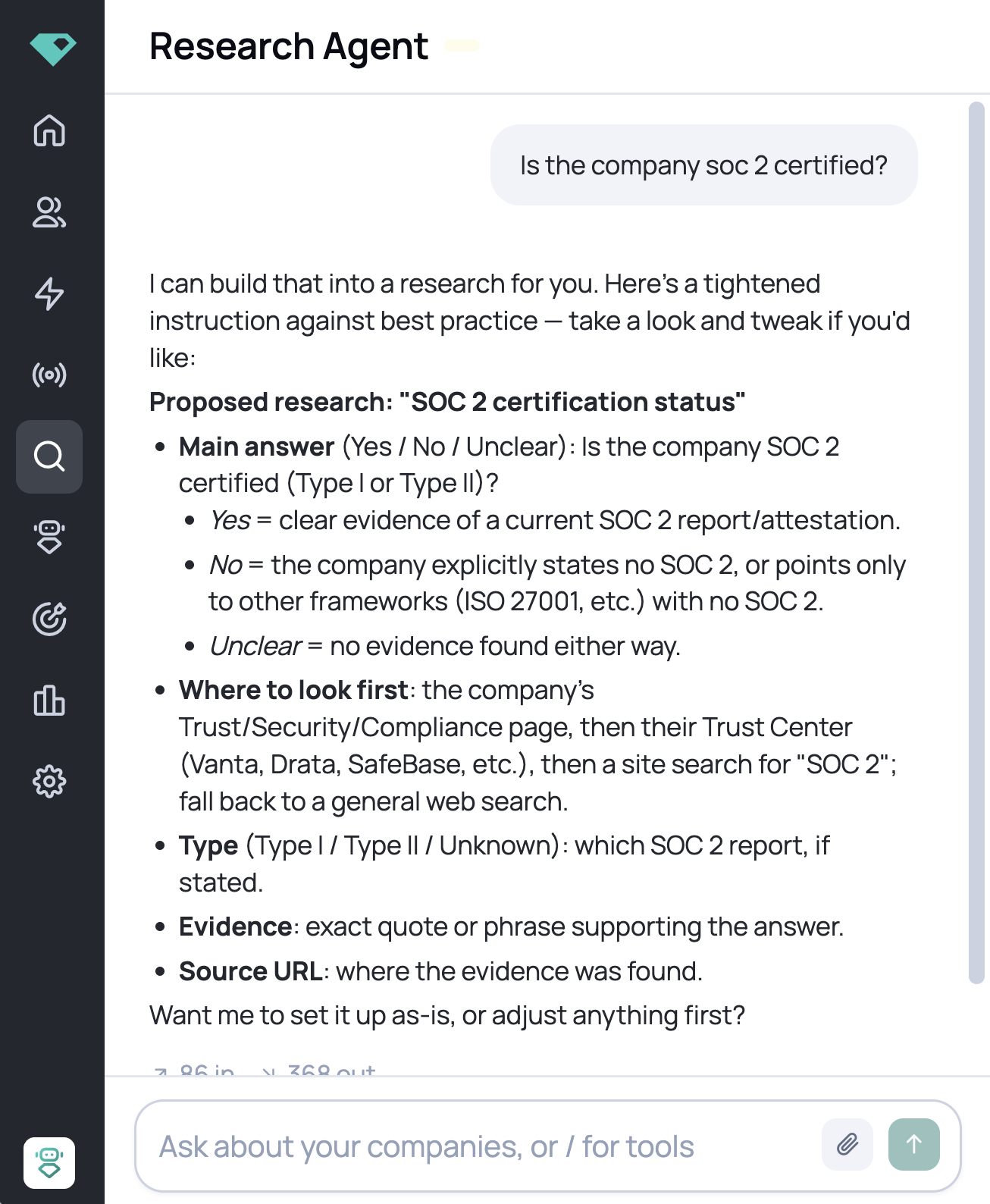
What assisted mode actually does
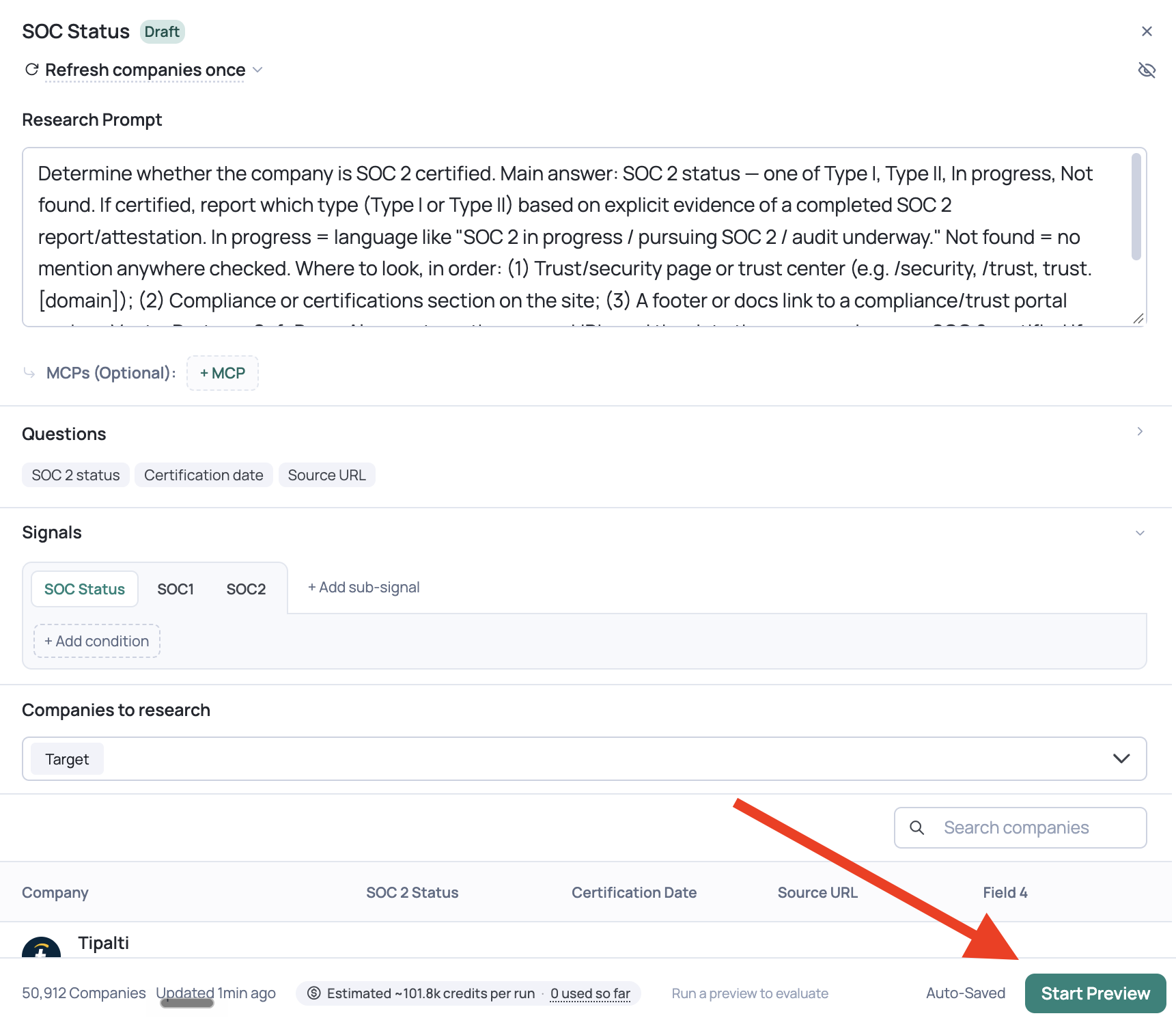
The difference is easiest to see with a real example. Ask "Is this company SOC 2 certified?" in assisted mode, and Gem-E comes back with where to look, in priority order (trust or security page → compliance section → a footer or docs link to a compliance portal); a main answer constrained to Certified / In progress / Not found; plus SOC 2 type, an evidence quote, and the source URL.
In manual mode, that same prompt stays a single sentence. Assisted turns it into a research brief — explicit instructions on the best path to the information, which is what produces reliable answers at scale.
Starting from a template
If you've already built a research that works well, save it as a template so you don't have to rebuild the prompt and questions from scratch every time.
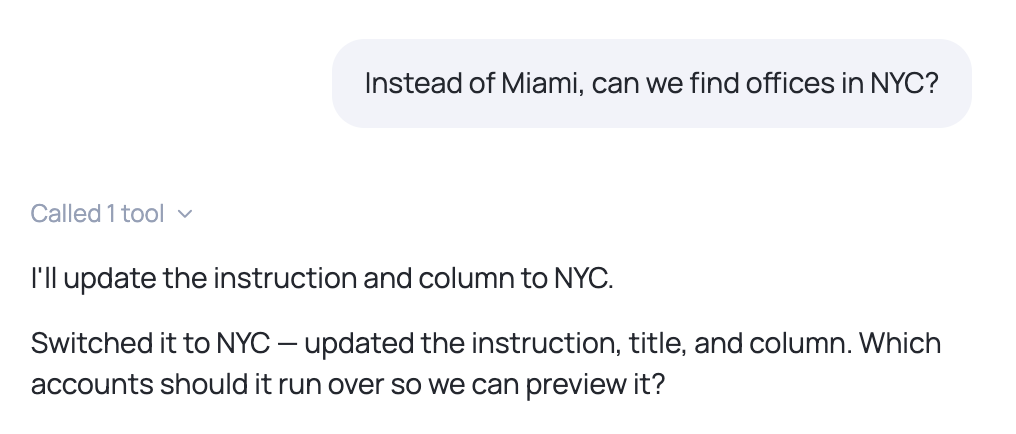
Templates are most useful when the structure stays identical and only one detail changes. You've perfected a research for companies with offices in Miami — now you want the same thing for Seattle. Rather than rewriting the prompt, every question, and every description by hand, you start from what already works.
To use one:
- Click + New Research
- Choose Start from a template and pick the research you want to reuse
- Click Create research — the full prompt and questions copy in
From there, tell the chat what to change rather than editing each field yourself. Ask it to "change Miami to Seattle" and it updates the prompt, the questions, and the descriptions in a single pass.
You can save any research as a template with Add to templates, and manage your saved ones in Admin → Manage Templates.
Step 2 — Refine your research questions
Once you're happy with your prompt — the instructions telling Gem-E what to go find, and how — the next thing to look at is your research questions.
Your research questions are the individual fields that structure the research as it finds your answers.
Ask about SOC 2 certification and you don't get a paragraph back. You get separate fields — one for the certification status, one for the type, one for the date, one for the source URL.

That structure is what turns your research prompt into usable data, which can then be fed into signal creation and become actionable.
What a research question is made up of
Every research question has three parts:
- The question — the name of the field, e.g. SOC 2 status
- The description — what you're telling the agent this field should contain, e.g. "Overall SOC 2 status of the company based on explicit evidence"
- The field type — the shape the answer is allowed to take
All three matter. The question names it, the description tells the agent what counts, and the field type determines what you can do with the answer afterward.
Understanding the field types
The field type is what makes an answer usable downstream. A yes/no can be filtered. A date can be sorted and windowed. A constrained list can be segmented into sub-signals. Free text can't do any of those — it's for when you want the answer captured word for word.
Pick the type based on what you plan to do with the answer, not just what the answer looks like.
- Yes/No — a clean binary you can filter and score on
- Text — open answers, evidence quotes, source URLs — anything you want verbatim
- Number — counts, sizes, amounts
- Date — when something happened, so you can sort and set recency windows
- List of options — constrains the answer to a fixed set you define
Reach for List of options whenever you plan to filter or segment on the result. Constraining an answer to Certified / In progress / Not found is far more useful downstream than free text that might come back twelve different ways.
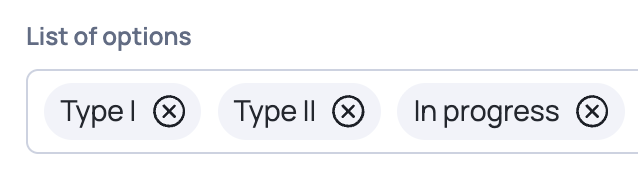
When you use assisted mode, Gem-E writes the questions, descriptions, and field types for you automatically. You don't have to build any of this yourself.
Two ways to change your research
Once Gem-E has created your structured research questions, you might want to adjust them. There are two ways to do it. Say you want to collapse two questions into one and drop a field you don't need.
Manually — click into each question, rewrite the description yourself, remove the options you don't want, and delete the field. Use + Add question to add new ones. Best for small, precise edits.
Through chat (recommended) — describe the change and Gem-E does the rewriting for you:
"Truncate the first two questions — if certified, just say which type. Remove the evidence quote and keep the source URL. Add a question for when they became certified."
It updates the descriptions, collapses the options list, and adds the new field — no manual editing required.
📝 Everything saves as a draft automatically. Closing your browser won't lose your work — pick it back up from the Research tab.
Step 3 — Choose your companies and cadence
Once your research questions are set, decide which accounts to research and how often it should run.
First, decide how often it should run
Select the dropdown at the top of the right panel (under your research title) to change your frequency.
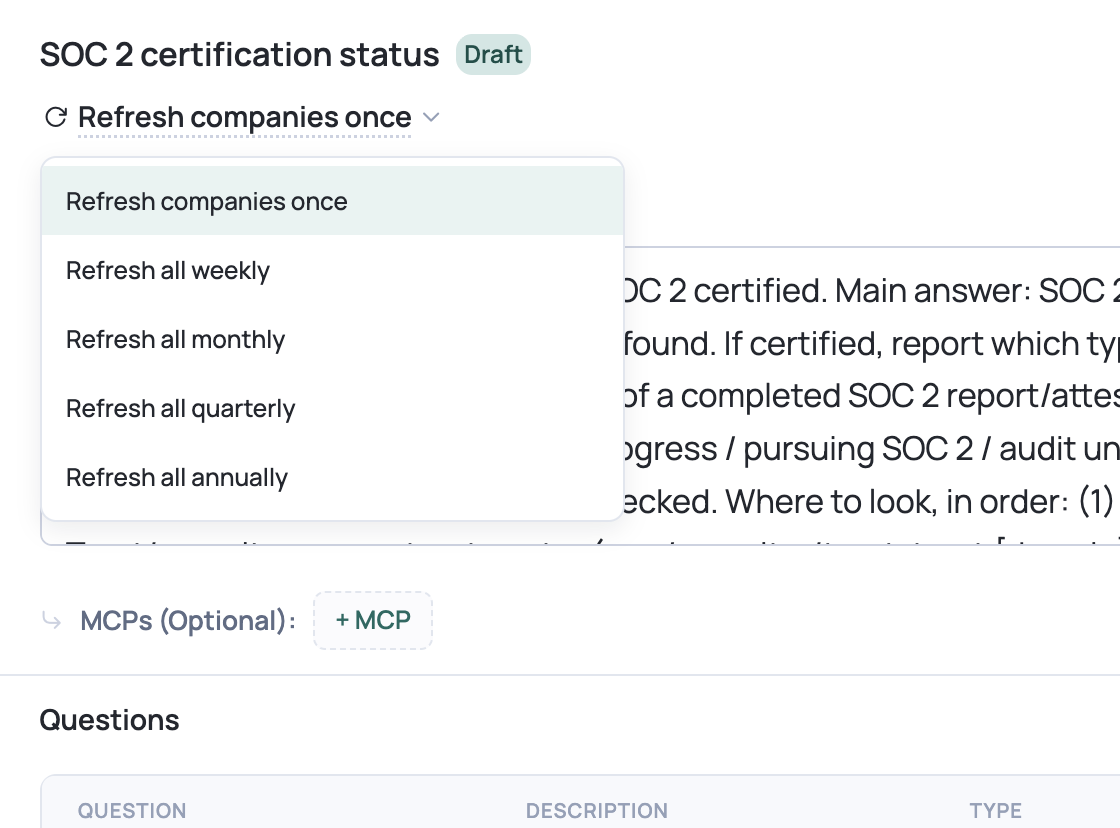
Researches can be run one time or on a cadence. Here's how to decide.
Does the answer decide who belongs in an audience, or how you talk to people already in one? If it decides who belongs, research it ahead of time across your list. If it only shapes how you talk to people already entering a campaign, use just-in-time research instead.
Then: how fast does the answer go stale?
- Is this company B2B or B2C? — never goes stale, decides the audience → Refresh once
- Do they have a Bay Area office? — rarely goes stale, decides the audience → Refresh once
- Are they SOC 2 certified? — goes stale annually, decides either → Annually
- Are they hosting or sponsoring an event? — goes stale monthly, decides both → Monthly
Why B2B/B2C is a Refresh once: it feeds your account scoring. You might never want a B2C company reaching a campaign audience at all — every company draws that line differently — so the research needs to happen upstream of the audience, not while a campaign is running.
Why Bay Area offices is too: if you're running a campaign specifically to invite people in the Bay Area to an event, everyone in that audience should have a confirmed Bay Area office before the campaign goes out — not discovered mid-send.
⚠️ "Refresh once" doesn't mean run once and stop. It means each account is researched a single time — and new accounts that enter the list later get researched automatically as they're added. Nothing already researched is paid for twice.
A recurring cadence works differently: weekly, monthly, quarterly, and annually re-research the entire list every cycle, including accounts whose answers haven't changed. If the answer rarely changes, choose Refresh once and let new accounts flow in. Save a recurring cadence for answers that genuinely go stale.
Then pick which accounts to research
You can research either:
- Reports — select one or more
- Account Types — Competitor, Customer, Disqualified, Open Opp, Other, Signal, Target
- Audiences

To research accounts individually as they enter a campaign, use just-in-time research instead — covered further down this article.
Step 4 — Turn your research into signals
Research questions shape the answer. Signals make the answer usable.
Turn your research into a signal to:
- Influence your scoring model
- Create and shape audiences
- Pull the result into the Writing Agent's messaging
📝 The Signals section only appears after you've selected companies and clicked Save & Continue in Step 3. If you don't see it yet, that's why.
The first tab will always be the main signal. Here you can leave the condition blank if you'd like the tag to show for every account researched on the list.
⚠️ Naming. A signal takes its name from the research itself, and you can't change it until the research has run. After that, rename it from the Signals page. Sub-signals you create can be named and renamed freely at any time.
Sub-signals
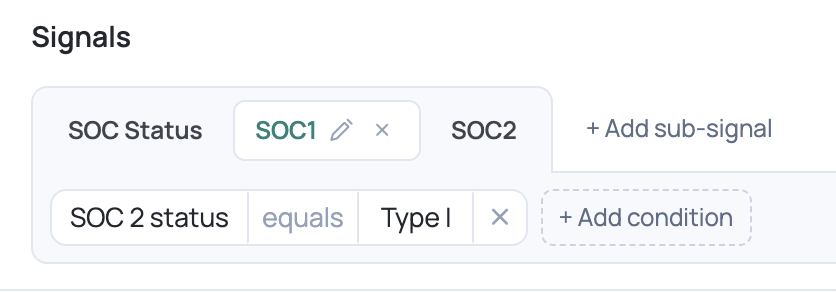
Sub-signals split one research field into segments you can filter separately — so a single SOC 2 research becomes distinct Type I and Type II signals you can target independently.
To add one: click + Add sub-signal, name it, then set the condition (field + operator + value).
Step 5 — Preview and check quality
⚠️ Always run a preview before committing to a full run.
Once you've completed the steps above, click Start Preview to preview your research.
Preview runs on 10 accounts by default. You can also search and pick specific ones — ideally companies whose answers you already know, so you can check the output against what you expect.
For each company you'll see the steps it took (planning, searching, scraping), the source URL, the structured answer broken out by field, and a references snippet showing the exact text it pulled.
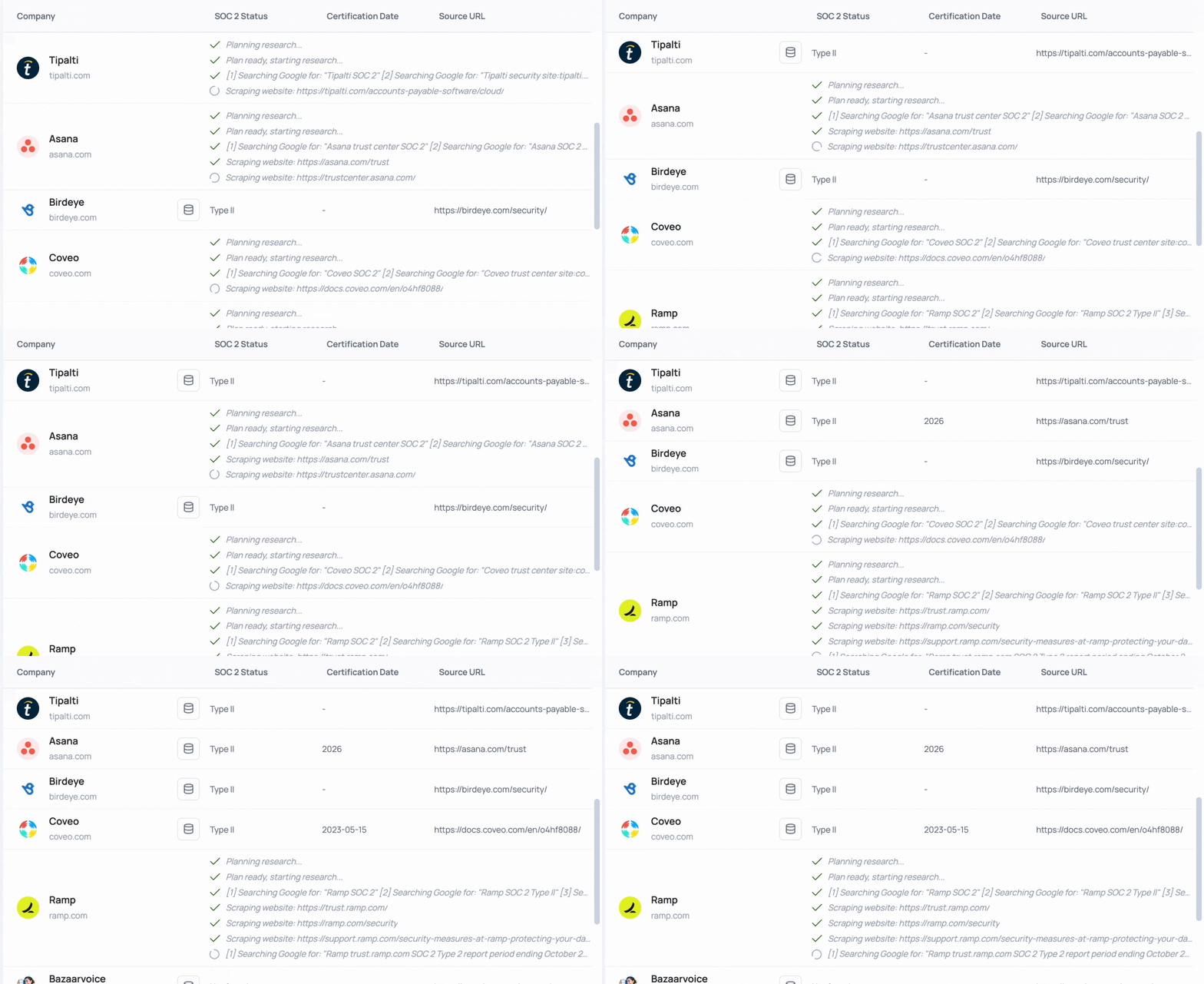
⚠️ Don't navigate away while a preview is running — leaving the draft resets it.
Reading the quality score
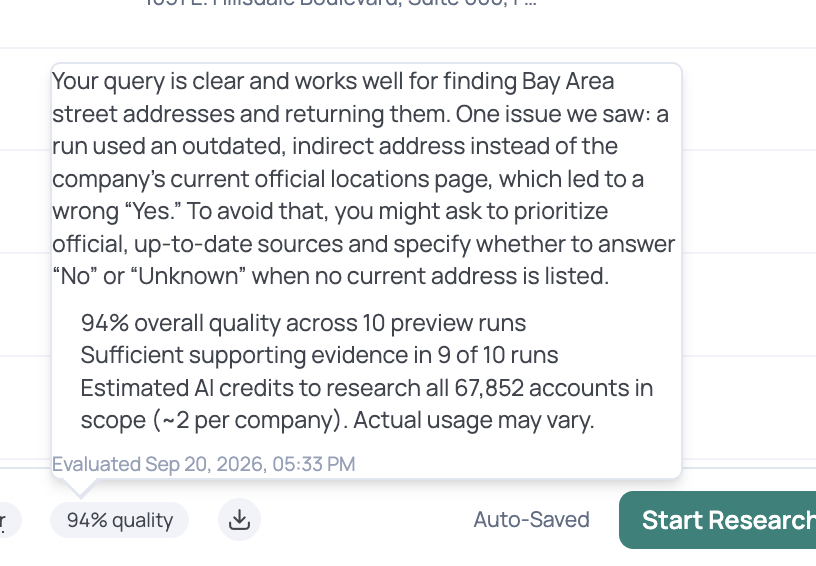
Each preview produces a quality score — a confidence measure of how reliably Research Agent can find this answer at scale. You'll find it in the bottom status bar; it only appears after your preview has run.
The closer to 100%, the more dependable the results will be across your full list.
Improving this research
If the score came back lower than you'd like, don't rewrite the prompt blind. Ask the agent what's wrong with it.
Hover the quality score. If it's low, you'll see what's pulling it down.
Or ask Gem-E directly in the chat — "How can I improve the answers to my research?" — and it will read through your preview runs and come back with specific fixes.
From there: tighten the instruction, re-run the preview, and compare. Iterate until you're satisfied.
⚠️ There's currently no undo after you accept a suggested edit, and drafts auto-save. If you want to keep a version, copy the prompt somewhere before making big changes.
There's a ceiling on what prompting can fix. If your reps could find the answer manually, Research Agent can find it too. If it's gated behind a login, a paywall, or a private system, no amount of prompt tuning will reach it — the question simply isn't researchable from public sources, and it's worth asking a different one.
Step 6 — Run it across all accounts
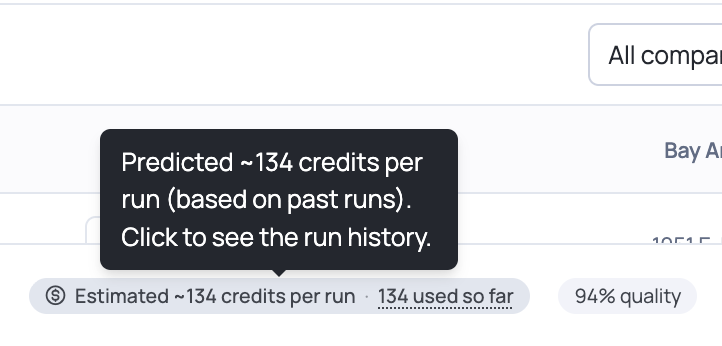
Click Save & process all accounts. You'll see an estimate of the credits the run will consume, calculated from your preview — type the number exactly as shown to confirm.
You can leave the page while it processes, and you can stop processing at any point after it begins.
Results typically appear within a few hours, and up to 24 depending on the size of your list and the complexity of your questions.
Once complete, results live directly on your accounts. Hover a signal to see the full research output, including the source URL and the referenced snippet.
Just-in-time research (inside a campaign)
Everything above runs across a list. This is the alternative: research that runs for one account at a time, as it enters a campaign.
When to use it
- The answer only matters for accounts actually entering this campaign
- Researching your whole TAM to get it would be waste
- You want the result feeding the Writing Agent so it shapes the message
Setting it up
- Go to Campaigns and open the campaign
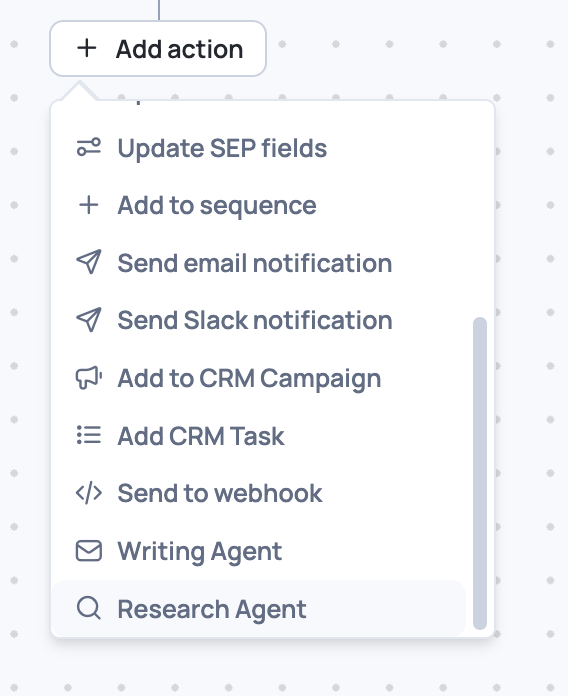
- Click Add Action and choose Research Agent
- Place the action above the Writing Agent, so its output reaches your messaging
Two ways to configure it
Create from scratch — opens the same builder you'd use in the Research tab.
Use an existing research — copies one of your saved researches in, still fully editable from there.
The research runs on that campaign's audience only, and names itself after the campaign.
⚠️ We recommend using an existing research rather than creating one from scratch in this view — in the Research tab you have the option to chat with Gem-E in assisted mode.
Best practices: how to action your research
A finished research isn't doing anything for you until it's wired in. The easiest way to work out where it belongs is to run through three questions:
- Is this something used to define an audience?
- Should this impact our scoring model?
- Should it impact messaging?
The answer is often more than one of the three.
⚠️ After your research finishes processing, give it a little time to update before pulling it into any of these. Results can take a few hours to fully populate.
Scoring model
When to use it: the research should change how accounts are prioritized.
What it looks like: whether a company is B2B or B2C changes how much you care about it, so that answer should move the account's score.
How to do it: go to the Scoring page and assign a score to your research signal, plus any sub-signals you've created.
For the full walkthrough, see Company Scoring.
Writing Agent messaging
When to use it: the research is meant to personalize your messaging.
What it looks like: you're going after accounts hosting events this summer, and you want your outreach to mention you noticed they're hosting a specific one.
How to do it: go to the Writing Agent and set up a signal playbook, then write the signal instructions for that playbook telling it how to use the research in the message.
For the full walkthrough, see The Writing Agent.
Audiences
When to use it: the research is meant to shape who you go after.
What it looks like: every company with an office in a specific area, for a location-based campaign.
How to do it: create an audience and pull your research signal in as a filter.
For the full walkthrough, see Audiences & Campaigns.
Making it visible to your reps
If the research affects messaging, your reps probably want to see it on the account.
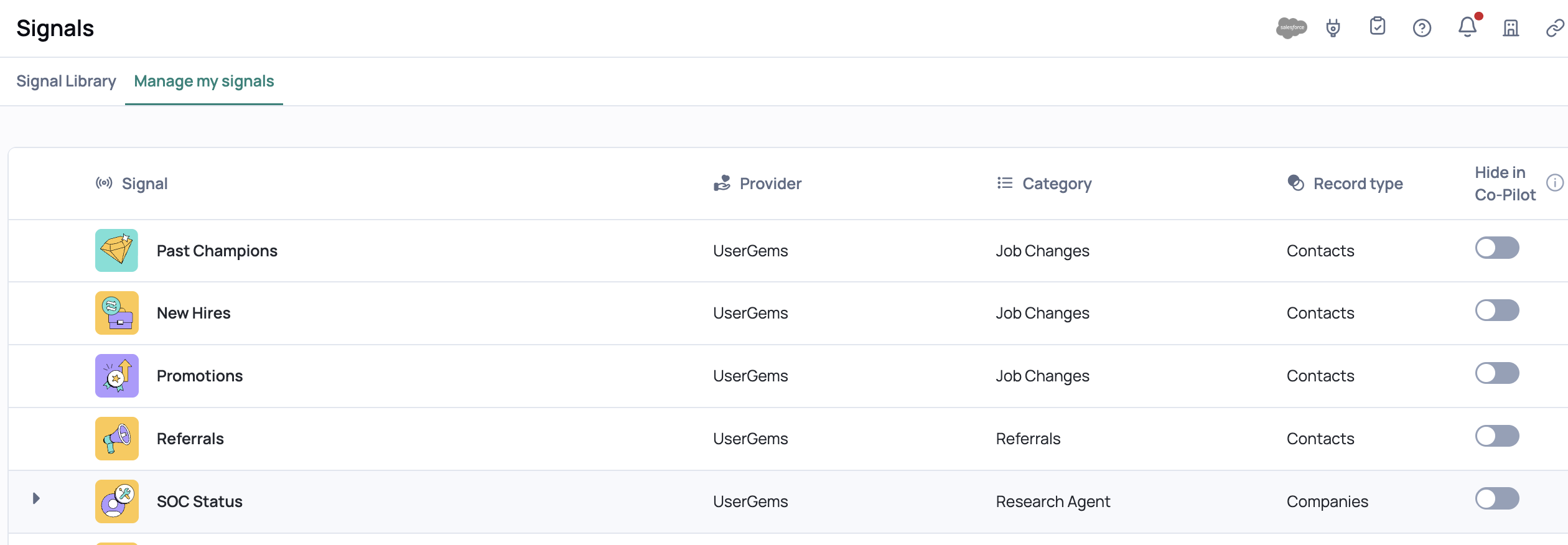
Show the signal — go to Signals → Manage Signals and toggle whether that signal appears in the Chrome extension.
Pin the research — click the star icon to pin it, so reps can open the full research detail rather than just seeing the signal fire.
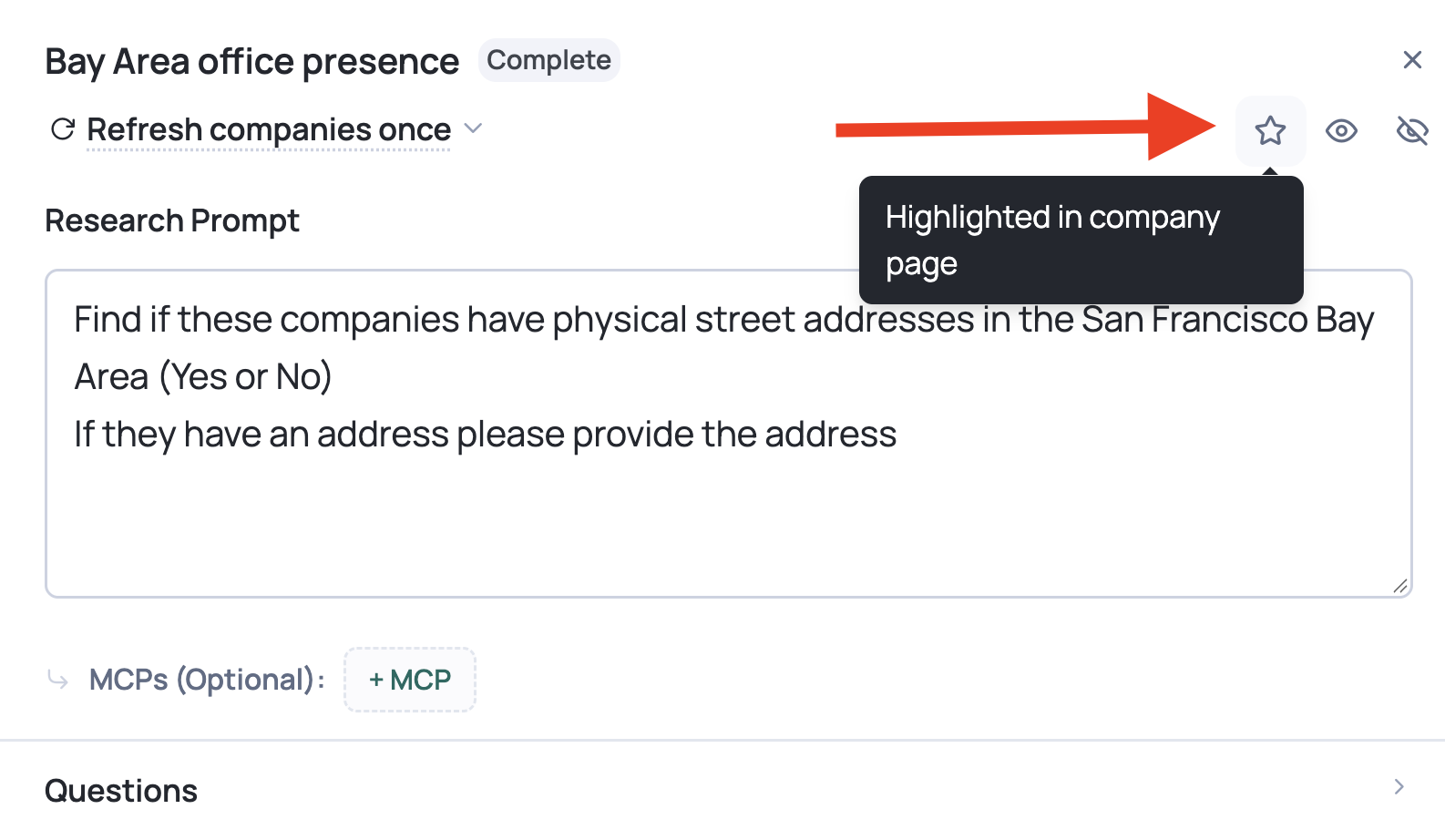
What to pin and what to leave alone. Pin a research when reps need the underlying detail to write a good message — the evidence quote, the source, the specifics. For something as simple as they have an office in the Bay Area, the signal on its own tells them everything they need, and pinning it just adds clutter.
For more on what reps see, check out the UserGems Copilot Chrome Extension article.
Credit usage
Research Agent draws from your existing UserGems credits. There's no separate pool.
What drives cost
- Focused prompts cost less. Unrelated questions in a single prompt spin off separate sub-researches, which consume more credits and produce messier answers. Split genuinely unrelated questions into separate researches.
- Recurring research shows cost per run, not a one-time total.
- Re-running consumes credits again. Results are a snapshot in time, so refreshing counts as a new run.
Reviewing your usage
To see what Research Agent is costing you across every research, go to your profile → Credit usage and find the breakdown by feature. Full details in the Credit Usage Page article.
Managing your researches
- Search — from the / menu or the search bar at the top of the Research page
- Filter — by All, Draft, Preview, In progress, or Done
- Archive — click the gear icon and choose archived researches; archived items stay searchable
- Templates — save any research as a template to reuse it, and manage your saved ones in Admin → Manage Templates

Auditing all of your researches
Once you've built up a handful of researches, it's easy to lose track of which ones are half-finished, which previews came back weak, and which are duplicates you meant to clean up.
Type / in the chat and choose Review researches. It reads across everything you've built and groups it by what needs attention:
- Drafts you haven't previewed yet
- Previews strong enough to run in full
- Previews that need work before running
- Completed researches you haven't turned into signals
- Anything stale or duplicated worth archiving
This is the portfolio view. To fix one specific research whose score came back low, see Improving this research in Step 5.
FAQs
Can Research Agent research any question I ask about a company?
As a rule of thumb: if you could find the information manually on the public web, Research Agent can likely find it too. The best way to check is to run a preview on a small set of accounts whose answers you already know.
What if it can't find an answer for a company?
The field is left empty. Research Agent won't guess or fabricate an answer.
Can I use an Audience instead of a Report?
Yes. Research Agent supports Reports, Audiences, and Account Types.
Can I edit a research after it's been processed?
Yes — you can edit the prompt, change the questions, re-run a preview, and reprocess at any time. Keep in mind that reprocessing consumes credits again.
Does Research Agent support contact-level research?
Not yet. The current version researches companies. Contact-level research is on the roadmap.
Can the Writing Agent use my Research Agent signals in messaging?
Yes. Create a conditional instruction block in your Writing Agent content that references the signal and tells it how to use the result.